Updating Firmware on Dell

Instruction to Install Firmware Update on Dell

(Instructions are for Latitude 3310)

    Plug in Power Cable, flash drive, and turn on laptop and press F12 repeatedly. 

    Use Down Arrow-Under Other Options find BIOS Flash Update - Press Enter
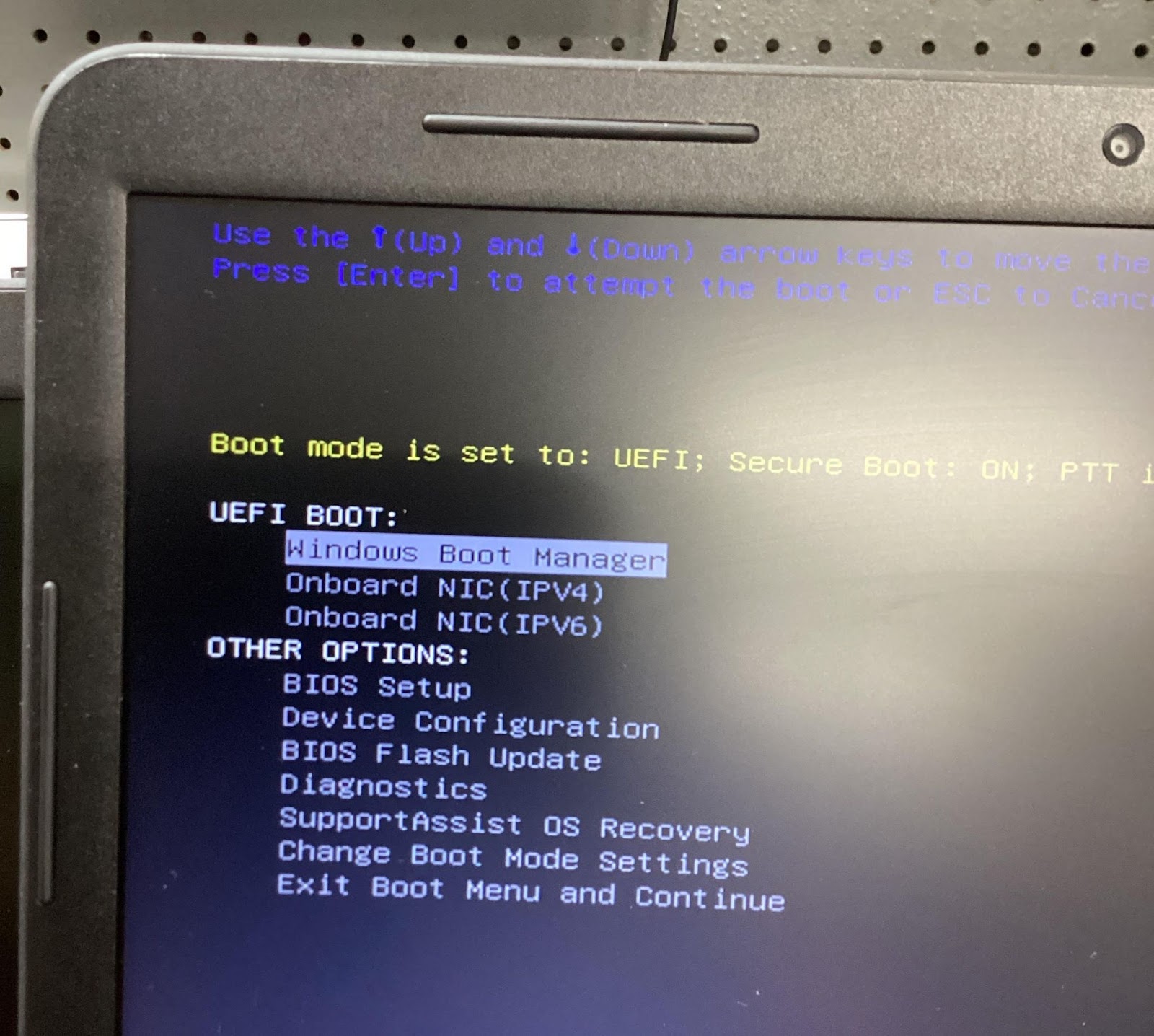
    _XIhxUK1ulpeUxHeX1w5edwHNs1t6BBIA1Z2vqtmDQ1apNjCCGzm_5xO395zS0enRFOZogKUBUSSBED3bMlPY4A7hv5Xn7UUxyN9A9NwWQwKy8BONMu1caVDxNbLRvRSfwqoIzcB2l0bX-DQ5Vxkdhw

       Click Gray Box at top of screen reen (has 3 dashes or dots)
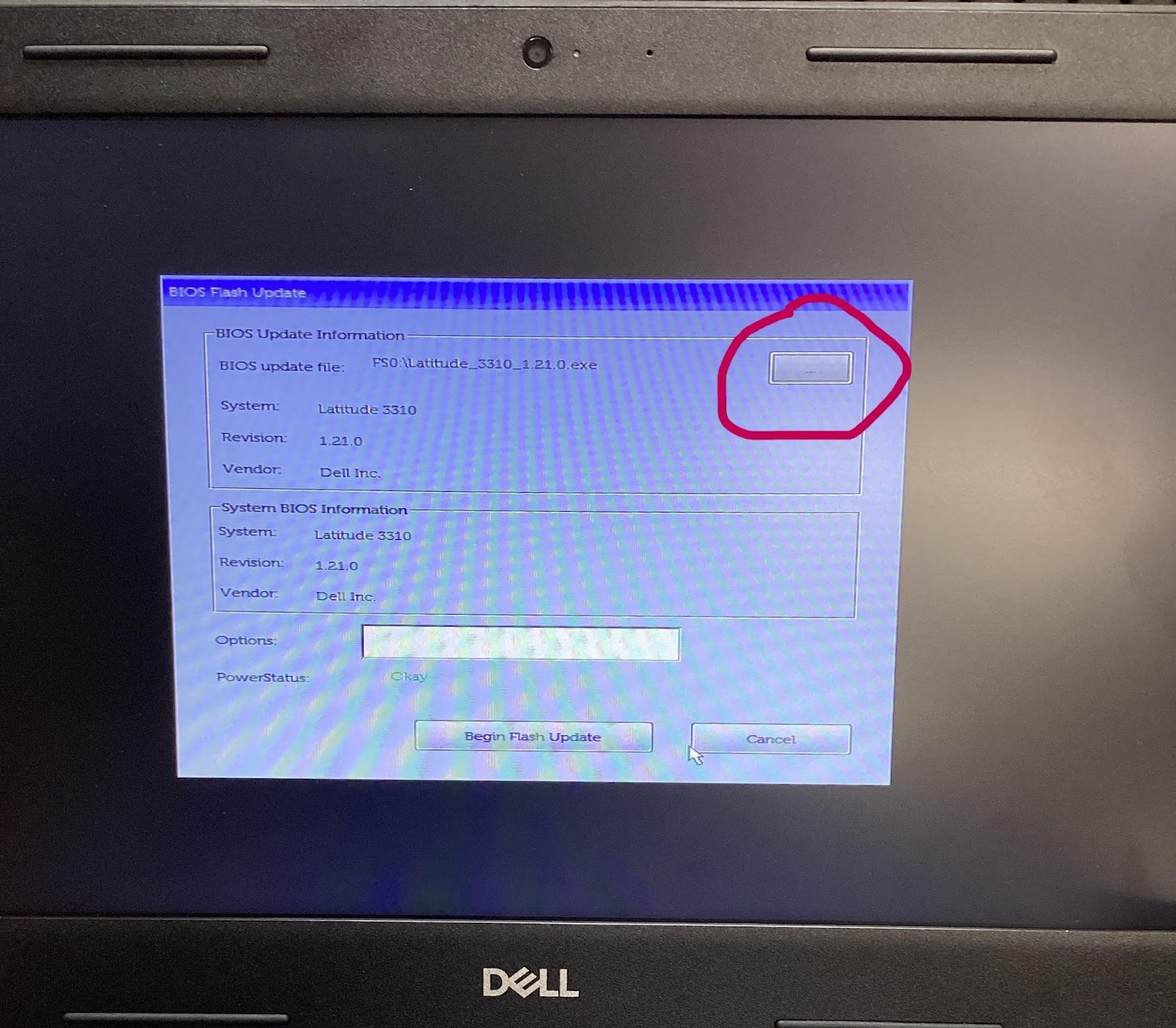
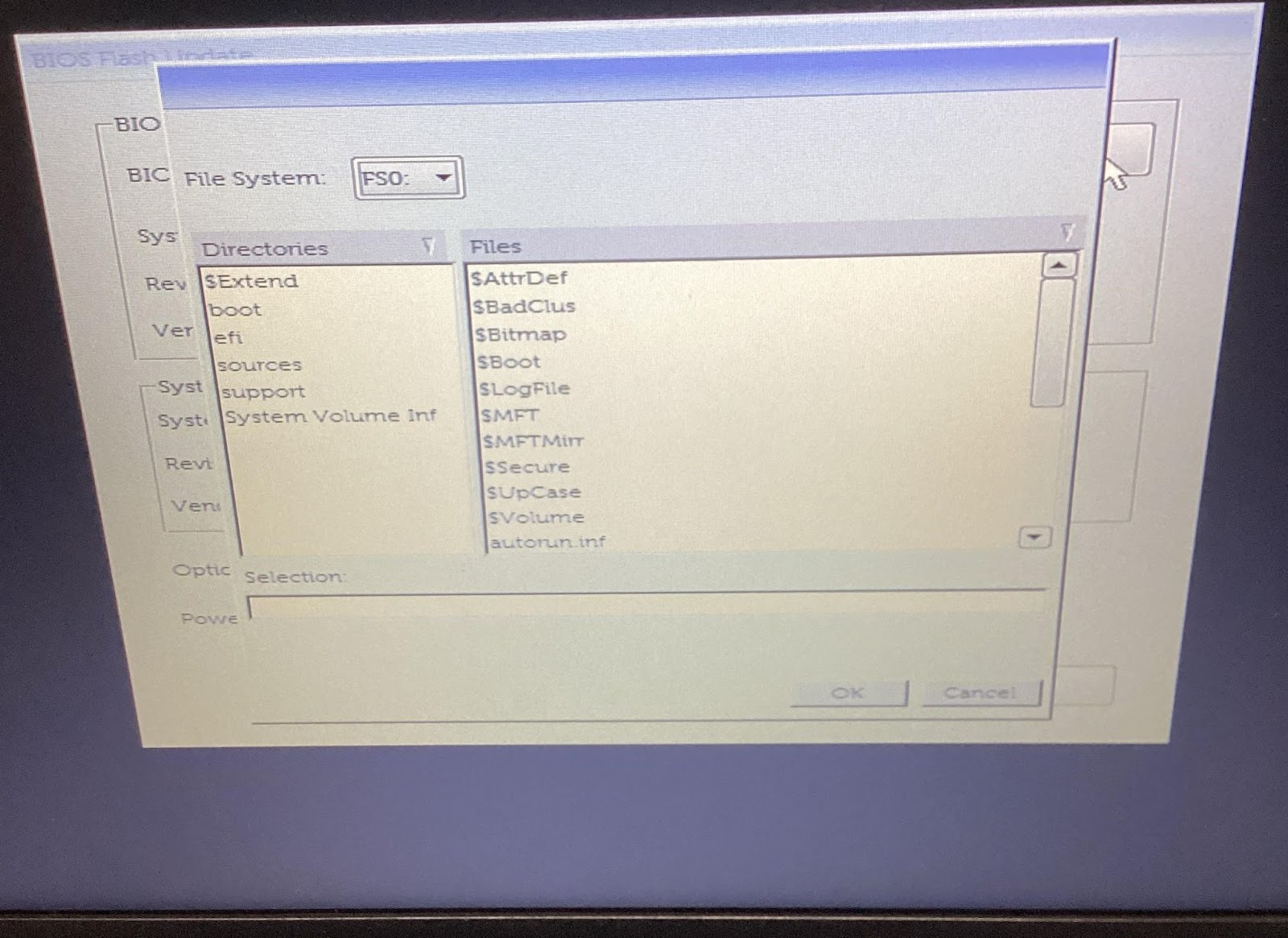
      V5HIEoFS_0PogP40rIUIh2zThm8ceqn0NfK501DkB6JuGv88s5wOIlkjhIbnWPVuJEfivuxqYWyLo8E4UiaXyVhTiiXjvYt90aFSAFOwJSxF_gZVlPgE7kWu6eq3SdvLD09KwyWKX-20hMHgaoLstJ4

        First Option is FS0

        nuCr6R83XZzRGHRpwcvSQsPMmGsh8Nu62YEFw3xgKPYjl5zKZ96ikYOcWVMASN6jARTpTh2yrkVEHJYVSM4tTL0bafYQCUcyivSUi1AEaRqadxWavzWL6pf38ryUMQ5jff_qLShAb0JiAAULA3KhZ0c

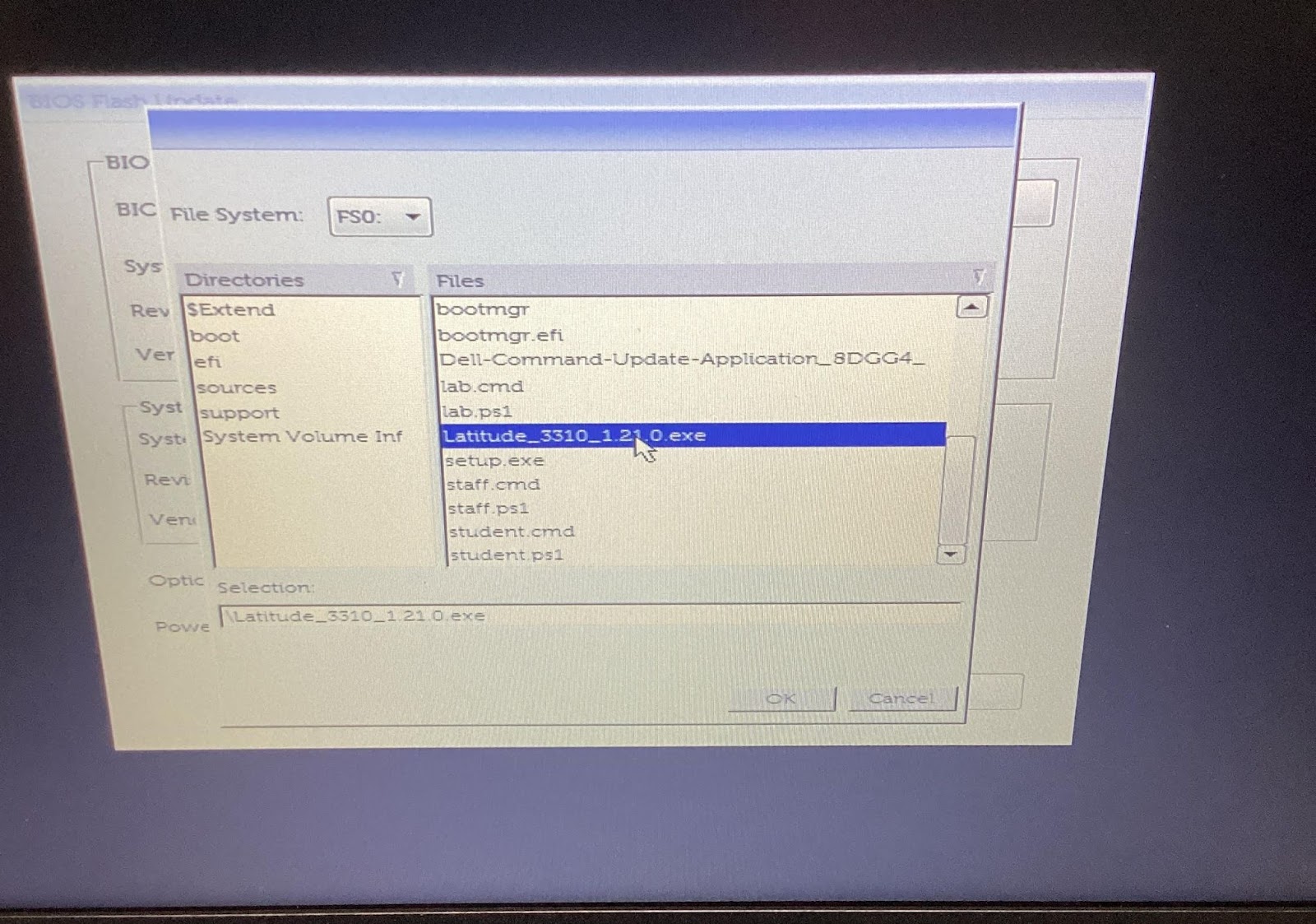
          Go to the bottom of the list. Select Latitude_3310_1.22.0.exe and click OK. If doing an different model make sure you have the correct firmware for that model. If you don’t see the exe on FS0 go through FS1, FS2, etc to find it.
           rja0yDW7KBBYD-VXL9-Cu5eI_tVbLUt1N-edmN0CgYlVhDjKewPfyPGMn0GSqxsHL_NgfWVoiRSnFJj715vtWQKLfqxJvl4m0jzUvJGWKCUHxNL3Yt9xND5rQXnOVVogsgq-V5OihmAZvAICfj6UP5k

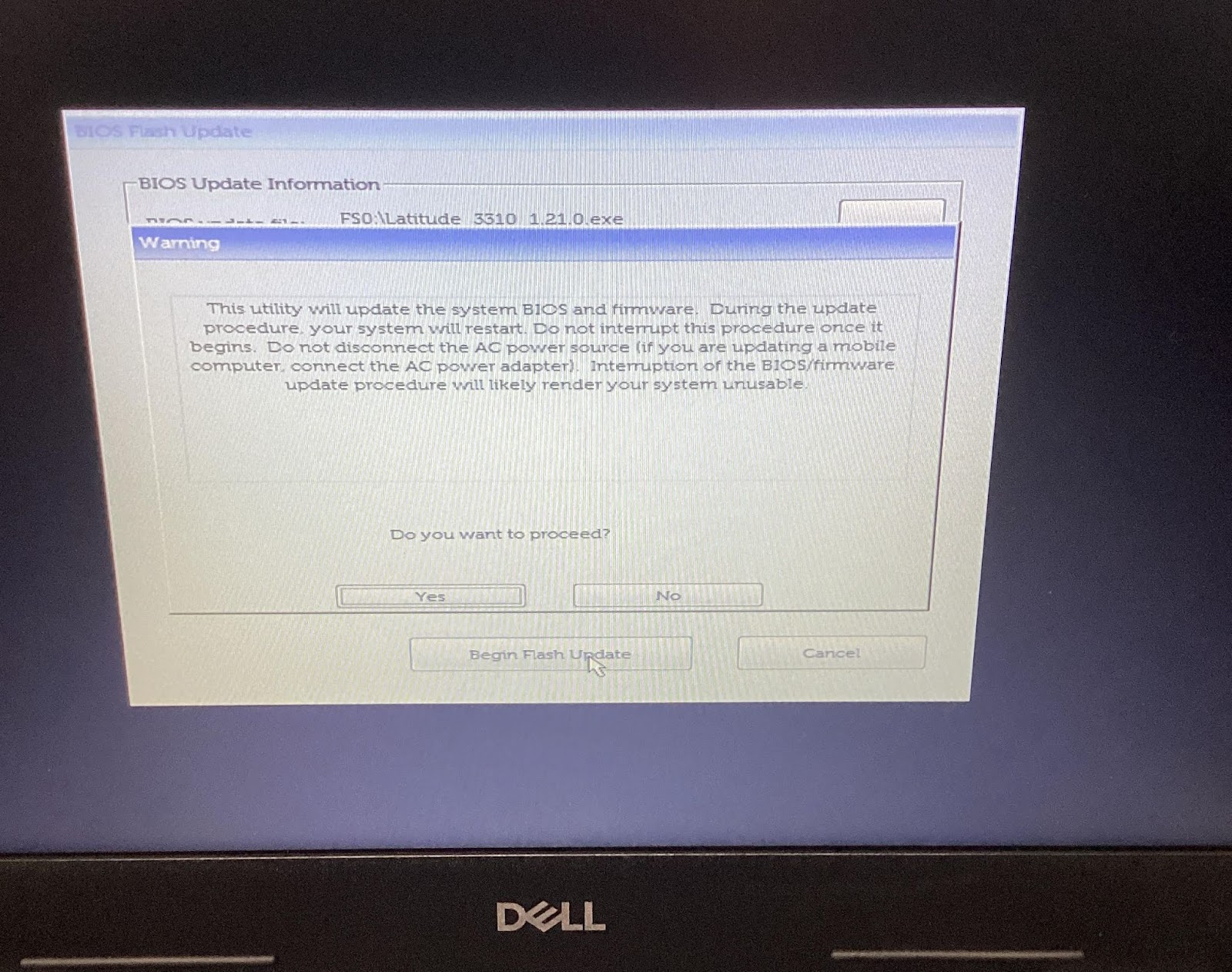
            There will be a message to please wait. 

            There will be a message to ask if you are sure. Press YesNCGCbR_Q1AchutPWu5Odw3NG0xtMQfJNyH0kCyoUE0p8CaPdXhlEdMJ62gWJY3EyeM2O0d8cDo5bJEbHM9UdYlA00QsiDKRuaUnIh4jouAPzQhvP-GgJw5ODoQhcIU3uJlzlqt7tSo-M2OlGVYBJ3HE

            Laptop will restart

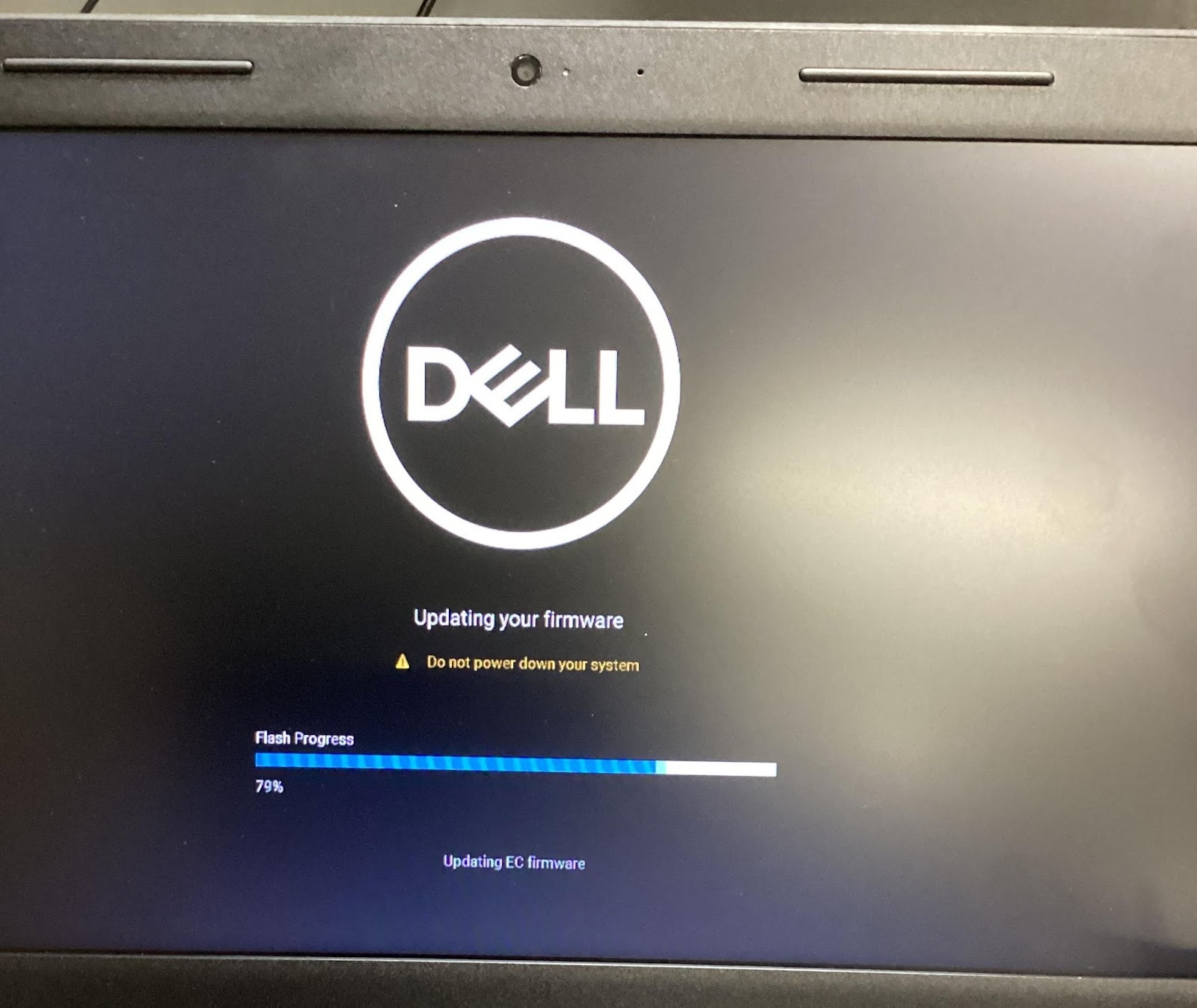
            This is the screen you will be looking for to see the progress. 
            JmMVXhGUjHCGv8ZKj7CDX4SceueD0j4X18w_6bPuKbObbcJ9vWlkM9QUF9XvpY2fWhG_o02XDVwfl-1ztGBIH51u5oAOz81gAqdJ9YD9N0faKEaty3HjCbR9Wiez6LrJv2euh8RDw0g9GMcr6MbzIiY 

              When finished the laptop will restart and it is done.