
How to Use Apple TV
Mirror or extend your Mac display
With Apple TV or an AirPlay 2-compatible smart TV, you can mirror the entire display of your Mac to your TV or use your TV as a separate display.
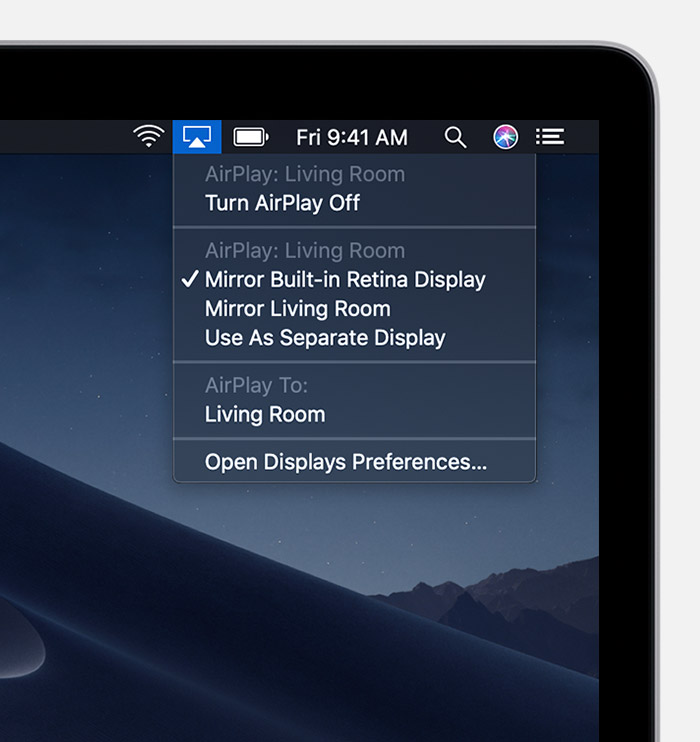
 in the menu bar at the top of your screen. If you don't see , go to Apple menu > System Preferences > Displays, then select "Show mirroring options in the menu bar when available."
Choose your Apple TV or AirPlay 2-compatible smart TV. Need help?
If an AirPlay passcode appears on your TV screen, enter the passcode on your Mac.
in the menu bar at the top of your screen. If you don't see , go to Apple menu > System Preferences > Displays, then select "Show mirroring options in the menu bar when available."
Choose your Apple TV or AirPlay 2-compatible smart TV. Need help?
If an AirPlay passcode appears on your TV screen, enter the passcode on your Mac.
Change settings or stop mirroring
To change the size of your desktop mirrored on your TV, click  in the menu bar. Then select Mirror Built-in Display to match the size of your desktop or Mirror Apple TV to match the size of your TV.
AirPlay also lets you use your TV as a separate display for your Mac. Just click in the menu bar, then select Use As Separate Display.
To stop mirroring or using your TV as a separate display, click in the menu bar, then choose Turn AirPlay Off. Or press the Menu button on your Apple TV Remote.
Learn more about mirroring or extending the display of your Mac.