How to Print with Toshiba Papercut on Mac
The Macbook MUST be on OS Sonoma and the Toshiba Drivers MUST BE INSTALLED FROM MOSYLE MANAGER FIRST OR ELSE THESE STEPS WILL NOT WORK!!
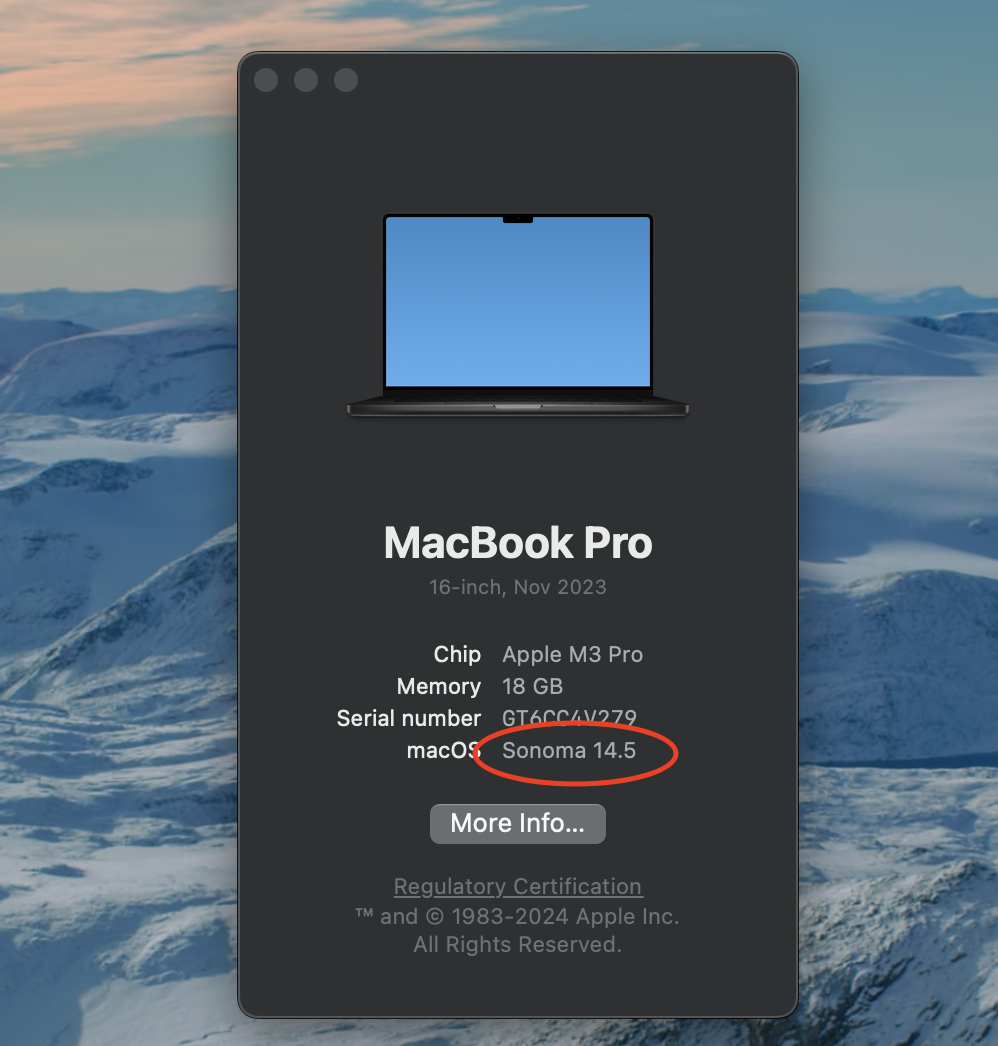
Make sure your Mac is on OS Sonoma
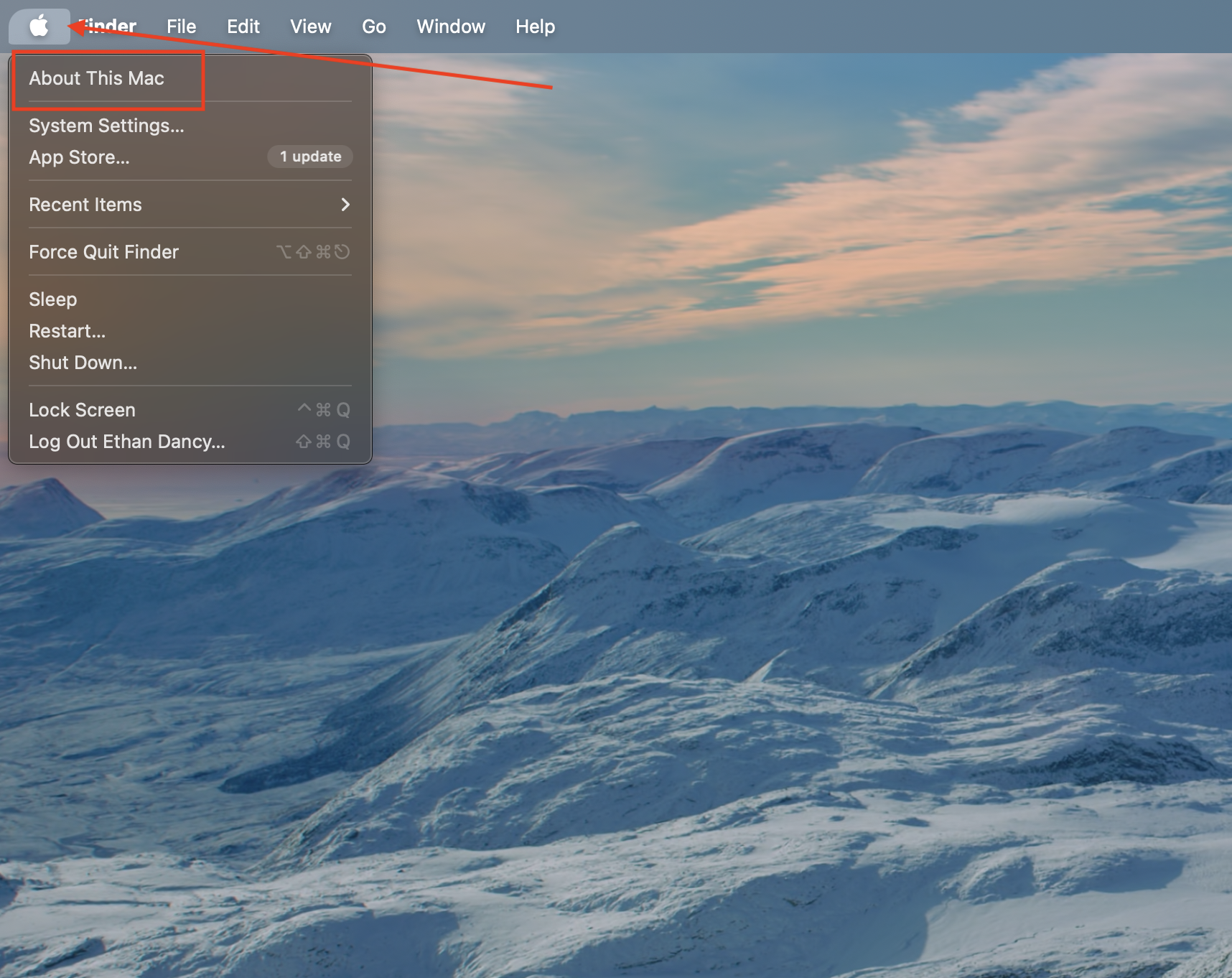
Click About this Mac in the Top Left
If it does not say macOS Sonoma (the version does not matter) then these directions will not work and you need to update your macbook.
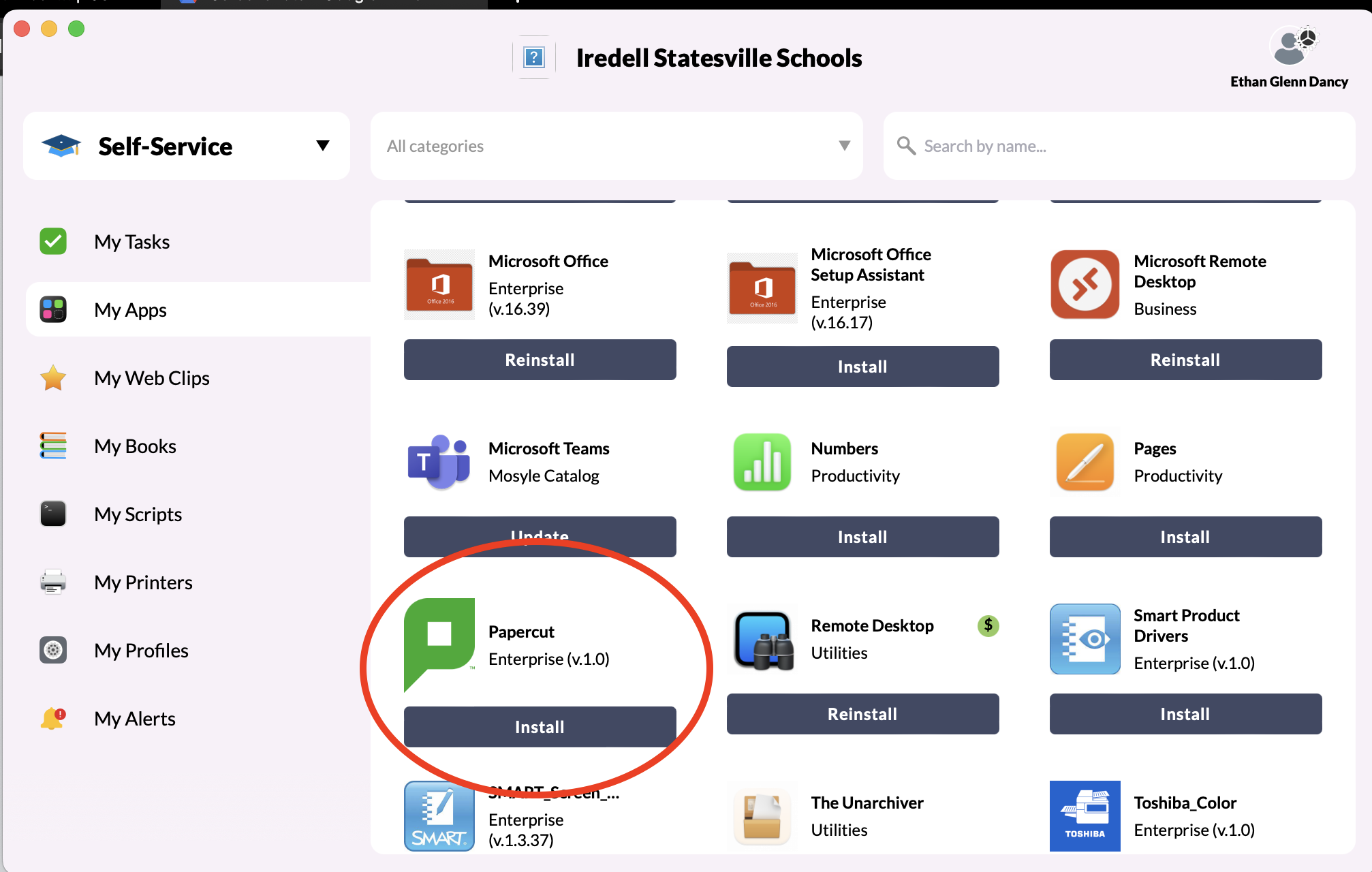
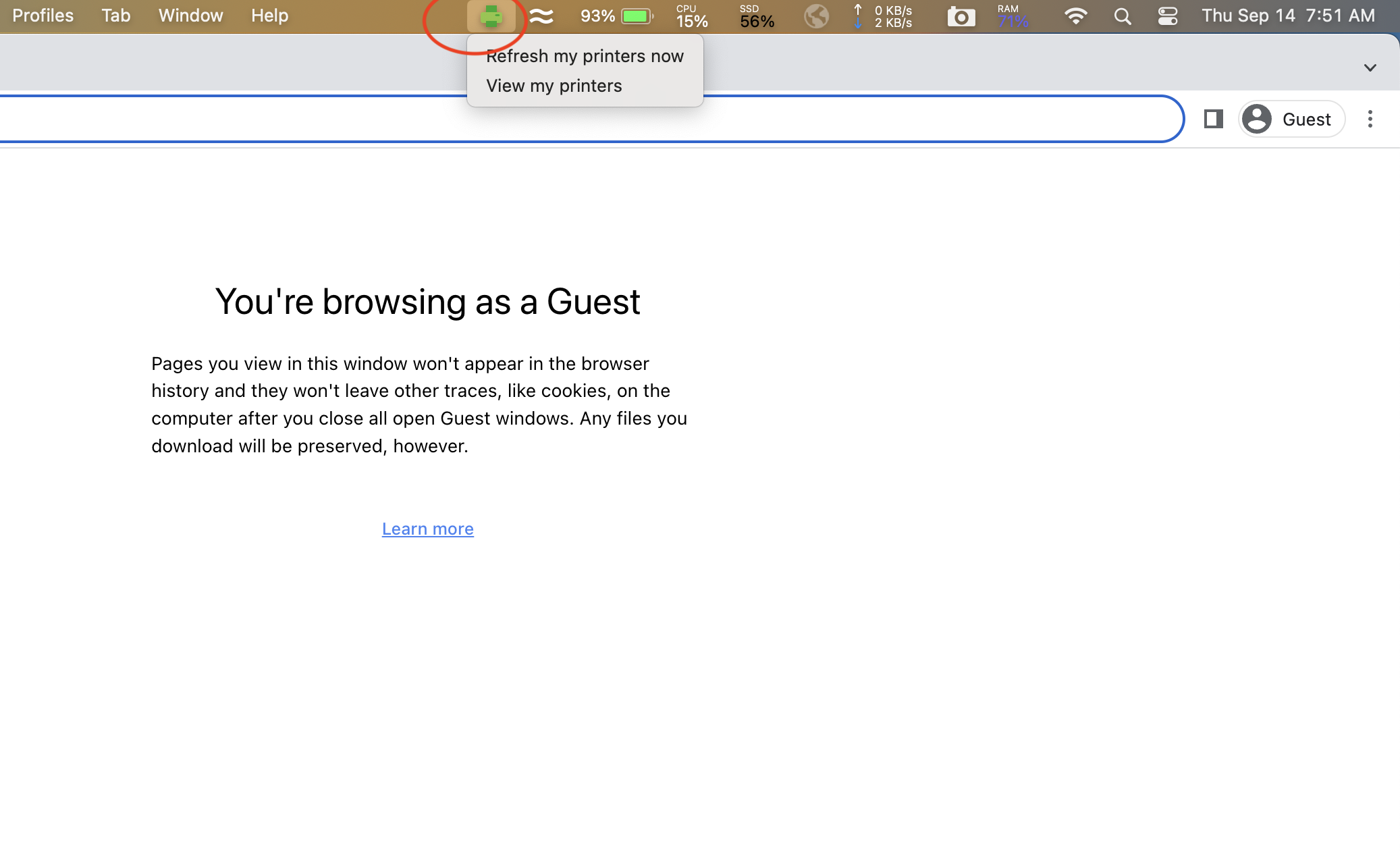
2. After Installing Papercut, you should now have an icon at the top of your screen that is green and looks like a printer. Click on this, and click View My Printers.
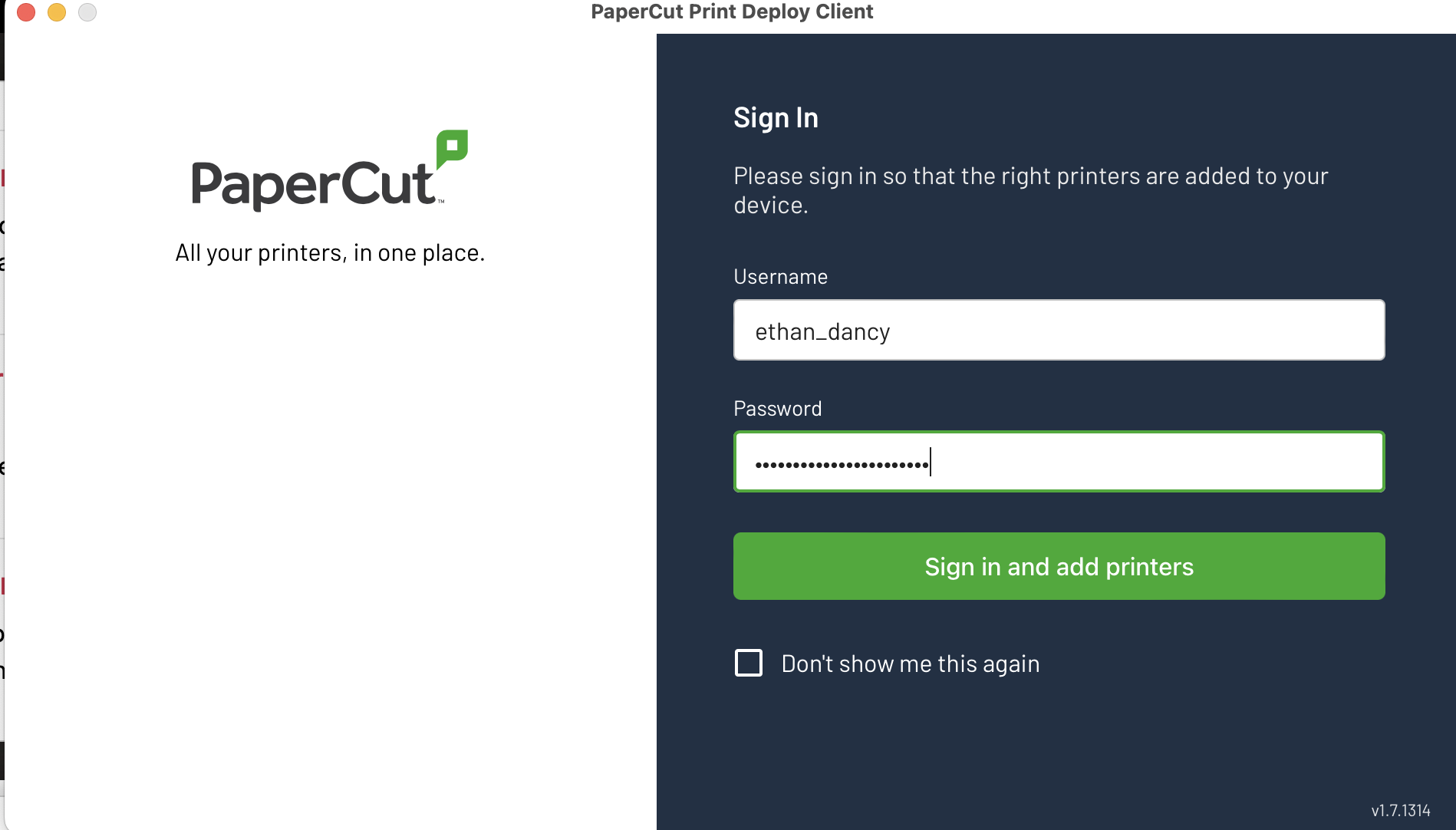
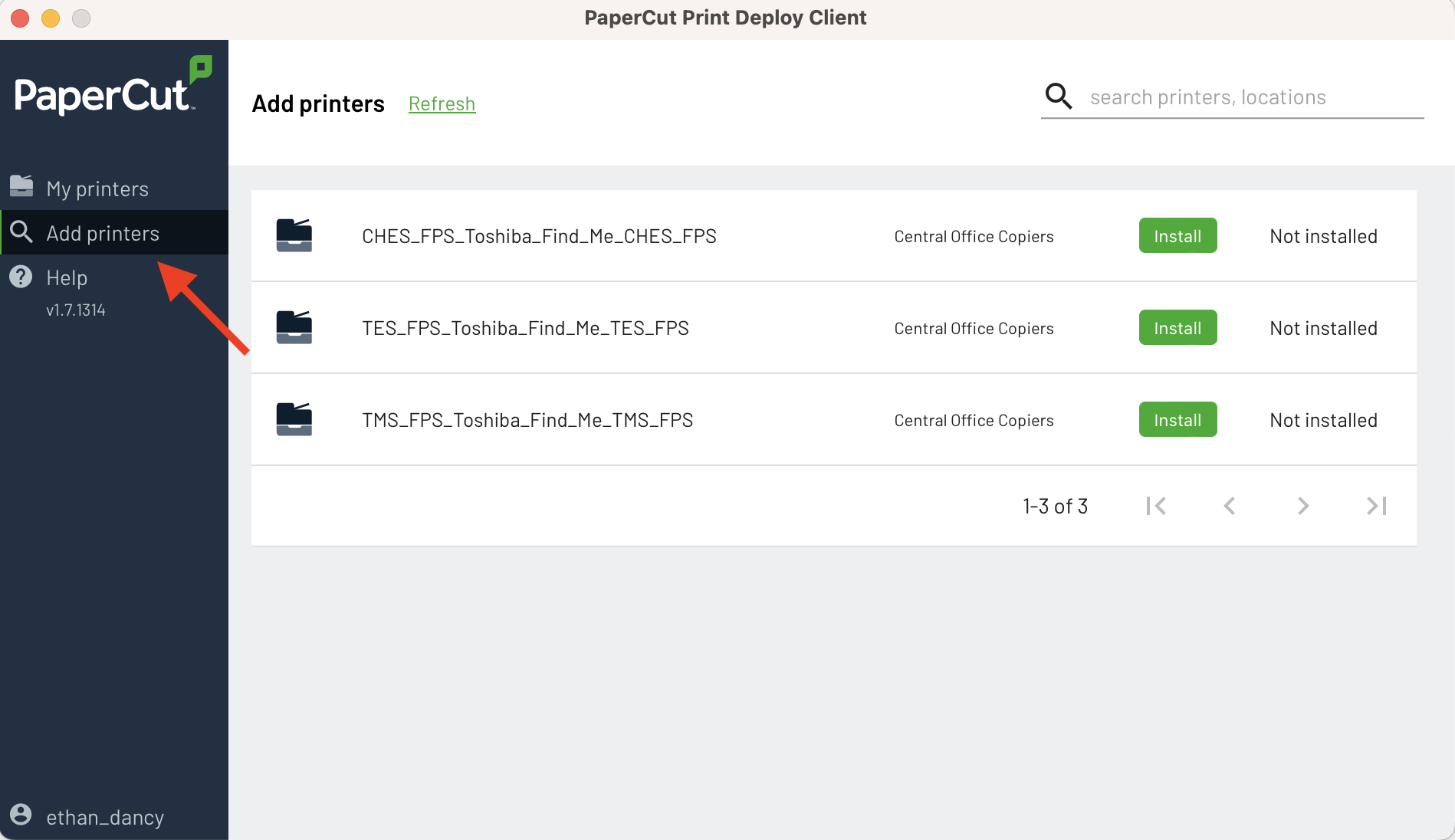
5. If you need to add a printer, go to Add Printers on the left, and install ISS_Copiers
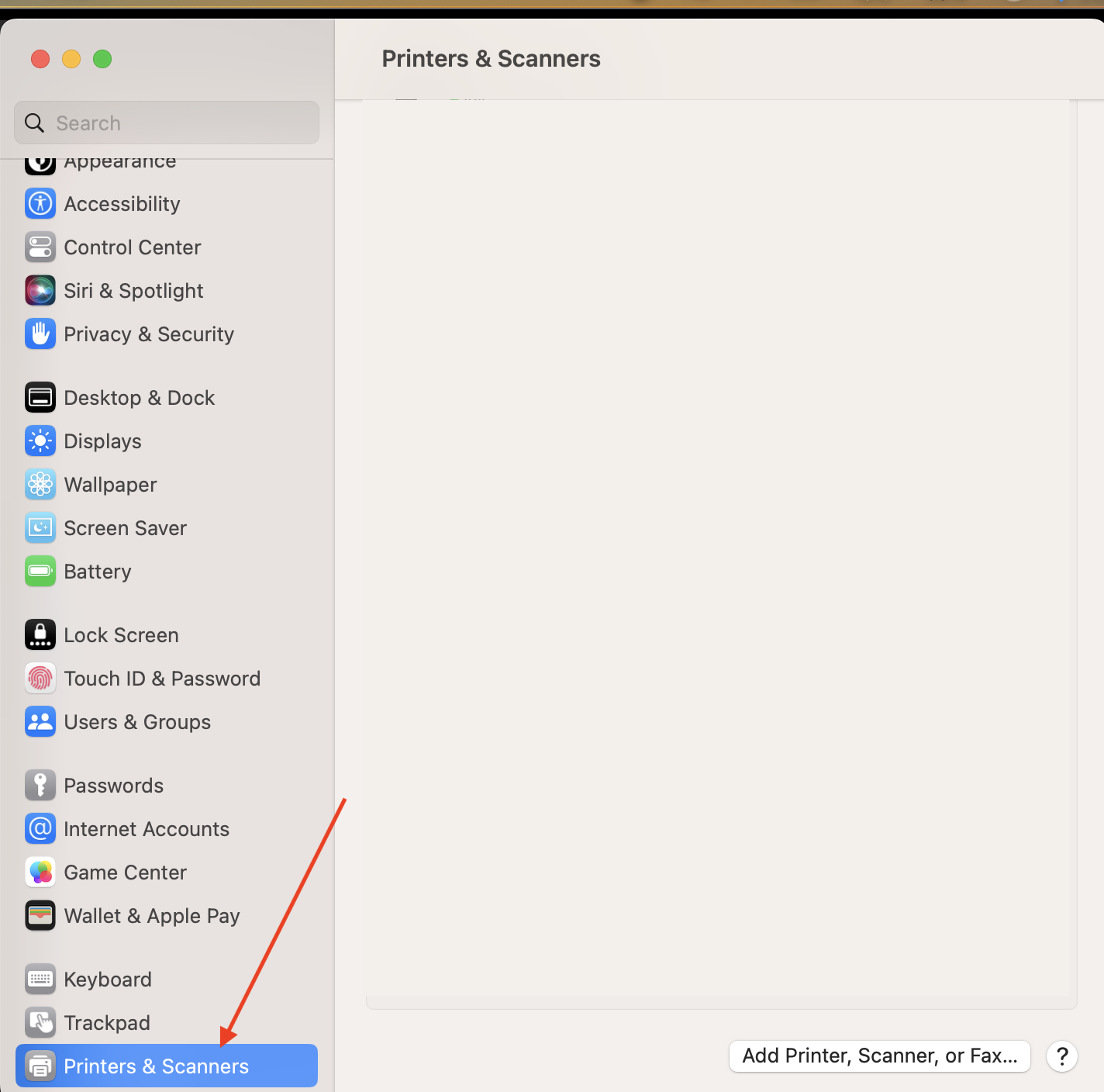
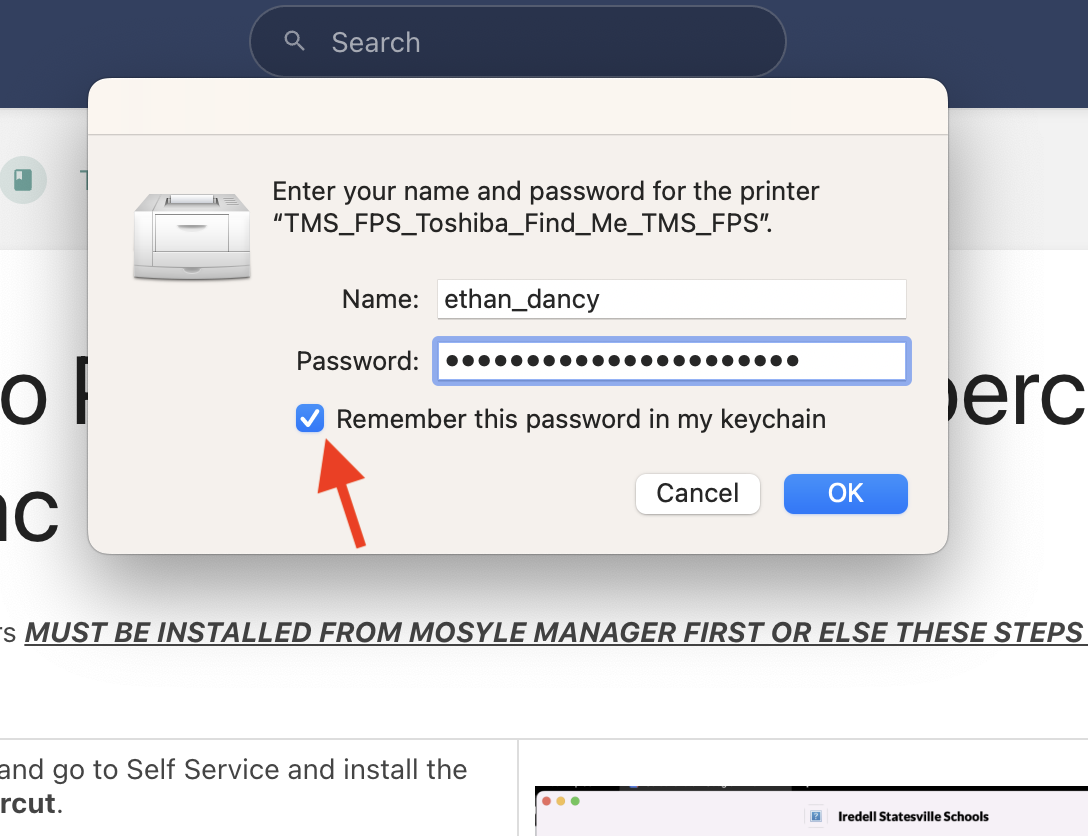
Now, you should be able to print to any copier on this site that has papercut. You will need to retrieve it by entering your ID Number (Timekeeper Number for most people)