# How to Change or Add Papercut Codes

1. <span style="font-size: 11pt; font-family: Arial; background-color: transparent; font-weight: 400; font-style: normal; font-variant: normal; white-space: pre-wrap;">Go to </span>[<span style="font-size: 11pt; font-family: Arial; color: rgb(17, 85, 204); background-color: transparent; font-weight: 400; font-style: normal; font-variant: normal; text-decoration-line: underline; text-decoration-skip-ink: none; white-space: pre-wrap;">http://iss-papercut:9191/admin</span>](http://iss-papercut:9191/admin)
2. <span style="font-size: 11pt; font-family: Arial; background-color: transparent; font-weight: 400; font-style: normal; font-variant: normal; white-space: pre-wrap;">Login with your computer credentials (Not your full email)</span>
3. <span style="font-size: 11pt; font-family: Arial; background-color: transparent; font-weight: 400; font-style: normal; font-variant: normal; white-space: pre-wrap;">Click Users on the left hand side of your screen</span>
4. <span style="font-size: 11pt; font-family: Arial; background-color: transparent; font-weight: 400; font-style: normal; font-variant: normal; white-space: pre-wrap;">Search for the user you are wanting to set the passcode for</span>
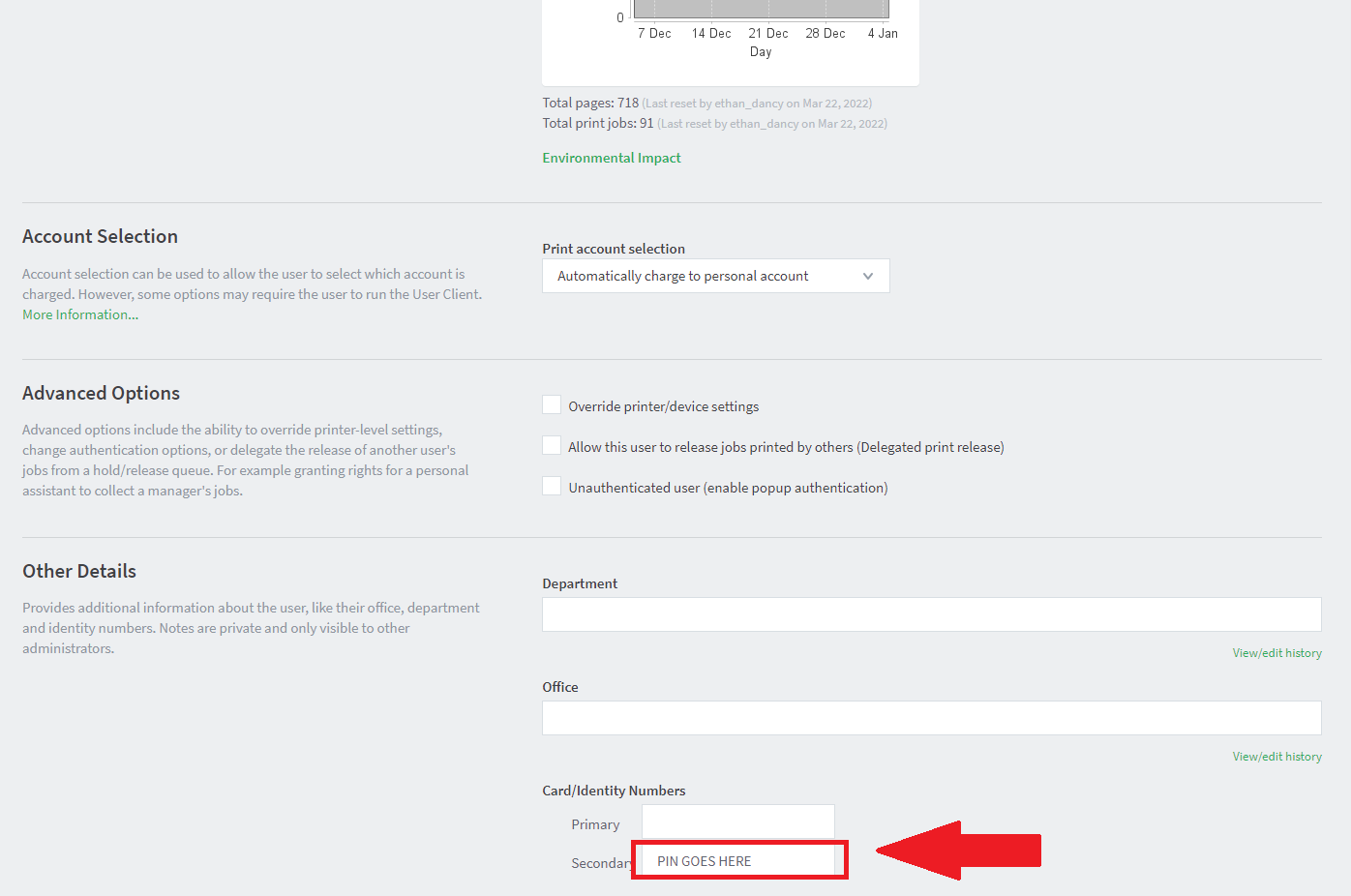
5. <span style="font-size: 11pt; font-family: Arial; background-color: transparent; font-weight: 400; font-style: normal; font-variant: normal; white-space: pre-wrap;"><span style="font-size: 11pt; font-family: Arial; background-color: transparent; font-weight: 400; font-style: normal; font-variant: normal; white-space: pre-wrap;">Scroll down to the secondary pin, and set the users secondary pin as their copy code  
    </span></span>[![image.png](https://iss-kb.iss.k12.nc.us/uploads/images/gallery/2023-01/scaled-1680-/image.png)](https://iss-kb.iss.k12.nc.us/uploads/images/gallery/2023-01/image.png)