# How to Use Apple TV

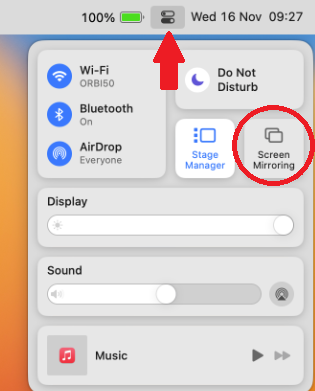
1. Click Control Center ![](https://help.apple.com/assets/642601949698396B0B0C2097/6426019B9698396B0B0C20AF/en_US/3045264ba38d067fcdf39c07a1129c88.png) in the menu bar in the top right of your Macbook, click the Screen Mirroring icon <span class="NoBreak">![](https://help.apple.com/assets/642601949698396B0B0C2097/6426019B9698396B0B0C20AF/en_US/17c5c2f24244dc274db225acfdd11816.png), </span>then choose your Apple TV.
    
    [![image.png](https://iss-kb.iss.k12.nc.us/uploads/images/gallery/2023-10/scaled-1680-/image.png)](https://iss-kb.iss.k12.nc.us/uploads/images/gallery/2023-10/image.png)
2. If asked, enter a four-digit code on your Mac.
3. To set whether your desktop mirrors or extends your Mac screen, click the Screen Mirroring icon <span class="NoBreak">![](https://help.apple.com/assets/642601949698396B0B0C2097/6426019B9698396B0B0C20AF/en_US/17953d5ac02c79cf6fced825c3761c6e.png), </span>then choose Mirror Built-in Display or Use As Separate Display.