# How to Take a Screenshot on Mac

# Take a screenshot on your Mac

You can capture the entire screen, a window, or just a portion of the screen.

<div id="bkmrk-"></div>## How to take a screenshot on your Mac

![](https://support.apple.com/library/content/dam/edam/applecare/images/en_US/accessories/Keyboards/mac-key-combo-diagram-shift-command-3.png)

<div id="bkmrk-to-take-a-screenshot"><div><div><div>1. To take a screenshot, press and hold these three keys together: Shift, Command, and 3.
2. If you see a thumbnail in the corner of your screen, click it to edit the screenshot. Or wait for the screenshot to save to your desktop.

</div></div><div><div></div></div></div></div>![](https://support.apple.com/library/content/dam/edam/applecare/images/en_US/mac_apps/itunes/divider.png)

## How to capture a portion of the screen

![](https://support.apple.com/library/content/dam/edam/applecare/images/en_US/accessories/Keyboards/mac-key-combo-diagram-shift-command-4.png)

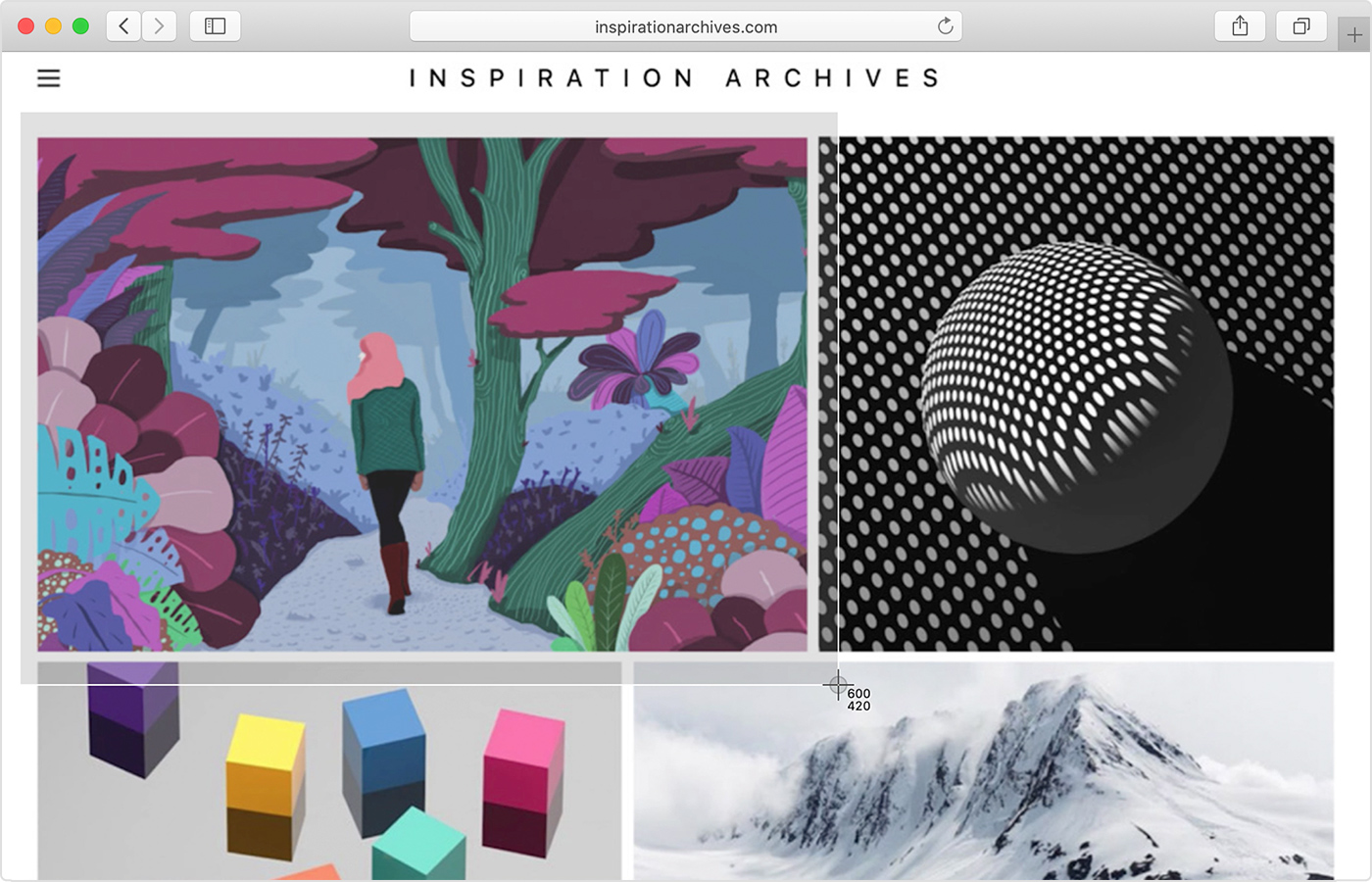
<div id="bkmrk-press-and-hold-these"><div><div><div>1. Press and hold these three keys together: Shift, Command, and 4.
2. Drag the crosshair ![](https://support.apple.com/library/content/dam/edam/applecare/images/en_US/macos/macos-mojave-screenshot-crosshair-inline-icon.png) to select the area of the screen to capture. To move the selection, press and hold Space bar while dragging. To cancel taking the screenshot, press the Esc (Escape) key.  
    ![](https://support.apple.com/library/content/dam/edam/applecare/images/en_US/macos/Catalina/macos-catalina-safari-screenshot-portion.jpg)
3. To take the screenshot, release your mouse or trackpad button.
4. If you see a thumbnail in the corner of your screen, click it to edit the screenshot. Or wait for the screenshot to save to your desktop.

</div></div><div><div></div></div></div></div>  
![](https://support.apple.com/library/content/dam/edam/applecare/images/en_US/mac_apps/itunes/divider.png)

## How to capture a window or menu

![](https://support.apple.com/library/content/dam/edam/applecare/images/en_US/accessories/Keyboards/mac-key-combo-diagram-shift-command-4-space.png)

<div id="bkmrk-open-the-window-or-m"><div><div><div>1. Open the window or menu that you want to capture.
2. Press and hold these keys together: Shift, Command, 4, and Space bar. The pointer changes to a camera icon ![](https://support.apple.com/library/content/dam/edam/applecare/images/en_US/macos/macos-mojave-screenshot-window-inline-icon.png). To cancel taking the screenshot, press the Esc (Escape) key.  
    ![](https://support.apple.com/library/content/dam/edam/applecare/images/en_US/macos/Catalina/macos-catalina-safari-screenshot-window.jpg)
3. Click the window or menu to capture it. To exclude the window's shadow from the screenshot, press and hold the Option key while you click.
4. If you see a thumbnail in the corner of your screen, click it to edit the screenshot. Or wait for the screenshot to save to your desktop.

</div></div><div><div></div></div></div></div>  
![](https://support.apple.com/library/content/dam/edam/applecare/images/en_US/mac_apps/itunes/divider.png)

## Where to find screenshots

By default, screenshots save to your desktop with the name ”Screen Shot \[date\] at \[time\].png.”

In [macOS Mojave](https://support.apple.com/kb/HT201260) or later, you can change the default location of saved screenshots from the Options menu in the [Screenshot app](https://support.apple.com/guide/mac-help/take-screenshots-or-screen-recordings-mh26782/mac). You can also drag the thumbnail to a folder or document.