# Lightspeed Alert Admin
# Lightspeed Alert Admins Email Settings
Here are the instructions on how to disable Alert email notifications:
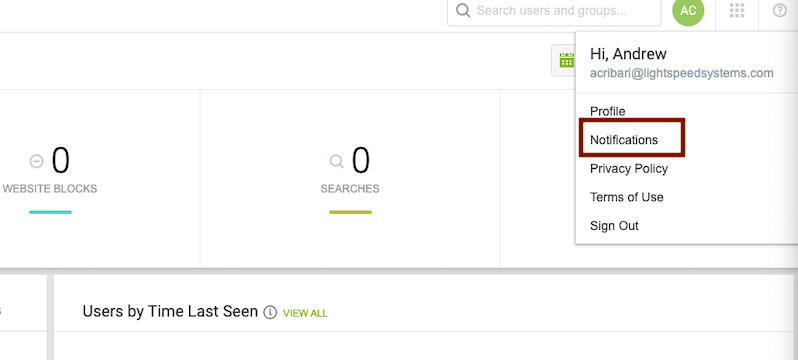
1.) Sign into [https://filter.lightspeedsystems.app](https://filter.lightspeedsystems.app/), (sign in with Google) click the green circle at the top right, and choose notifications.
[](https://iss-kb.iss.k12.nc.us/uploads/images/gallery/2023-09/q7oimage.png)
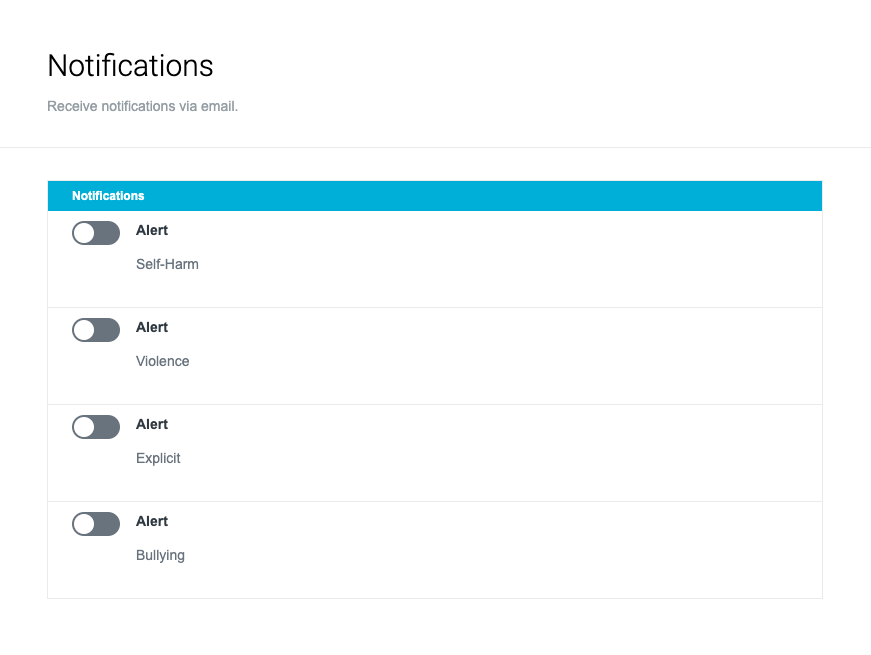
2.) Toggle off Alert notifications
[](https://iss-kb.iss.k12.nc.us/uploads/images/gallery/2023-09/fQzimage.png)
# Create A Email Rule for Lightspeed Alerts
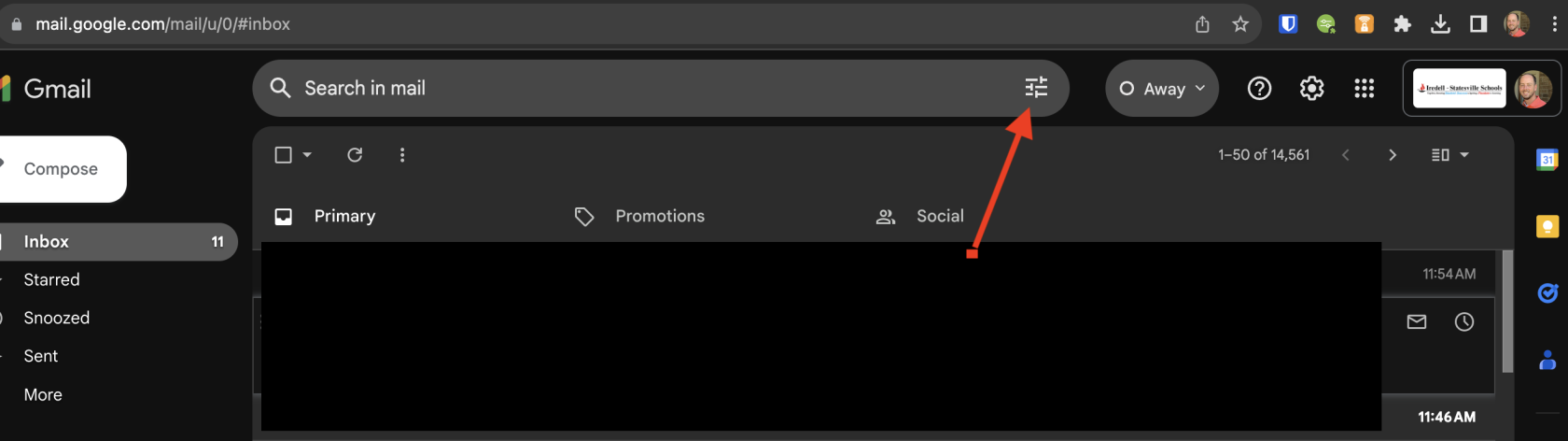
1. Login to Gmail, and then click on the icon inside of the search bar.
[](https://iss-kb.iss.k12.nc.us/uploads/images/gallery/2023-09/p5cimage.png)
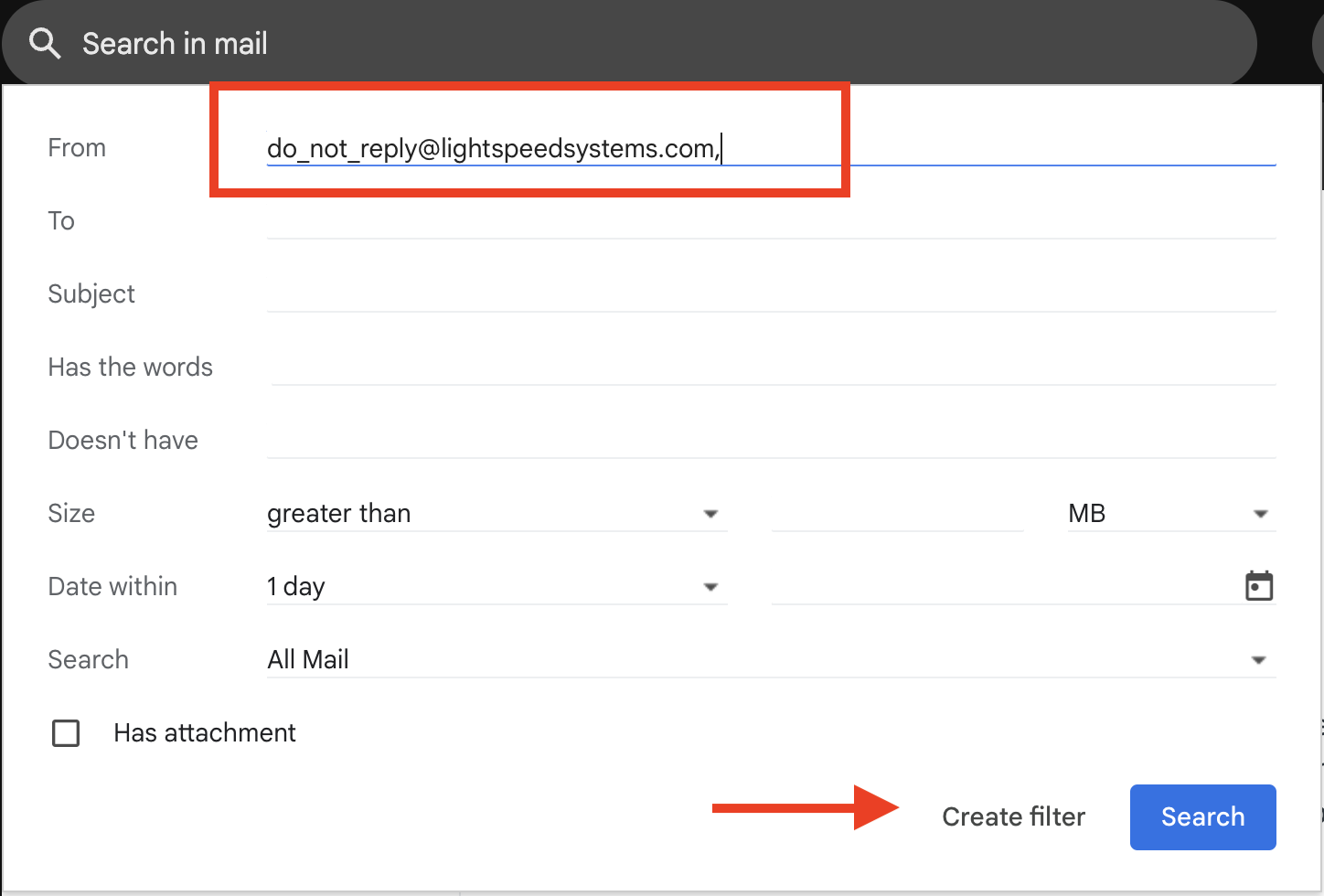
2. Beside the From box, enter [do\_not\_reply@lightspeedsystems.com](mailto:do_not_reply@lightspeedsystems.com) and then click **Create Filter**
[](https://iss-kb.iss.k12.nc.us/uploads/images/gallery/2023-09/0vNimage.png)
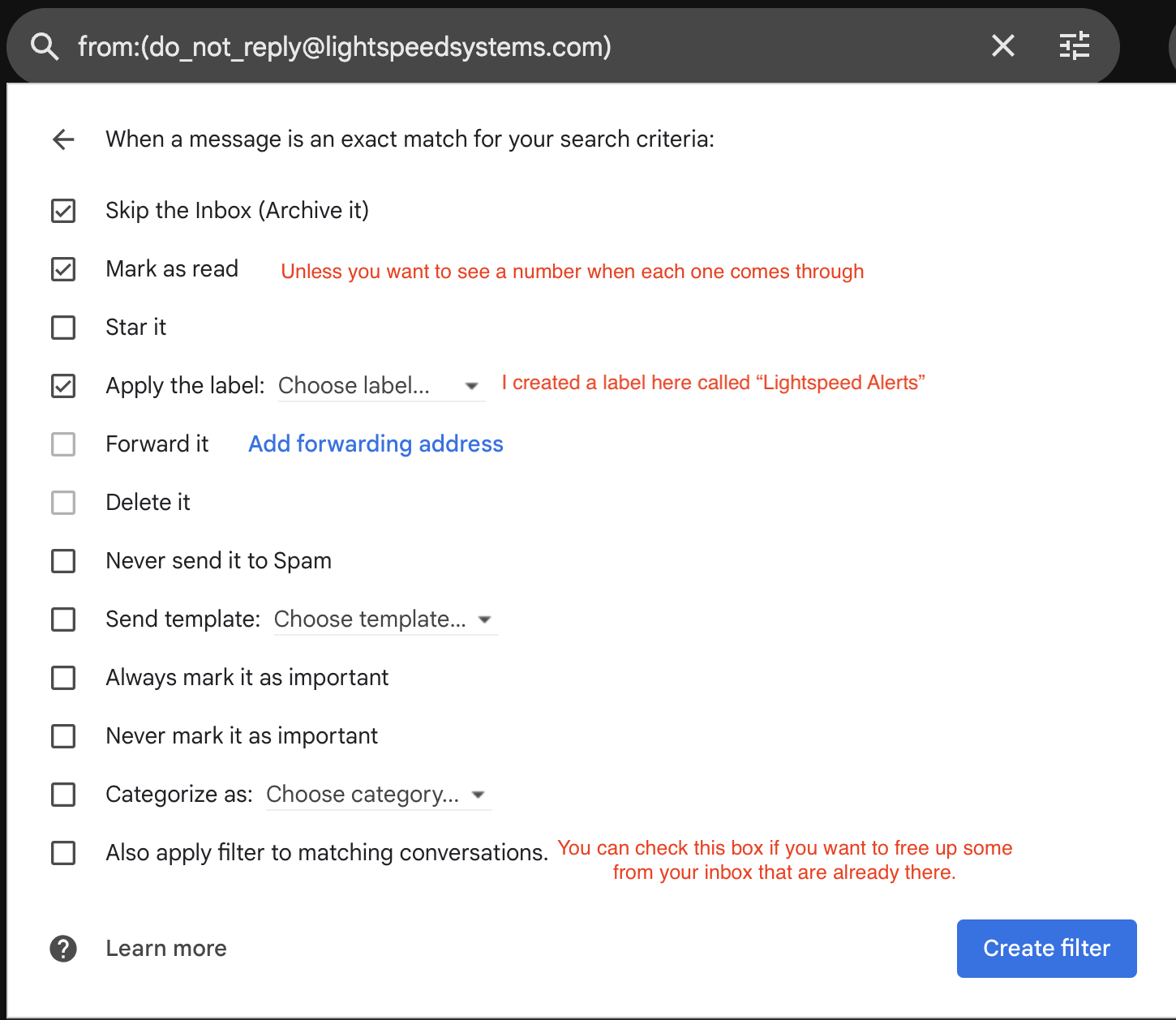
3. Make sure your check boxes match these in order to create your rule and then click **create filter.**
[](https://iss-kb.iss.k12.nc.us/uploads/images/gallery/2023-09/SFqimage.png)