# How to Setup Multi Factor Authentication for Gmail
Step 1. Go to [https://myaccount.google.com/](https://myaccount.google.com/) and make sure you are signed into Gmail with your ISS Account
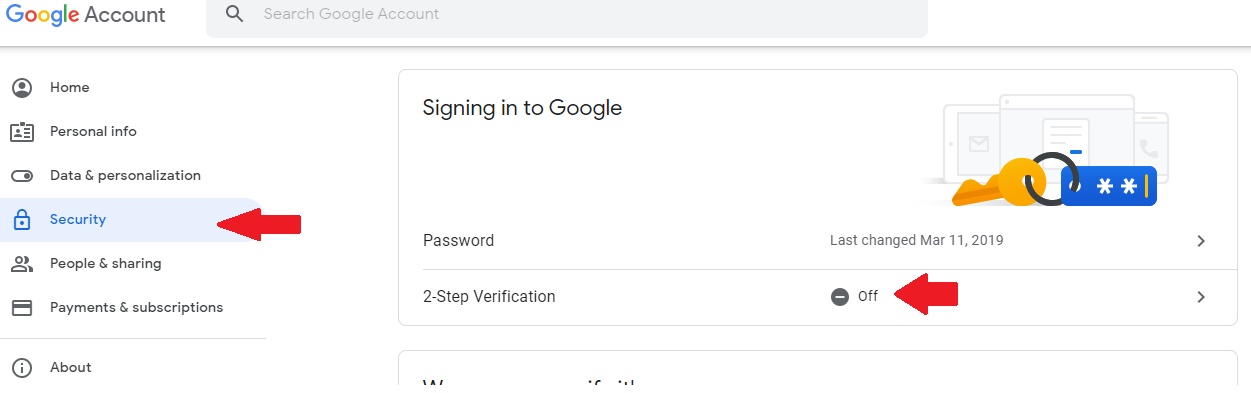
Step. 2. Click **Security** on the left hand side of the screen, and then click where it says **Off** beside 2-Factor Verification (Pictured below)
[](https://iss-kb.iss.k12.nc.us/uploads/images/gallery/2021-04/image-1619802541472.png)
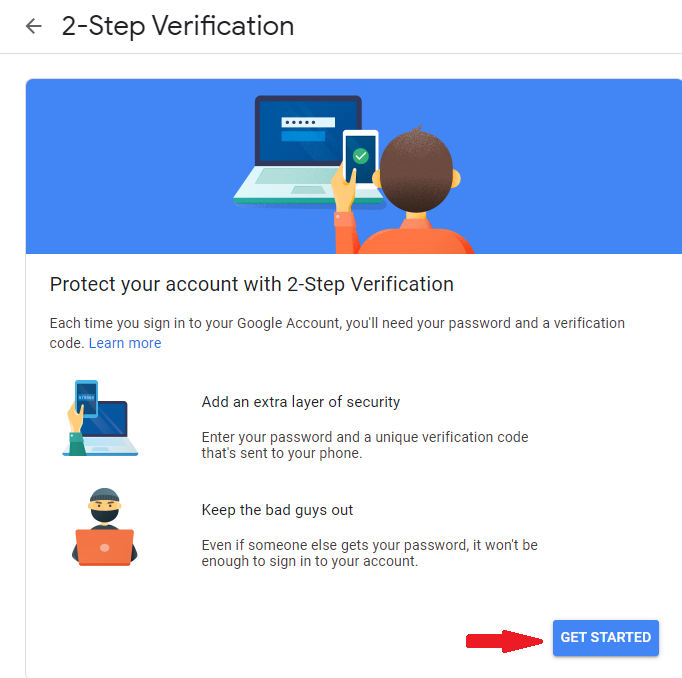
Step 3. Click **Get Started** on the next page (pictured below) and it may prompt you to sign in again.
[](https://iss-kb.iss.k12.nc.us/uploads/images/gallery/2021-04/image-1619802614119.png)
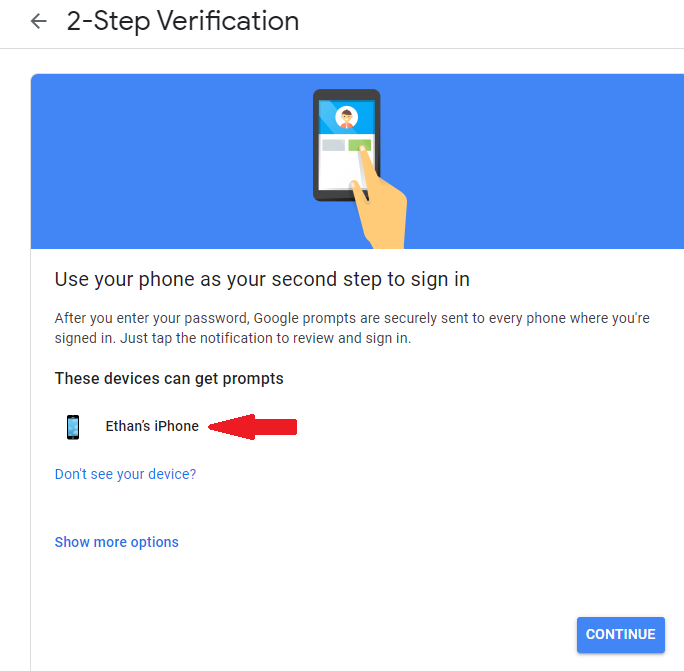
Step 4. If you have the Gmail App on your phone that is signed into your ISS Email account, you will see something that says "**These devices can get prompts**" and you will see something that says your Phone name. (Photo below) **If you use the Gmail App on your phone, please [click here](https://iss-kb.iss.k12.nc.us/books/gmail/page/use-gmail-app-for-multi-factor-authentication) for further instructions.** If you are NOT using the Gmail App or you DO NOT WANT to use the Gmail App, Please continue to the next step. (Photo below)
[](https://iss-kb.iss.k12.nc.us/uploads/images/gallery/2021-04/image-1619803550872.png)
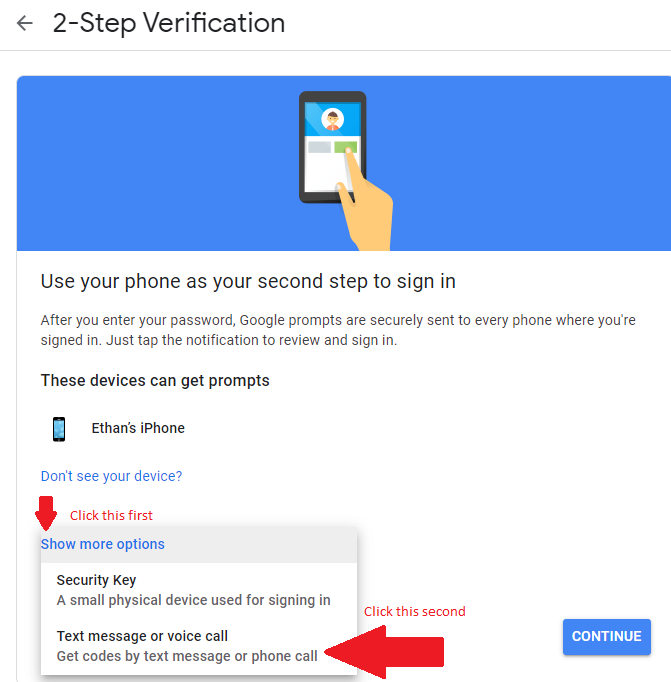
Step 5. Click **Show more options** and then click **Text message or voice call** (Photo below)
[](https://iss-kb.iss.k12.nc.us/uploads/images/gallery/2021-04/image-1619805113071.png)
Step 6. Enter your cell phone number in the field for your phone number. You can choose whether you want to receive a code via text message, or via phone call and then click **Next.** (Photo below)
[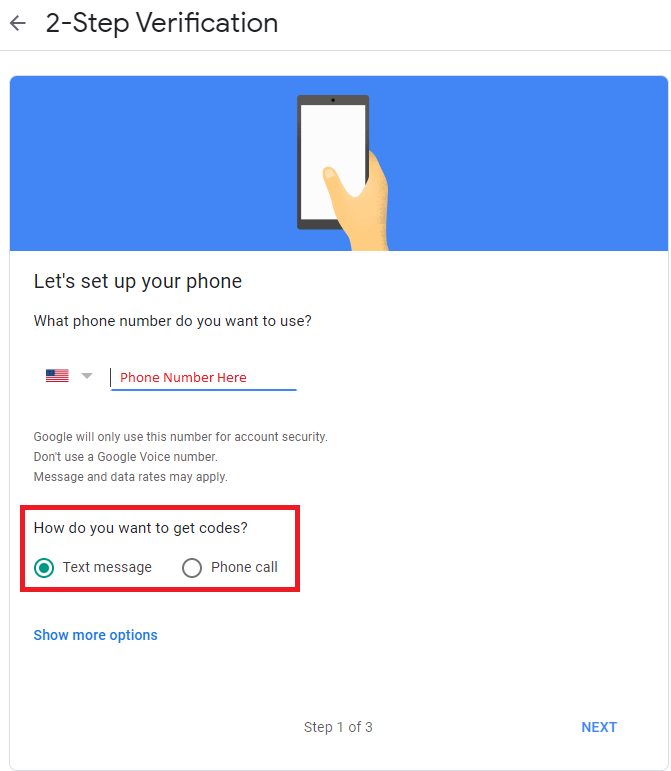](https://iss-kb.iss.k12.nc.us/uploads/images/gallery/2021-04/image-1619805436175.png)
Step 7. If you choose text message, Google will text you a Google Verification Code. You will then enter the code without the G- in front into the text box. (Photo below)
[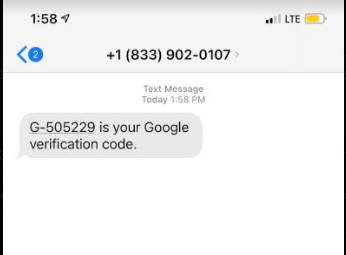 ](https://iss-kb.iss.k12.nc.us/uploads/images/gallery/2021-04/image-1619805678391.png)[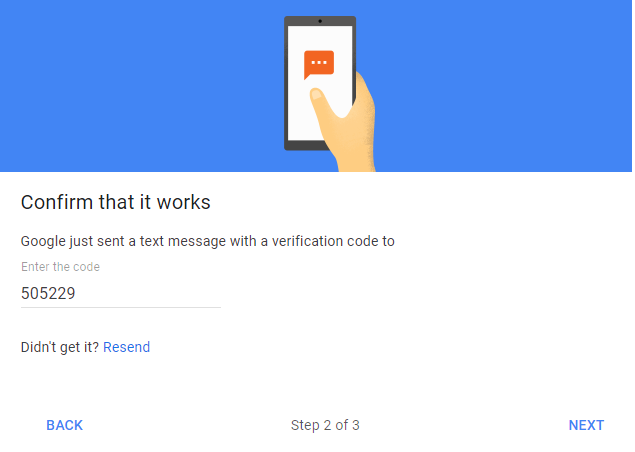](https://iss-kb.iss.k12.nc.us/uploads/images/gallery/2021-04/image-1619805826102.png)
Step 8. Click **Turn On** to confirm that you want to turn on 2-Step Verification. (Photo below)
[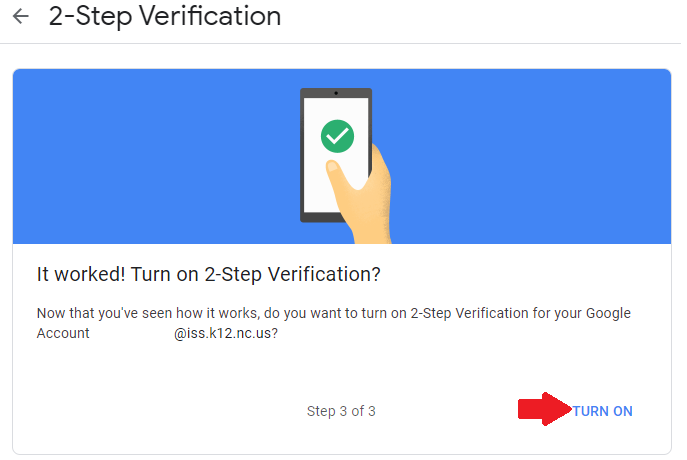](https://iss-kb.iss.k12.nc.us/uploads/images/gallery/2021-04/image-1619806233310.png)
Here is a video on the steps to setup Multi Factor Authentication