# Filestream

# Installing Google Drive File Stream for Mac

1. From a Finder window, delete the old Google Drive folder from your computer. (The folder should be listed under “Devices”.)
2. If you haven’t already done so, log in to your Georgetown Google Apps account.
3. From your Web browser, go to the[ Google Drive File Stream home page](https://support.google.com/drive/answer/7329379).  
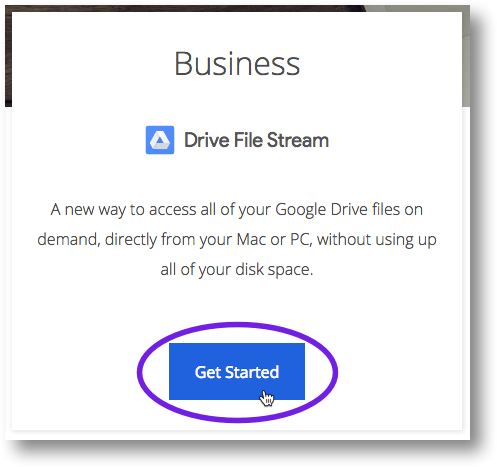
    <figure>![Click the Getting Started button under Business](https://uis.georgetown.edu/wp-content/uploads/2019/05/fsinstall-mac1.png)</figure>
4. On the “Google Drive Help” page, click **Download for Mac**.  
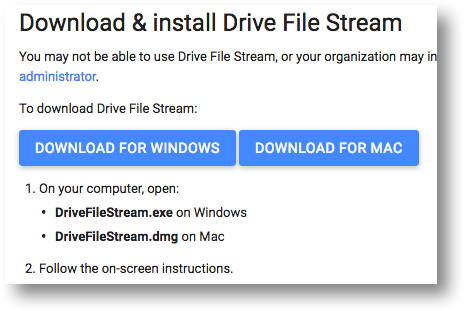
    <figure>![Click Download for Mac](https://uis.georgetown.edu/wp-content/uploads/2019/05/fsinstall-mac2.png)</figure>
5. If prompted, save the installer file to your **Desktop**. (If you’re not prompted, the file may have been saved in your **Downloads** folder.)
6. Double-click the installer file.
7. Double-click the .pkg file  
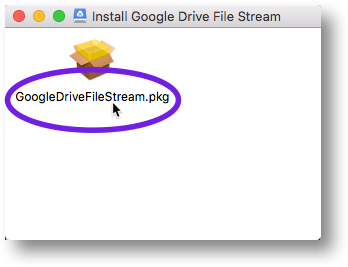
    <figure>![Double-click the File Stream installer file](https://uis.georgetown.edu/wp-content/uploads/2019/05/fsinstall-mac3.png) </figure>
8. In the pop-up window, click **Continue**.  
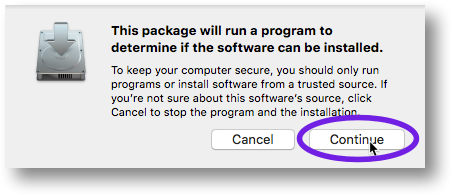
    <figure>![Click Continue](https://uis.georgetown.edu/wp-content/uploads/2019/05/fsinstall-mac4.png)</figure>
9. Click **Continue** in the next window.  
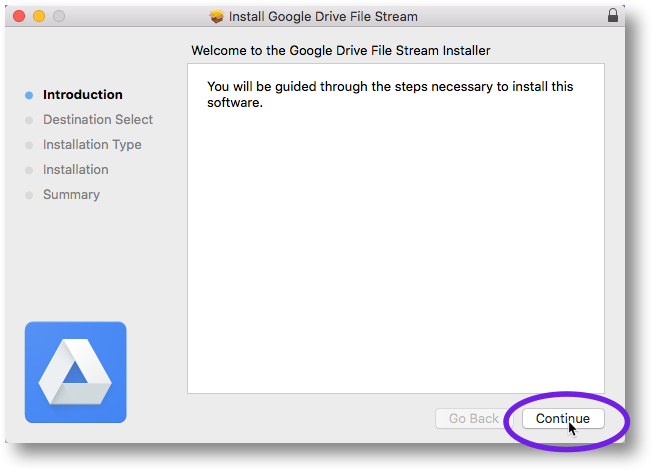
    <figure>![Click Continue](https://uis.georgetown.edu/wp-content/uploads/2019/05/fsinstall-mac5.png)</figure>
10. Click **Install** in the next window.  
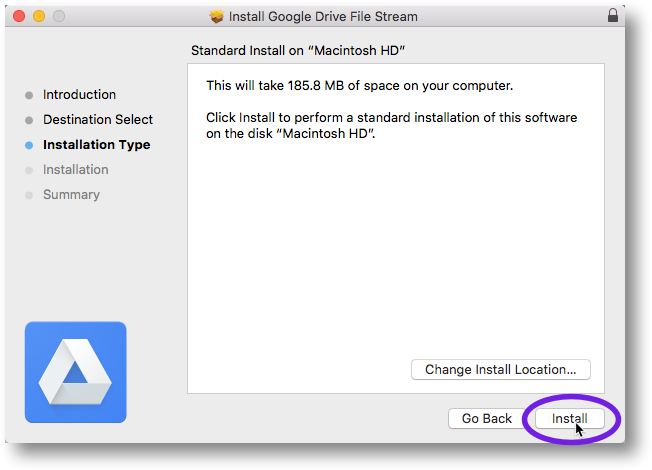
    <figure>![Click Install](https://uis.georgetown.edu/wp-content/uploads/2019/05/fsinstall-mac6.png)</figure>
11. In the next window, enter your computer password and then click **Install Software** to start the installation process.  
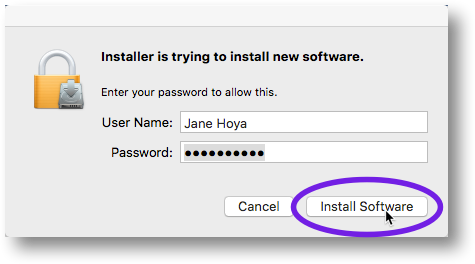
    <figure>![Click Install Software](https://uis.georgetown.edu/wp-content/uploads/2019/05/fsinstall-mac7.png)</figure>
12. After a few moments, you should see the following install confirmation message. Click **Close**.  
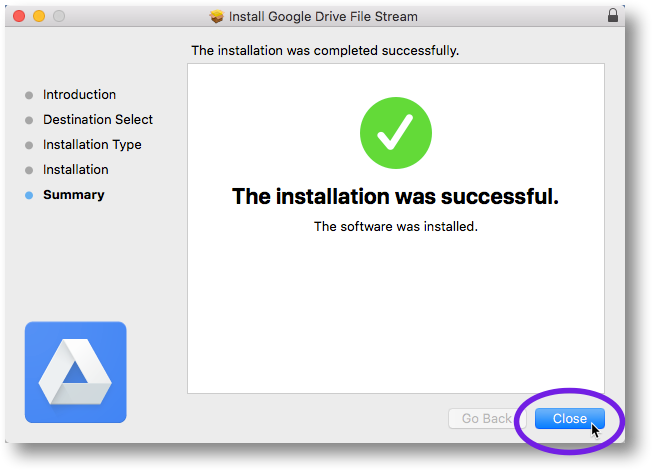
    <figure>![Click Close](https://uis.georgetown.edu/wp-content/uploads/2019/05/fsinstall-mac8.png)</figure>
13. If you see the pop-up window shown below, click **Move to Trash**.  
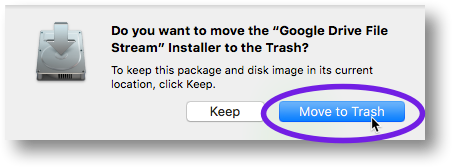
    <figure>![Click on the Move to Trash button](https://uis.georgetown.edu/wp-content/uploads/2019/05/fsinstall-mac9.png)</figure>