# Drive
# Google Docs
Information on How to Use Google Docs
# How to use Google Docs
Google Docs is an online word processor that lets you create and format documents and work with other people. [See our top five tips for Google Docs.](https://gsuite.google.com/learning-center/products/docs/cheat-sheet/?utm_source=hc-docs&utm_medium=referral&utm_campaign=lc-hc&utm_content=6000292-article-2018-02)
## Step 1: Create a document
To create a new document:
1. On your computer, open the Docs home screen at [docs.google.com](https://docs.google.com/document/).
2. In the top left, under "Start a new document," click **New**.
You can also create new documents from the URL [docs.google.com/create.](https://docs.google.com/create)
## Step 2: Edit and format
To edit a document:
1. On your computer, open a document in [Google Docs](https://docs.google.com/document/u/0/).
2. To select a word, double-click it or use your cursor to select the text you want to change.
3. Start editing.
4. To undo or redo an action, at the top, click Undo or Redo .
Note: To edit a document on a touchscreen device, like a Pixel Book, double-tap the document to start typing.
You can add and edit text, paragraphs, spacing, and more in a document.
- [Format paragraphs or font](https://support.google.com/docs/answer/1663349)
- [Add a title, heading, or table of contents](https://support.google.com/docs/answer/116338)
## Step 3: Share & work with others
You can [share files and folders](https://support.google.com/docs/answer/2494822) with people and choose whether they can view, edit, or comment on them.
# Docs cheat sheet
#### 1. Edit and add styles to your text.
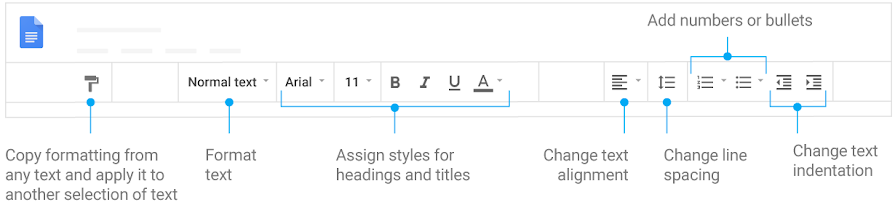
#### 2. Work with different versions and copies of your document.

**Make a copy:** Create a duplicate of your document.
**Download as:** Download your document in other formats, such as Microsoft® Word® or Adobe® PDF.
**Email as attachment**: Send a copy of the document to people. You can change the format.
**Version history:** See all the changes you and others have made to the document or revert to earlier versions.
**Publish to the web:** Publish a copy of your document as a webpage, or embed your document in a website.

#### 3. Enhance your document by adding features.

**Image:** Insert an image from your computer, the web, Drive, and more.
**Table:** Select the number of columns and rows to create a table.
**Drawing:** Create pictures, flowcharts, diagrams, and more.
**Link:** Add a link to a webpage or a header or bookmark in your document.
**Chart**: Add different types of charts, or add a chart from Sheets.
**Bookmark:** Add shortcuts to specific places within your document.
**Table of contents:** Create an autogenerated table of contents that links to each heading (where you’ve applied heading styles).

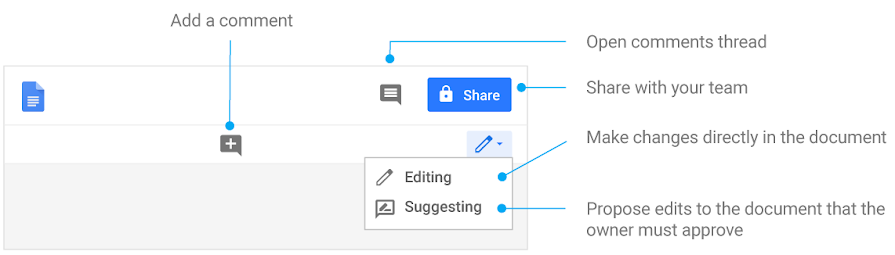
#### 4. Click Share to share your document and then choose what collaborators can do. They’ll also receive an email notification.

Share or unshare
Edit content directly
Suggest edits
Add comments
**Can edit**
**✔**
**✔**
**✔**
**✔**
**Can comment**
**✔**
**✔**
**Can view**
#### 5. Collaborate with your team in real time.
# Change page setup of a Google Doc
1. On your computer, open a document in [Google Docs](https://docs.google.com/document/u/0/).
2. In the toolbar, click **File**  **Page setup**.
3. Go to the setting you want to change:
- Orientation
- Paper size
- Page color
- Margins
4. Make your changes.
5. Click **OK**.
6. Optional: To make new documents open with the settings you chose, click **Set as default.**
# Switching to Docs from Microsoft Word
In Word...
In Docs...
Share your document using Microsoft® SharePoint® or OneDrive®
Share your document from Docs
> 1. From a document, click **Share**.
> 2. Under People, enter the email address of the person or group you want to share with.
> 3. Click Edit  and choose the access level.
> 4. Click **Send**.
For more details, see [Get started with Docs](https://support.google.com/a/users/answer/9305987#3.1).
#### Share your document with Word users
> 1. From a document, click **File** > **Email as attachment**.
> 2. Under Attach as, choose the format (Word, PDF, etc.).
> 3. Enter the email address, subject, and message.
> 4. Click **Send**.
For more details, see [Work with Microsoft Office files](https://support.google.com/a/users/answer/9308757).
Collaborate in real-time in Word Online
Collaborate in real-time in Docs
When you share a document, depending on their access, collaborators can edit documents, add comments, and assign tasks.
- To track changes, at the top right, click the Down arrow . From the menu, set the mode to **Suggesting**.
- To add and assign a comment:
> 1. Select the text you want to comment on.
> 2. Click Add comment .
> 3. To assign a comment to someone, enter + and the person’s email.
> 4. Enter your comment, then click **Comment**.
Access version history in SharePoint or OneDrive
Access version history in Docs
> 1. Select **File****Version history****See version history**.
> 2. Click a time stamp to see a previous version of the file.
> 3. (Optional) Do any of the following: > - To make a previous version the active version, at the top, click **Restore this version**.
> > - To name a previous version, click More **Name this version**.
> > - To make a copy of a previous version, click More **Make a copy**.
For more details, read [See changes to your Drive files and folders](https://support.google.com/a/users/answer/9308986).
In the top corner, make sure you’re in **Suggesting** mode, which may also appear as .
To suggest an edit, simply begin typing where you think the edit should be made in the document. Your suggestions appear in a new color, and text you mark to delete or replace is crossed out (but not actually deleted until the document owner approves the suggestion).
The document’s owner will receive an email with your suggestions. When they click any suggestion, they can Accept  or Reject  it.
#### Add and assign comments in a document
> 1. In [Docs](https://docs.google.com/), [Sheets](https://sheets.google.com/), or [Slides](https://slides.google.com/), select the text you'd like to comment on.
> 2. Click Add comment .
> 3. Enter your comment in the box.
> 4. (Optional) To direct your task or comment to a specific person, enter a plus sign (+) followed by their email address. You can add as many people as you want. Each person will get an email with your comment and a link to the file.
> 5. (Optional) To assign the comment to a specific person, check the **Assign to** box.
> 6. Click **Comment** or **Assign**.
Open a Word document
Open a Word document
> 1. In [Drive](https://drive.google.com/), double-click a Word file. A preview of your file opens.
> 2. At the top, click **Open with Google Docs**.
Any changes you make are saved to the original Microsoft Office file.
For more details, see [Work with Microsoft Office files](https://support.google.com/a/users/answer/9308757).
Access a document offline in OneDrive
Access a document offline in Drive
> 1. Install the [Google Docs Offline extension](https://chrome.google.com/webstore/detail/google-docs-offline/ghbmnnjooekpmoecnnnilnnbdlolhkhi).
> 2. In [Drive](https://drive.google.com/), click Settings **Settings**.
> 3. In the Offline section, check the **Create, open and edit your recent Google Docs, Sheets, and Slides files on this device while offline** box.
> 4. Click **Done**.
> 5. Right-click a file and turn on **Available offline**.
To learn how to access files offline from your desktop or mobile, see [Access stored Drive files without the internet](https://support.google.com/a/users/answer/9308619?ref_topic=9326428).
Save a document automatically in SharePoint or OneDrive or turn on AutoRecover
Save a document automatically in Drive
Your document saves automatically in Drive as you work, so you don’t need to click **Save**.
Insert pictures in your document
Add images to your document
You can drag and drop images from your computer into your document. Or, click **Insert****Image** and choose an image from Google Drive, Google Photos, the web, and more.
For more details, see [Add and edit images](https://support.google.com/a/users/answer/9308621).
Add an Excel chart to your document
Add a Sheets chart to your document
> 1. In [Sheets](https://sheets.google.com/), select the chart you want to copy.
> 2. At the top right, click More **Copy chart**.
> 3. In [Docs](https://docs.google.com/), right-click**Paste**.
> 4. Click Paste.
For more details, see [Insert and edit charts](https://support.google.com/a/users/answer/9308981).
# Google Sheets
# How to Use Google Sheets
## Step 1: Create a spreadsheet
To create a new spreadsheet:
1. Open the Sheets home screen at [sheets.google.com.](https://sheets.google.com/)
2. Click New . This will create and open your new spreadsheet.
You can also create new spreadsheets from the URL [sheets.google.com/create](https://sheets.google.com/create).
## Step 2: Edit and format a spreadsheet
You can add, edit, or format text, numbers, or formulas in a spreadsheet.
- [Edit and format a spreadsheet](https://support.google.com/docs/answer/46973?hl%3Den%26ref_topic%3D1361470)
- [Use formulas and functions in a spreadsheet](https://support.google.com/docs/answer/46977?hl%3Den%26ref_topic%3D1361471)
## Step 3: Share & work with others
You can [share files and folders](https://support.google.com/docs/answer/2494822) with people and choose whether they can view, edit, or comment on them.
# Edit & format a spreadsheet in Google Sheets
## Edit data in a cell
1. Open a spreadsheet in [Google Sheets](https://docs.google.com/spreadsheets/u/0/).
2. Click a cell that’s empty, or double-click a cell that isn’t empty.
3. Start typing.
4. **Optional:** To add another line within a cell, press **⌘ + Enter** on a Mac or **Ctrl + Enter** on Windows.
5. When you’re done, press **Enter**.
## Format one or more cells
1. Open a spreadsheet in [Google Sheets](https://docs.google.com/spreadsheets/u/0/).
2. Click a cell, then drag your mouse across nearby cells you want to select, or hold **⌘** on a Mac or **Ctrl** on Windows and click another cell.
3. To format text or numbers in a cell, use the options in the toolbar at the top.
## Format your data
Here are some options for formatting your cells or text. You can find these options above the document.
-  Undo
-  Redo
-  Bold
-  Italic
-  Strikethrough
- Change font or font size
-  Change text color
-  Change cell fill color
- Single color
- Alternating colors
-  Change cell borders
-  Change border color
-  Change border style
-  Merge cells
- Change horizontal text alignment
- Change vertical text alignment
- Rotate text in a cell
-  Wrap text in a cell
To format part of the text or content in a cell, double-click the cell, select what you want to format, then select a formatting option.
## Align & resize objects
Move an object anywhere you want or change its size. Lines will appear that show what it lines up with, equal space between objects, and when one object is the same size as another.
## Add a theme
You can apply changes to the format of an entire spreadsheet with themes.
1. Open a spreadsheet in [Google Sheets](https://docs.google.com/spreadsheets/u/0/).
2. At the top, click **Format**  **Theme**.
3. Choose an available theme or click **Customize** to create your own.
**Notes:**
- If you create a custom theme, the most recent version will be saved.
- Colors from your current theme are available in the text and fill color pickers.
## Parts of your spreadsheet affected by theme
- Text font and color of grid text, charts, and pivot tables
- Hyperlink color of grid text
- Chart background color
- Color of series in charts
- Pivot table background
**Note:** If you change the format of an item in your spreadsheet, it will override the theme.
# Use conditional formatting rules in Google Sheets
Cells, rows, or columns can be formatted to change text or background color if they meet certain conditions. For example, if they contain a certain word or a number.
1. On your computer, open a spreadsheet in [Google Sheets](https://docs.google.com/spreadsheets/u/0/).
2. Select the cells you want to apply format rules to.
3. Click **Format**  **Conditional formatting**. A toolbar will open to the right.
4. Create a rule.
- **Single color**: Under "Format cells if," choose the condition that you want to trigger the rule. Under "Formatting style, choose what the cell will look like when conditions are met.
- **Color scale**: Under "Preview," select the color scale. Then, choose a minimum and maximum value, and an optional midpoint value. To choose the value category, click the Down arrow .
5. Click **Done**.
A teacher can highlight test scores to see which students scored less than 80%.
1. On your computer, open a spreadsheet in [Google Sheets](https://docs.google.com/spreadsheets/u/0/).
2. Select the test scores.
3. Click **Format**  **Conditional formatting**.
4. Under "Format cells if," click **Less than**. If there's already a rule, click it or **Add new rule**  **Less than**.
5. Click **Value or formula** and enter 0.8.
6. To choose a red color, click Fill .
7. Click **Done**. The low scores will be highlighted in red.
You can use custom formulas to apply formatting to one or more cells based on the contents of other cells.
1. On your computer, open a spreadsheet in [Google Sheets](https://docs.google.com/spreadsheets/u/0/).
2. Select the cells you want to format.
3. Click **Format**  **Conditional formatting**.
4. Under the "Format cells if" drop-down menu, click **Custom formula is**. If there's already a rule, click it or **Add new rule**  **Custom formula is.**
5. Click **Value or formula** and add the formula and rules.
6. Click **Done**.
**Note**: Formulas can only reference the same sheet, using standard notation "(='sheetname'!cell)." To reference another sheet in the formula, use the [INDIRECT](https://support.google.com/docs/answer/3093377) function.
### Example 1
To highlight when there's more than one occurrence of the same value in your data:
1. On your computer, open a spreadsheet in [Google Sheets](https://docs.google.com/spreadsheets/u/0/).
2. Select the range you want to format. For example, cells A1 to A100.
3. Click **Format**  **Conditional formatting**.
4. Under the "Format cells if" drop-down menu, click **Custom formula is**. If there's already a rule, click it or **Add new rule**  **Custom formula is.**
5. Write the rule for the first row. In this case the rule would be, "=COUNTIF($A$1:$A$100,A1)>1."
6. Choose other formatting properties.
7. Click **Done**.
### Example 2
To format an entire row based on the value of one of the cells in that row:
1. On your computer, open a spreadsheet in [Google Sheets](https://docs.google.com/spreadsheets/u/0/).
2. Select the range you want to format, for example, columns A:E.
3. Click **Format**  **Conditional formatting**.
4. Under the "Format cells if" drop-down menu, click **Custom formula is**. If there's already a rule, click it or **Add new rule**  **Custom formula is.**
5. Write the rule for the first row. For example, if you want to make the whole row green if the value in column B is "Yes", write a formula like "=$B1="Yes"."
6. Choose other formatting properties.
7. Click **Done**.
### Absolute vs. relative references
Often, you will need to add dollar signs ($) in front of letters and numbers in formulas so that the formatting is applied using absolute references as opposed to relative references (A1 to B1, A2 to B2).
You can use wildcard characters to match multiple expressions. Wildcard characters can be used with the "Text contains" or "Text does not contain" fields while formatting.
- To match any single character, use a question mark (?). For example, a text rule containing "a?c" would format cells with "abc," but not "ac" or "abbc."
- To match zero (0) or more characters, use an asterisk (\*) . For example, a text rule containing "a\*c" would format cells with "abc," "ac," and "abbc" but not "ab" or "ca."
- To match a question mark or asterisk in text, you can escape the wildcard characters by adding a tilde (~) in front of them. For example, a text rule containing "a~?c" would format cells with "a?c" but not "abc" or "a~?c."
**Notes**:
- To remove a rule, point to the rule and click Remove .
- Rules are evaluated in the order listed. The first rule found to be true will define the format of the cell or range. To reorder rules, click and drag them.
- If you copy and paste from a cell or range that has formatting rules, these rules will be applied when you paste the copied data.
# Sort & filter your data in Google Sheets
You can sort data in alphabetical and numerical order, or use filters to hide data you don't want to see.
**Note**: [Filter views](https://support.google.com/docs/answer/3540681#filter_view) are only available on a computer. See the [FILTER](https://support.google.com/docs/answer/3093197) article for info about the function.
## Sort data in alphabetical or numerical order
1. On your computer, open a spreadsheet in [Google Sheets](https://docs.google.com/spreadsheets).
2. Highlight the group of cells you'd like to sort.
3. Click **Data**  **Sort range**.
4. If your columns have titles, click **Data has header row**.
5. Select the column you'd like to be sorted first and choose a sorting order.
- To add another sorting rule, click **Add another sort column**.
6. Click **Sort**.
## Sort an entire sheet
1. On your computer, open a spreadsheet in [Google Sheets](https://docs.google.com/spreadsheets).
2. At the top, right-click the letter of the column you want to sort by.
3. Click **Sort sheet by A to Z** or **Sort sheet Z to A**.
**Tip**: If your sheet includes a header row, [freeze the first row](https://support.google.com/docs/answer/9060449).
## Sort by color
1. On your computer, open a spreadsheet in [Google Sheets](https://docs.google.com/spreadsheets).
2. Select a range of cells.
3. Click **Data**  **Create a filter**.
4. To see filter options, go to the top of the range and click Filter .
- **Sort by color:** Choose which text or fill color to filter or sort by. Cells with the color you choose to sort by will move to the top of the range. You can sort by conditional formatting colors, but not alternating colors.
5. To turn the filter off, click **Data**  **Turn off filter**.
## Filter your data
To see and analyze data in a spreadsheet, use filters. Filters let you hide data that you don’t want to see. You’ll still be able to see all your data when you turn the filter off.
### Filters vs. filter views
Both filters and filter views help you analyze a set of data in a spreadsheet.
Filters can be useful if:
- You want everyone viewing your spreadsheet to see a specific filter when they open it.
- You want your data to stay sorted after using the filter.
Filter views can be useful if:
- You want to save multiple views.
- You want to name your view.
- You want others to be able to view the data differently. Since filter views need to be turned on by each person viewing a spreadsheet, each person can view a different filter view at the same time.
- You want to share different filters with people. You can send different filter view links to different people so everyone will see the most relevant information for them.
- You want to make a copy or create another view with similar rules.
- You don't have edit access to a spreadsheet and still want to filter or sort. In this case, a temporary filter view will be created.
**Note**: You can import and export filters, but not filter views.
### Use filters in a spreadsheet
To temporarily hide data in a spreadsheet, add a filter.
**Note**: When you add a filter, anyone with access to your spreadsheet will see the filter too. Anyone with permission to edit your spreadsheet will be able to change the filter.
## Filter your data
To filter your data:
1. On your computer, open a spreadsheet in [Google Sheets](https://docs.google.com/spreadsheets).
2. Select a range of cells.
3. Click **Data**  **Create a filter.**
4. To see filter options, go to the top of the range and click Filter .
- **Filter by condition**: Choose conditions or write your own.
- **Filter by values**: To hide data points, uncheck the box next to the data point and click OK.
- **Search**: Search for data points by typing in the search box.
- **Filter by color:** Choose which text or fill color to filter by. You can filter by conditional formatting colors, but not alternating colors.
5. To turn the filter off, click **Data**  **Turn off filter**.
**Tip**: You can sort data with a filter turned on. Only the data in the filtered range will be sorted. Learn how to sort data.
### Create, name, and save a filter view
Use a filter view when:
- You want to save your filter and use it later.
- You don't want to disrupt others' view of the data.
- You want to share a link to a specific filter with others.
- You can’t edit a spreadsheet, but you want to filter or sort data.
Create, save, or delete a filter view
1. On your computer, open a spreadsheet in [Google Sheets](https://docs.google.com/spreadsheets).
2. Click **Data**  **Filter views**  **Create new filter view**.
3. Sort and filter the data.
4. To close your filter view, go to the top right and click Close .
5. Your filter view is saved automatically.
To delete or duplicate a filter view, in top right, click Options   **Delete or Duplicate**.
## Rename a filter view
1. On your computer, open a spreadsheet in [Google Sheets](https://docs.google.com/spreadsheets).
2. Click **Data**  **Filter views**.
3. Select a filter view.
4. Click the filter view name in the top left of the black bar and type the new name.
5. Press Enter.
## See an existing filter view
1. On your computer, open a spreadsheet in [Google Sheets](https://docs.google.com/spreadsheets).
2. Click **Data**  **Filter views**.
3. Select a filter view.
4. Your filter will be applied to the spreadsheet.
5. To close your filter view, go to the top right and click Close .
## Save a filter as a filter view
1. On your computer, open a spreadsheet in [Google Sheets](https://docs.google.com/spreadsheets).
2. Apply a filter.
3. Click **Data**  **Filter views**  **Save as filter view**.
## Use filter view with "view only" access
If you have permission to view a spreadsheet but not edit it, you can still use filter views:
- To apply existing filter views, click **Data**  **Filter views**.
- You can create a temporary filter view that only you can use. Because you don’t have "edit" access to the spreadsheet, the filter view won't be saved.
- Only users with permission to edit a spreadsheet can create filter views that anyone viewing the spreadsheet can use.
# Google Slides
# How to Use Google Slides
Google Slides is an online presentation app that lets you create and format presentations and work with other people.
## Step 1: Create a presentation
To create a new presentation:
1. Open the Slides home screen at [slides.google.com](https://slides.google.com/).
2. In the top left, under "Start a new presentation," click New . This will create and open your new presentation.
You can also create new presentations from the URL [https://slides.google.com/create](https://slides.google.com/create).
## Step 2: Edit and format a presentation
You can add, edit, or format text, images, or videos in a presentation.
- [Insert and arrange text, shapes, and lines](https://support.google.com/docs/answer/1696521)
- [Add, delete & organize slides](https://support.google.com/docs/answer/1694830)
- [Add animations to a slide](https://support.google.com/docs/answer/1689475)
## Step 3: Share & work with others
You can [share files and folders](https://support.google.com/docs/answer/2494822) with people and choose whether they can view, edit, or comment on them.
# Change the Theme, Background, or Layout in Google Slides
You can customize how your presentation looks in Google Slides by changing the theme, background, or layout.
- **Theme:** A preset group of colors, fonts, background, and layouts.
- **Background:** The picture or color behind your slide's content.
- **Layout:** The way your text and images are arranged on a slide.
Computer AndroidiPhone & iPad
### Change theme
A theme is a preset group of colors, fonts, backgrounds, and layouts.
1. On your computer, open a presentation in [Google Slides](https://slides.google.com/).
2. At the top, click **SlideChange theme**.
3. On the right, click the theme you want.
**Note:** [Learn how to apply a theme to only one slide](https://productforums.google.com/forum/#!topic/docs/e1gi00se6Bg;context-place%253Dtopicsearchin/docs/apply%2420theme%2420to%2420one%2420slide).
Change the background color or image
### Change background color
A background is the picture or color behind your slide's content. You can change the background color of one slide or the whole presentation.
1. On your computer, open a presentation in [Google Slides](https://slides.google.com/).
2. Choose a slide.
3. At the top, click **SlideChange background**.
4. To the right of "Color," click the box and choose a color.
- To add the color to one slide, click **Done**.
- To add the color to the whole presentation, click **Add to theme**.
### Change background image
You can add an image saved in Google Drive or on your computer, then apply it to one slide or the whole presentation.
**Note:** Images must be a .gif, .jpg, or .png, and less than 50 MB.
1. On your computer, open a presentation in [Google Slides](https://slides.google.com/).
2. Choose a slide.
3. At the top, click **Slide Change background.**
4. To the right of "Image," click **Choose**.
5. Choose an image, then click **Select**.
- To add the image to one slide, click **Done**.
- To add the image to the whole presentation, click **Add to theme**.
## Import new theme
**Note:** Your imported theme must be from an existing Google Slides or PowerPoint presentation. You can also [use your own image as the background for the entire presentation](https://support.google.com/docs/answer/1705254#change_the_background_color_or_image).
1. On your computer, open a presentation in Google Slides.
2. At the top, click **Slide Change theme.**
3. In the bottom right, click **Import theme.**
4. Double-click the presentation you want to use.
5. Click the theme you want.
6. Click **Import theme.**
## Edit your theme colors
You can change the individual colors that make up your presentation's theme.
1. On your computer, open a presentation in [Google Slides](https://docs.google.com/presentation/u/0/?tgif=d).
2. At the top, click **View Master.**
3. At the top, click Colors **.**
4. To the right, under "Theme colors," choose the color you want to edit from the drop-down.
- **To use a pre-set color:** Under "Default," click the color you want to use.
- **To customize a color:** In the multi-colored square, click the color you want to use or enter a hex value.
## Change layout
A layout is the way your text and images are arranged on a slide.
1. On your computer, open a presentation in [Google Slides](https://slides.google.com/).
2. Select a slide.
3. At the top, click **Layout**.
4. Choose the layout you want to use.
# Google Forms
Information Regarding How to Build Google forms, Build Quizzes with Google Forms
# How to use Google Forms
## Step 1: Set up a new form or quiz
1. Go to [forms.google.com](https://forms.google.com/).
2. Click Blank  .
3. A new form will open.
## Step 2: Edit and format a form or quiz
You can add, edit, or format text, images, or videos in a form.
- [Edit your form](https://support.google.com/docs/answer/2839737)
- [Create a quiz with Google Forms](https://support.google.com/docs/answer/7032287)
- [Choose where to save form responses](https://support.google.com/docs/answer/2917686)
## Step 3: Send your form for people to fill out
When you are ready, you can [send your form to others](https://support.google.com/docs/answer/2839588) and collect their responses.
# Edit your form
After you've created a form, you can add and edit up to 300 pieces of content, like questions, descriptions, images, and videos. To organize your form by topic, you can add up to 75 sections.
## Add questions, headers & sections
## Randomly order questions and answers
You can have questions and answers appear in a different order for everyone who fills out your form.
**Note**: Questions and answers will only be shuffled once per email address. Make sure each address is entered separately and not sent to a Google Group.
## Change your default settings
To make every new form use the same settings:
1. In [Google Forms](https://forms.google.com/), open a form.
2. At the top, click More **Preferences**.
3. Any setting you turn on will be the default for any new form.
# Create & grade quizzes with Google Forms
## Make a new quiz & answer key
1. In [Google Forms](https://forms.google.com/), click Plus .
2. At the top right, click Settings .
3. Click **Quizzes**  **Make this a quiz**.
4. Optional: To collect email addresses, click **General**  **Collect email addresses**.
5. Click **Save**.
Make an answer key, assign points & add automatic feedback
## Grade quizzes
You can see automatic summaries for all quiz responses, including:
- Frequently missed questions
- Graphs marked with correct answers
- Average, median, and range of scores
### Grade individual responses
If you collect email addresses, you can assign points and leave feedback on individual responses. After you grade each response, save your changes.
1. In [Google Forms](https://forms.google.com/), open a quiz.
2. At the top, click **Responses**.
3. Click **Individual**.
4. To move between individuals, click Previous  or Next .
5. Find the question you want to grade.
- In the top right, enter how many points the response earned.
- Under the answer, click **Add feedback**.
6. Enter your feedback and click **Save**.
7. To save your changes, at the bottom, click **Save**.
See quiz results
Grade question-by-question
## Share results
If you collect email addresses in your form, you can send results immediately or wait until you’re ready to share them.
By default:
- Grades will release immediately
- Email addresses won’t be collected.
### Change how you release grades
1. At the top right, click Settings .
2. Click **Quizzes**.
3. Choose **Later, after manual review.**
4. **Save**.
### Email results after review
1. In [Google Forms](https://forms.google.com/), open a quiz.
2. At the top, click **Responses **** Individual**.
3. At the top right of a response with a recorded email address, click **Release score**.
4. Check the boxes next to the people you want to email.
5. Click **Send emails and release**.
# How to Show questions based on answers in Google Forms
# Show questions based on answers
You can set up a survey so that people only see certain sections based on their answers.
1. Open a form in [Google Forms](https://forms.google.com/).
2. At the bottom right, click More  **Go to section based on answe**r.
- You can also choose **Submit form** if you want the survey to end based on an answer.
3. Choose specific sections to send people to.
## Skip sections in your form
1. Open a form in [Google Forms](https://forms.google.com/).
2. To add a section break, click Add section .
3. At the bottom of each section, you can choose which section people go to next.
# Filestream
# Installing Google Drive File Stream for Mac
1. From a Finder window, delete the old Google Drive folder from your computer. (The folder should be listed under “Devices”.)
2. If you haven’t already done so, log in to your Georgetown Google Apps account.
3. From your Web browser, go to the[ Google Drive File Stream home page](https://support.google.com/drive/answer/7329379).
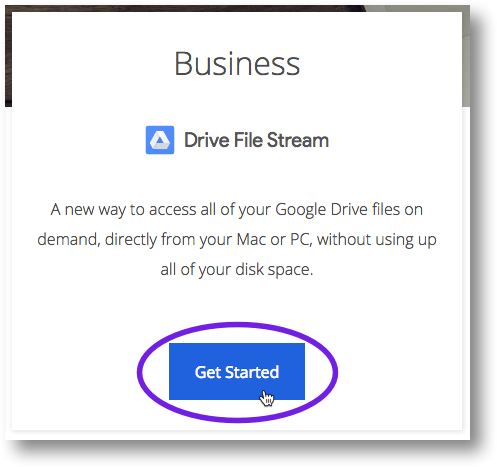
4. On the “Google Drive Help” page, click **Download for Mac**.
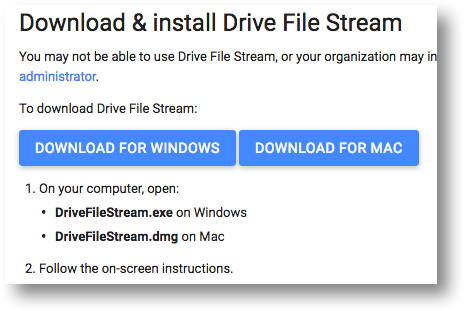
5. If prompted, save the installer file to your **Desktop**. (If you’re not prompted, the file may have been saved in your **Downloads** folder.)
6. Double-click the installer file.
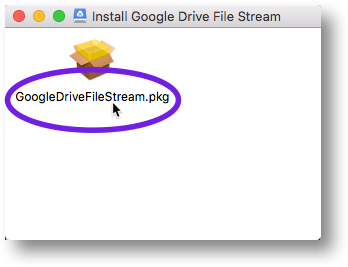
7. Double-click the .pkg file
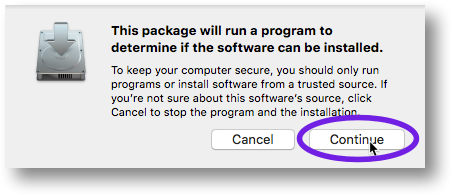
8. In the pop-up window, click **Continue**.
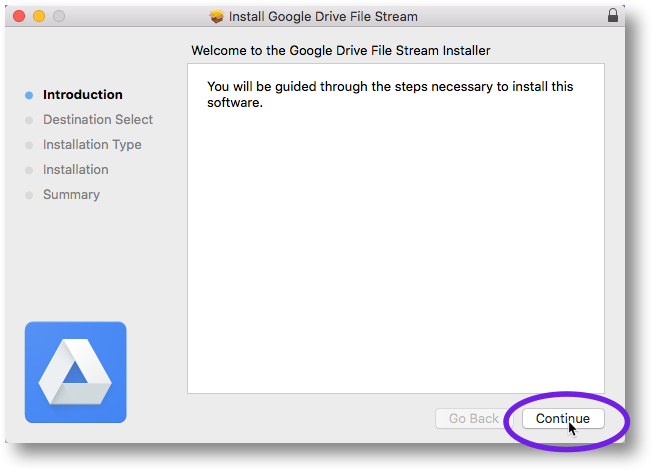
9. Click **Continue** in the next window.
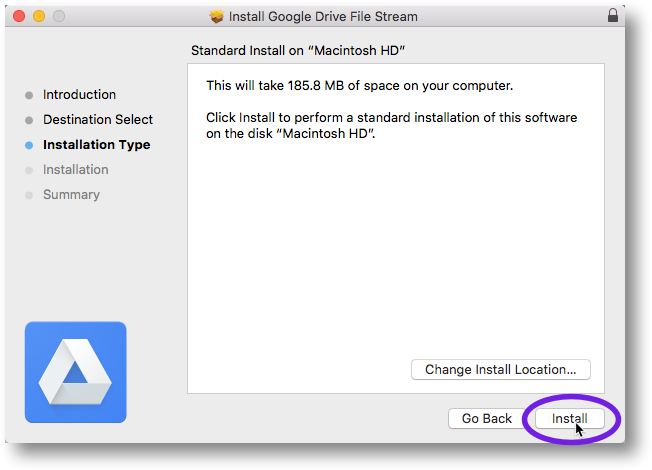
10. Click **Install** in the next window.
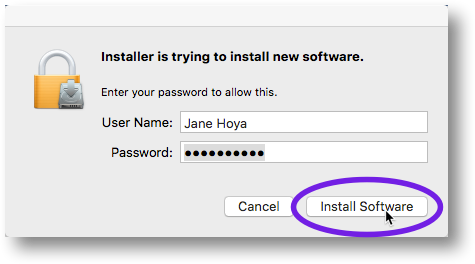
11. In the next window, enter your computer password and then click **Install Software** to start the installation process.
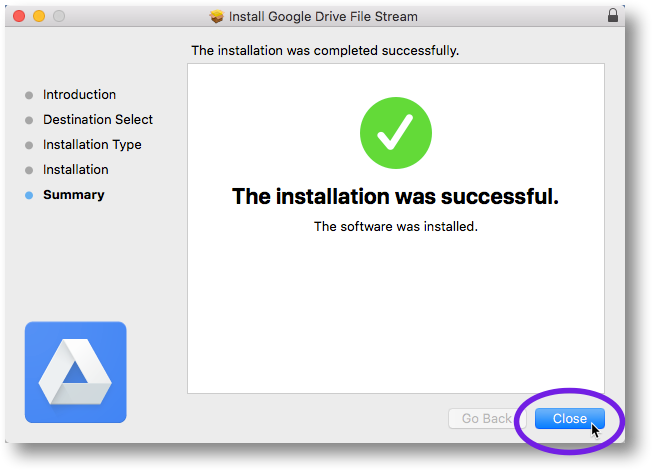
12. After a few moments, you should see the following install confirmation message. Click **Close**.
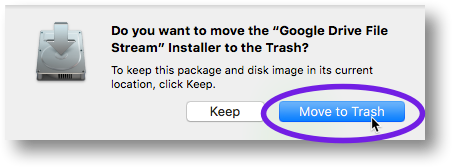
13. If you see the pop-up window shown below, click **Move to Trash**.
# Transfer Ownership in Google Drive
# Transfer file ownership
You’re the owner by default for files that you create in Docs, Sheets, and Slides, or upload into Drive. But, you can transfer ownership of your Google files (Docs, Sheets, and Slides) and folders to anyone you'd like, as long as that person has an email address.
If you're a Google Apps user, you can't transfer ownership to someone else who is outside of your domain.
### How to change owners
You can change who owns a file or folder in Drive.
1. Go to Drive or a Docs, Sheets, or Slides home screen.
2. Open the sharing box:
- **In Drive**: Select the file or folder and click the share icon at the top .
- **In a Docs, Sheets, or Slides [home screen](https://support.google.com/docs/answer/6012170)**: Open the file and click **Share** in the top-right corner of the file
3. If the new owner already has edit access, skip to Step 4. Otherwise, follow these steps:
1. Type the email address of the new owner in the "Invite people" field
2. Click **Share & save**.
4. Click **Advanced** in the bottom-right corner of the sharing box.
5. Click the drop-down menu next to the name of the person you want to own the file or folder.
6. Select **Is owner**.
7. Click **Done**.
You'll have access to the file as an editor after you transfer ownership.
**Google Apps Customers**: You can't make someone outside of your domain the owner of your Google Doc. Only Google Apps customers in Government and Education domains can transfer ownership of a synced or uploaded file (like a PDF or image file).
**Consumer Drive users**: You can't transfer ownership of a synced or uploaded file (like a PDF or an image file).
### Things to consider before you transfer ownership
- The things you’ll no longer be able to do once you transfer file ownership include:
- Remove others from the file
- Share with as many people as you like
- Change visibility options
- Allow your collaborators to change access privileges for others
- Permanently delete something from Google Drive. After it’s deleted, no one can access it, including those it was shared with.
- When you transfer ownership of a folder from yourself to another person, the new owner of the folder becomes an editor of the files in that folder. The original owners of the files remain the owners, and if the original owner deletes a file, it'll be removed from the folder.
- If your current Google Account is being deleted, transfer ownership of your files, folders, and Google files to another active account. Once the original account is deleted, you won’t be able to recover any of your files or folders from it.
# How to Share Google Calendar
1. Go to calendar.google.com
2. In the My calendars list on the left side of the page, click the down-arrow button next to the calendar you want to share, then select **Share this calendar**.
3. Enter the email address of the person you want to share your calendar with.
4. From the drop-down menu on the right side, select a level of permission, then click **Add Person**.
1. For a busy search only for Public, set the permissions for Make Available for Iredell-Statesville Schools to See Only Free/Busy (Hide details) from the drop down box
5. If you want to send a link to someone, click the Get Sharable Link
6. Click **Save**.
# Share a File in Google Drive
## Step 1: Find the file you want to share
### Share a single file
1. On a computer, go to [Google Drive](https://drive.google.com/), [Docs](https://docs.google.com/), [Sheets](https://sheets.google.com/), or [Slides](https://slides.google.com/).
2. Click the file you want to share.
3. Click Share or Share .
## Step 2: Choose who to share with & how they can use your file
### Share with specific people
If you use a Google Account through work or school, you might not be able to share files outside of your organization.
1. Under "People," enter the email address you want to share with.
- **Note:** If you share with an email address that isn’t a Google Account, they’ll only be able to view the file.
2. To choose what someone can do with your file, click the Down arrow .
- [Learn more about how others view, comment, or edit files.](https://support.google.com/drive/answer/2494822#view_comment_edit)
3. If you don’t want to send an email to people, click **Advanced** and uncheck the **Notify people** box. If you notify people, each email address you enter will be included in the email.
4. Click **Send**.
Share a link to the file
Share a file publicly
## Share & collaborate on a file with more than 100 people
Up to 100 people with view, edit, or comment permissions can work on a Google Docs, Sheets, or Slides file at the same time. When more than 100 people are accessing a file, only the owner and some users with editing permissions can edit the file.
To share and collaborate on a file with more than 100 people:
### Publish the file
- If you need many people to view a file at once, publish it and create a link to share to viewers. You can give edit access to people who need to edit or comment on the file. [Learn how to publish a file](https://support.google.com/docs/answer/37579).
- Publishing a file makes it visible to everyone on the web. Be careful when publishing private or sensitive info. If you have an account through work or school, your administrator can limit who can view a published file. If you're an administrator, [learn how to control who can publish documents to the web](https://support.google.com/a/answer/60781#allowshare).
- To remove a file from the web, you must stop publishing it. [Learn how to stop publishing a file](https://support.google.com/docs/answer/183965#stop_publishing).
- To stop sharing a file with collaborators, [learn how to change sharing permissions](https://support.google.com/docs/answer/2494893).
# Check or revert to earlier file versions in Drive
### View or revert to earlier versions of Docs, Sheets, and Slides files

**Note:** You need **Owner** or **Can edit** access to see the version history.
> 1. In [Drive](https://drive.google.com/), open your file.
> 2. Click **File****Version history****See version history**.
> 3. Click a timestamp to see a previous version of the file. Below the timestamp, you’ll see: > - Names of people who edited the document.
> > - A color next to each person’s name. The edits they made appear in that color.
> 4. (Optional) To revert to this version, click **Restore this version**.
### Upload a new version of a non-Google file to Drive
#### On the web
> 1. In [Drive](https://drive.google.com/), right-click the file that isn’t in a Google format and select **Manage versions**.
> 2. Click **Upload New Version** and select the file from your computer.
> 3. When the new version is uploaded, click **Close**.
#### From your computer
> 1. If you haven't already, install [Drive File Stream](https://support.google.com/a/users/answer/9310458#1.2).
> 2. On your computer, find the non-Google file.
> 3. Click Drive File Stream .
> 4. Click Open Google Drive .
> 5. Do one of the following actions: > - To move the file, drag it into a folder.
> > - To copy the file, copy and paste it into a folder.
The file synchronizes automatically to Drive on the web. If you update an existing file, the previous file is overwritten, but versions are maintained.
### Download or revert to earlier versions of non-Google files in Drive

> 1. In [Drive](https://drive.google.com/), click the file and at the top right, click More **Manage versions**.
> 2. Click More Download to download the file.
> 3. (Optional) To revert to an earlier version (such as the one you downloaded above), click **Upload New Version**, find the version of the file, and click **Open**.
> 4. Click **Close**.
# How to Upload to Google Drive
## Upload files & folders
On your computer, you can upload from [drive.google.com](https://drive.google.com/) or your desktop. You can upload files into private or shared folders.
1. On your computer, go to [drive.google.com](https://drive.google.com/).
2. At the top left, click **New**  **File Upload** or **Folder Upload.**
3. Choose the file or folder you want to upload.
### Drag files into Google Drive
1. On your computer, go to [drive.google.com](https://drive.google.com/).
2. Open or create a folder.
3. To upload files and folders, drag them into the Google Drive folder.
# Ways to Transfer Google Drive Files
# Use Google Takeout
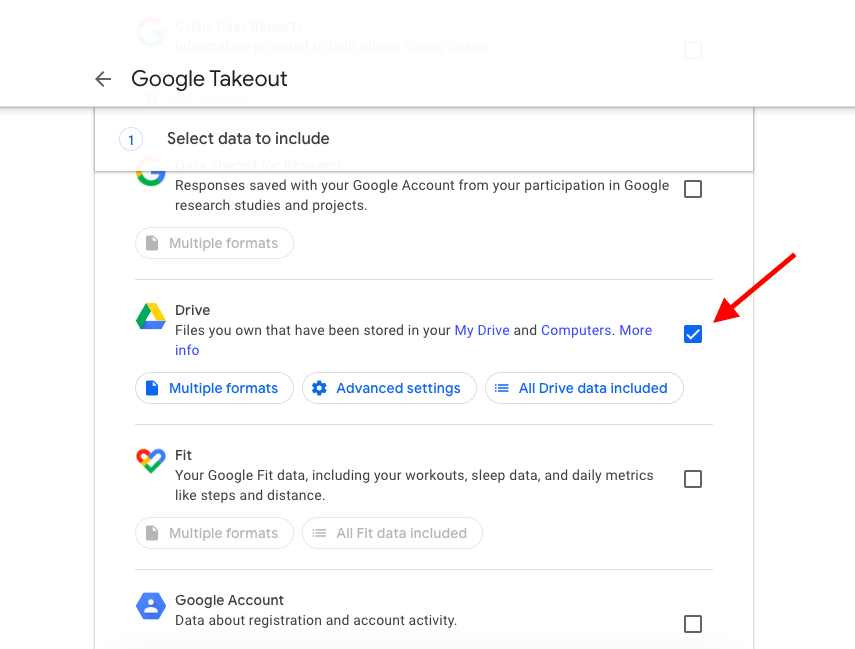
Go to [https://takeout.google.com/](https://takeout.google.com/)and choose which data you want to save from Google Takeout. If you want to ONLY download Google Drive, you can click **Deselect All** at the top and then check the box beside **Google Drive** and scroll down and click **Next.**
[](https://iss-kb.iss.k12.nc.us/uploads/images/gallery/2021-05/image-1620911159817.png)
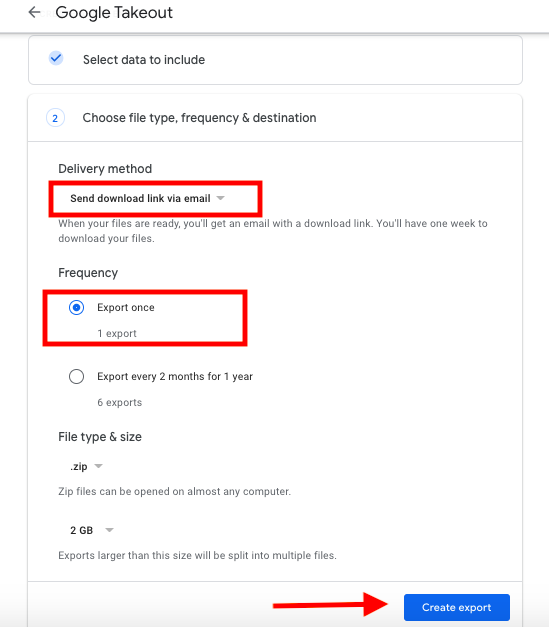
Make sure the Options are Selected to **Send download link via email, and export once** and then click **Create Export.**
[](https://iss-kb.iss.k12.nc.us/uploads/images/gallery/2021-05/image-1620913142024.png)