# Chromebook How To's
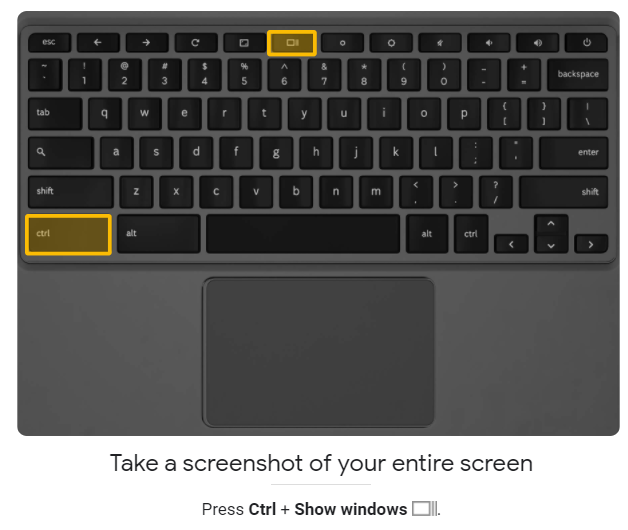
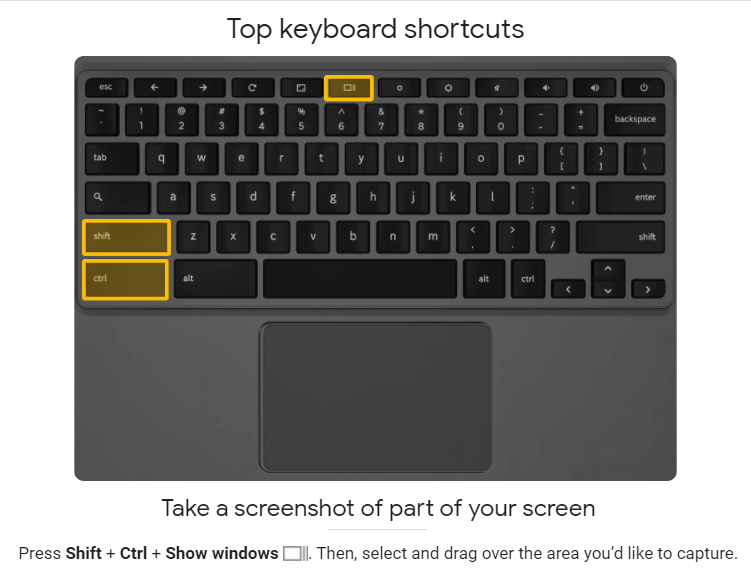
# How to Screenshot on Chromebooks
[](https://iss-kb.iss.k12.nc.us/uploads/images/gallery/2021-02/image-1614268190380.png)
[](https://iss-kb.iss.k12.nc.us/uploads/images/gallery/2021-02/image-1614268250751.png)
# How to Find and Open Files on Chromebook
# How to Edit Microsoft Office Files on Chromebook
[Click here for How to Edit Microsoft Office Files on Chromebook](https://iss-kb.iss.k12.nc.us/attachments/7)
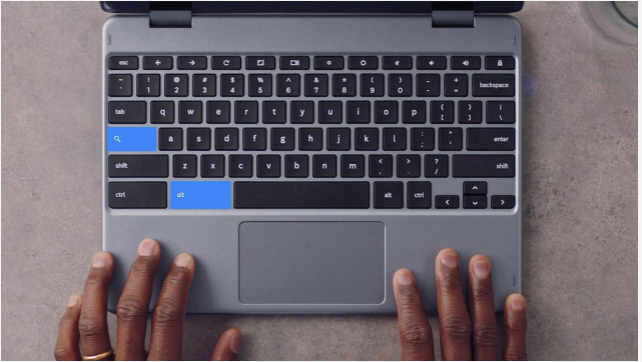
# How to use Caps Lock on Chromebook
Press Search + alt to Enable Caps Lock
Press Search + alt to Disable Caps Lock
[](https://iss-kb.iss.k12.nc.us/uploads/images/gallery/2021-02/image-1614274149417.png)
# How to Work On Files in Google Drive Without Internet
[Click here for how to Work On Files in Google Drive Without Internet](https://www.google.com/chromebook/howto/work-on-files-offline/)
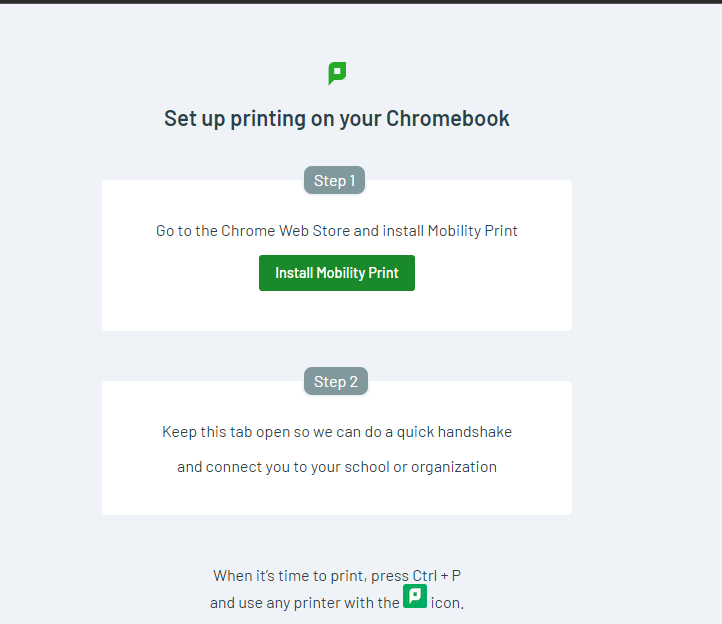
# Add A Chromebook to Copiers
## Click on [THIS LINK](https://mp.cloud.papercut.com/?token=eyJhbGciOiJSUzI1NiIsIm9yZyI6Im9yZy1TSFZLMzJBWSIsInNydiI6InNydi1CN1ZXM0E3UCIsInR5cCI6IkpXVCJ9.eyJpYXQiOjE3MTkzMTk1MjUsImlzcyI6InNydi1CN1ZXM0E3UCIsImp0aSI6IjRLTVJZTUxTIiwibG5rIjoiNEtNUllNTFMiLCJvcmciOiJvcmctU0hWSzMyQVkiLCJzcnYiOiJzcnYtQjdWVzNBN1AiLCJzdWIiOiJ0b2tlbkNyZWF0aW9uIn0.i19W6NcP1_KrrnvoCEhk10rQC7ny-5_BycCgR5br4WC82HUdfpyvxqXT_xW8d_oS1aMGdyeC6wTof7nyUqxMntwwQqfKMgAJ_EOGgqfM7dvFkeAfiQfGY_idKSdwEb-QtayeLVfDwP06brNgipuyXwjQgkGQvV6dulWQnuS1gTKT-QWtMi7IHkUAWQbBf-uETdpl1qOGkpge-BgK-v7pGD4JoJrfFxV4e84a_iJHDYOKDxFqJA3MtniwFT33QA34DIJZKw7Ynf7G_tWlwqJ7DGe7U8tXvFRhuJXDOTzVGxurqeuz2UBxkzinJuzVi6OtpQR0_u67vzSDhJ16DtAVIK7Sg2ExiOgXYHhjjRHsmIv7tF8uPklDuTMsKj5o6FLfwlRPoQQnNfgHULc_-8n0dC3YdK6E3_q7kcMAeDQkLQWvgOQ6pYLnNZZDAR7hT3ILi-OFFO4TdalDRYAs69cYnqNsy7tWYfRiJ73XjBhBrzBU6b5-rQn50PfNYE2QfAbDX8OU1e7CgyquK23ZpEa4Bt6zH-K3CUnswHGNl8QGxw2rUpK8qxn3hxiqOU0j-G347C-qsrGuxDNt13bDL-69wm1icQOoMnpOyJix0AXd2jtqBVgDYD7w8Jia9iXkFD7U0ggfcp0DavgiRG8sEfVmIMUxZqRdk8i9_8a-xQ74d_0)
Then click Install Mobility Print
[](https://iss-kb.iss.k12.nc.us/uploads/images/gallery/2024-08/Md0image.png)
# How to Powerwash a Chromebook
## Factory reset your Chromebook
1. Sign out of your Chromebook.
2. Press and hold **Ctrl** + **Alt** + **Shift** + **r**.
3. Select **Restart**.
4. In the box that appears, select **Powerwash**  **Continue**.
5. Follow the steps that appear and sign in with your Google Account.
**Note**: The account you sign in with after you reset your Chromebook will be the [owner account](https://support.google.com/chromebook/answer/1059256).
6. Once you've reset your Chromebook:
- Follow the onscreen instructions to [set up your Chromebook](https://support.google.com/chromebook/answer/1047362#cros-onscreen-instructions)
- Check if the problem is fixed