# How to Call from Avaya Cloud Office
1. First, sign in to the Avaya Cloud Office - If you need assistance doing this, please follow [these instructions.](https://iss-kb.iss.k12.nc.us/books/avaya-user/page/how-to-sign-into-avaya-cloud-office)
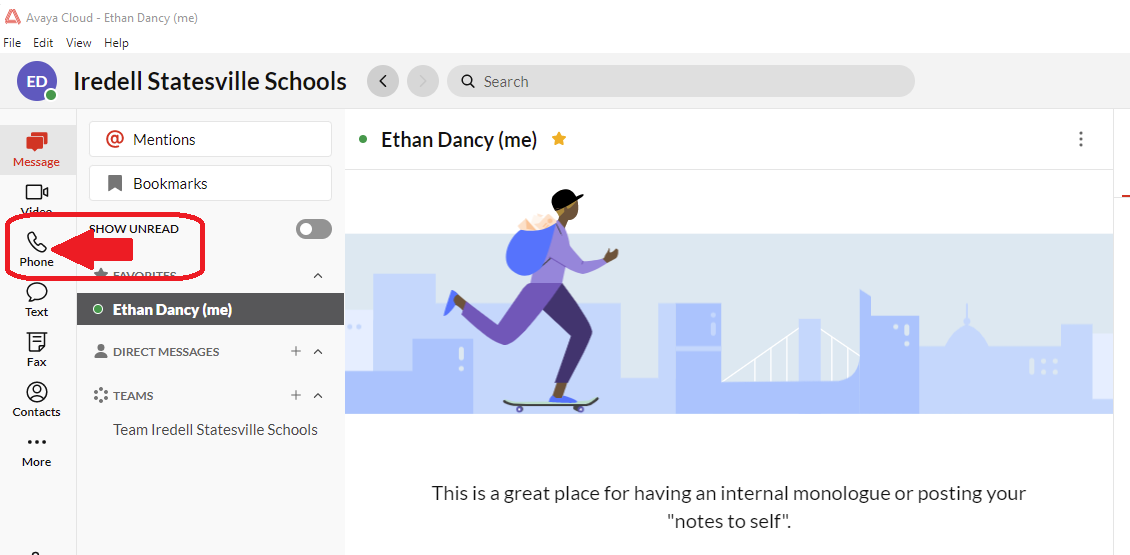
2. Click Phone on the left hand side of the Application
[](https://iss-kb.iss.k12.nc.us/uploads/images/gallery/2023-01/pkZimage.png)
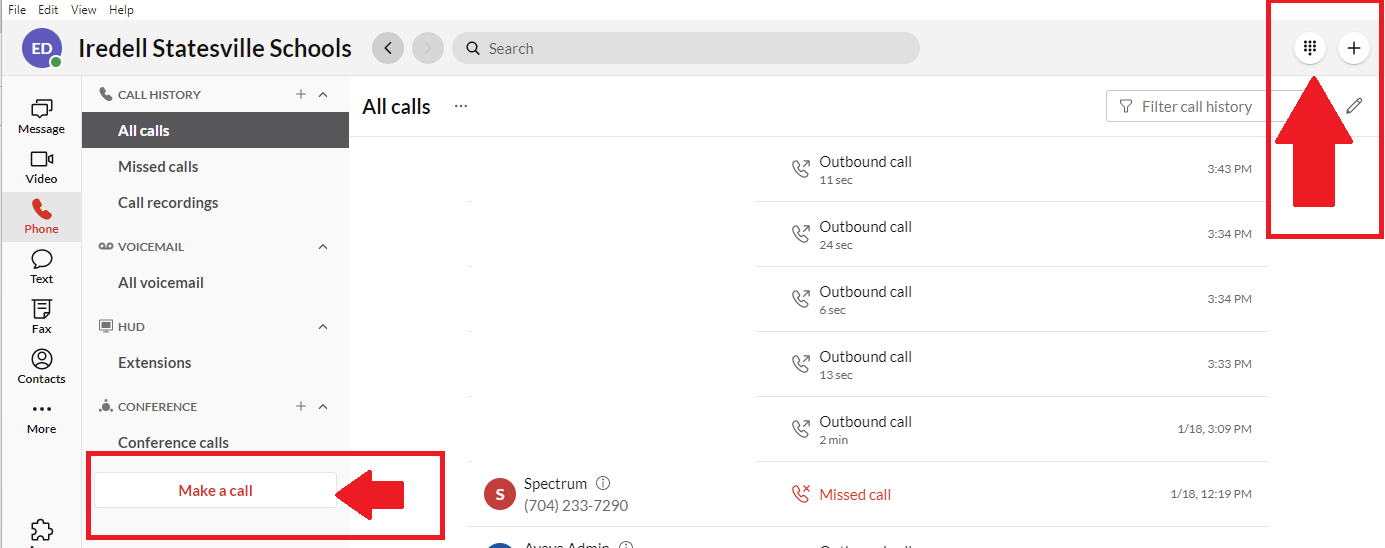
3. You can then either click **Make A Call** or you can click the dial pad in the top right.
[](https://iss-kb.iss.k12.nc.us/uploads/images/gallery/2023-01/K60image.png)
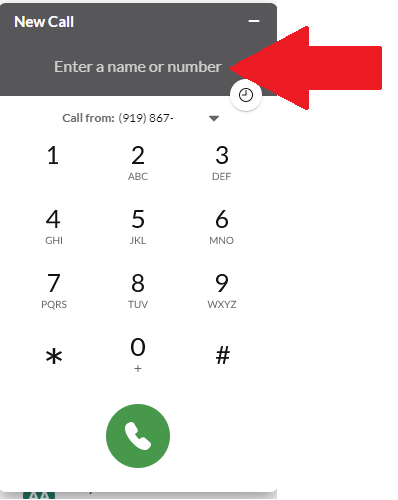
4. You can then dial the Phone Number you are trying to contact, or if it is an Internal Contact within Iredell-Statesville Schools you can dial their extension or you can search for the user by name, and then click the green call button.
[](https://iss-kb.iss.k12.nc.us/uploads/images/gallery/2023-01/rAuimage.png)