# Avaya User
# How to Sign Into Avaya Cloud Office
Launch the Avaya Cloud Office Application. If you are on a Windows Machine, this Application should be already installed and if you are on a Macbook you will need to install the Application from Mosyle Manager - For instructions on How to Install Avaya Cloud office on your Macbook, [please click here.](https://iss-kb.iss.k12.nc.us/books/avaya-user/page/how-to-install-avaya-cloud-office-on-mac)
1. Launch the Application Avaya Cloud Office
2. Click Sign in with Google [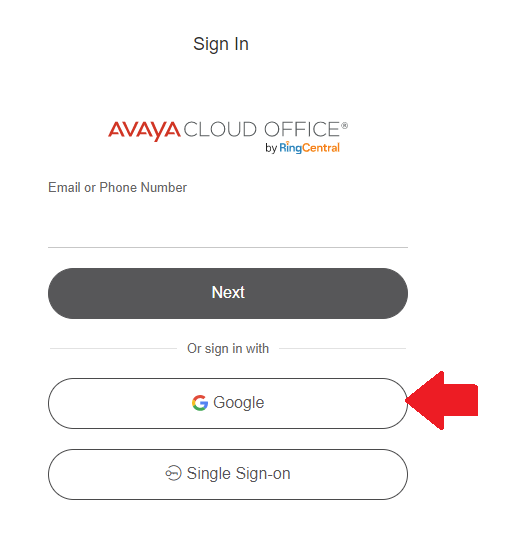](https://iss-kb.iss.k12.nc.us/uploads/images/gallery/2023-01/tgdimage.png)
3. Choose your ISS Email Address
[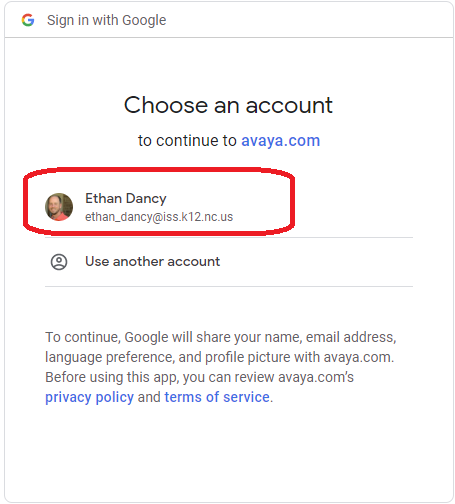](https://iss-kb.iss.k12.nc.us/uploads/images/gallery/2023-01/XVCimage.png)
4. The first time you sign in, it may ask you for permissions to use your Google Account. Click **Allow** on these options.
5. Once you are signed in, you will receive a prompt to Open the Avaya Cloud Office App [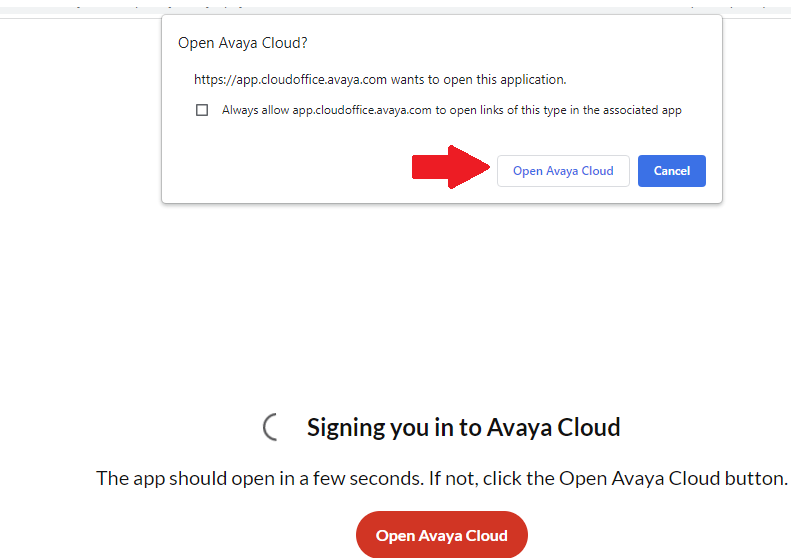](https://iss-kb.iss.k12.nc.us/uploads/images/gallery/2023-01/HkCimage.png)
6. After you do this, you should be signed into the Avaya Cloud Office Software and can use your phone from your computer. [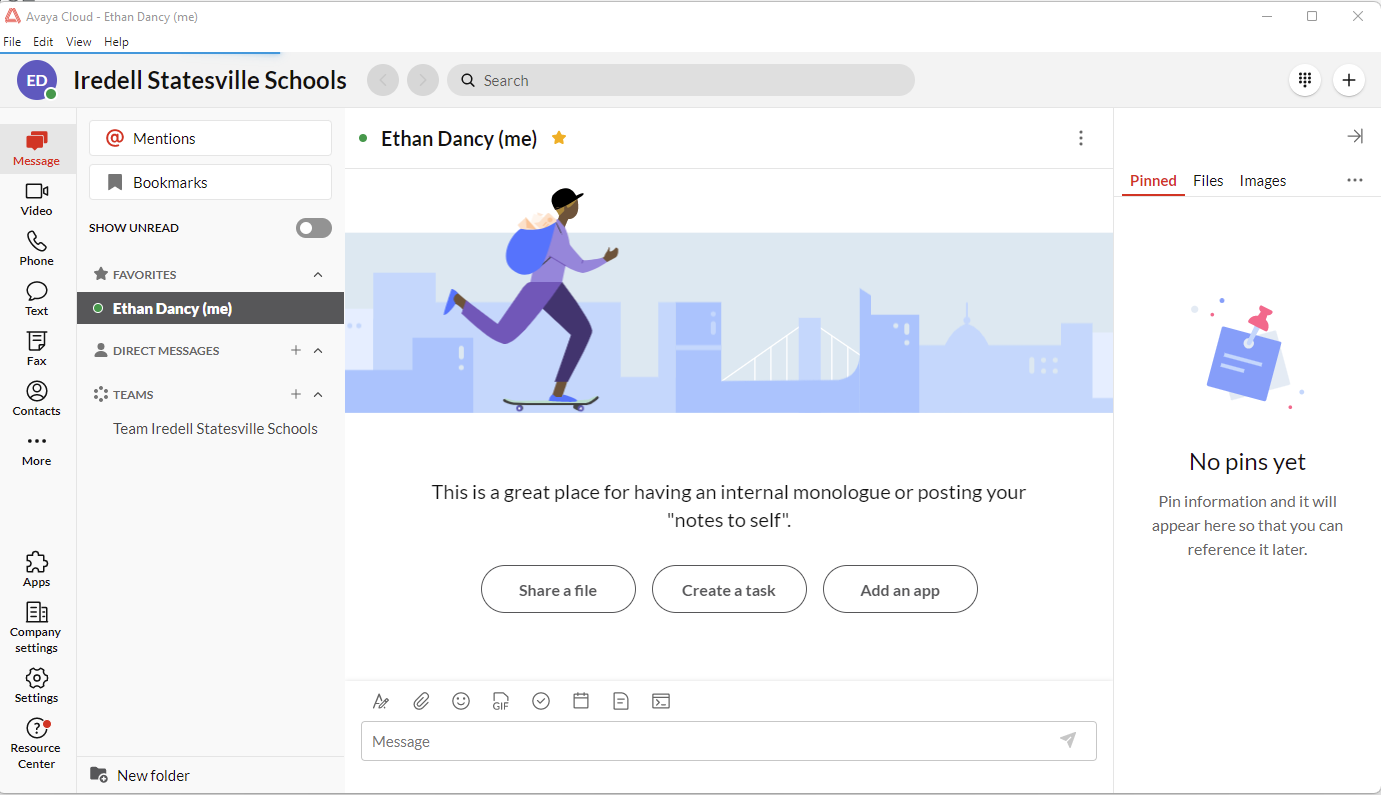](https://iss-kb.iss.k12.nc.us/uploads/images/gallery/2023-01/EoXimage.png)
# How to Install Avaya Cloud Office on Mac
1. Launch Mosyle Manager by going to **Finder,** and then the **Applications** folder.
[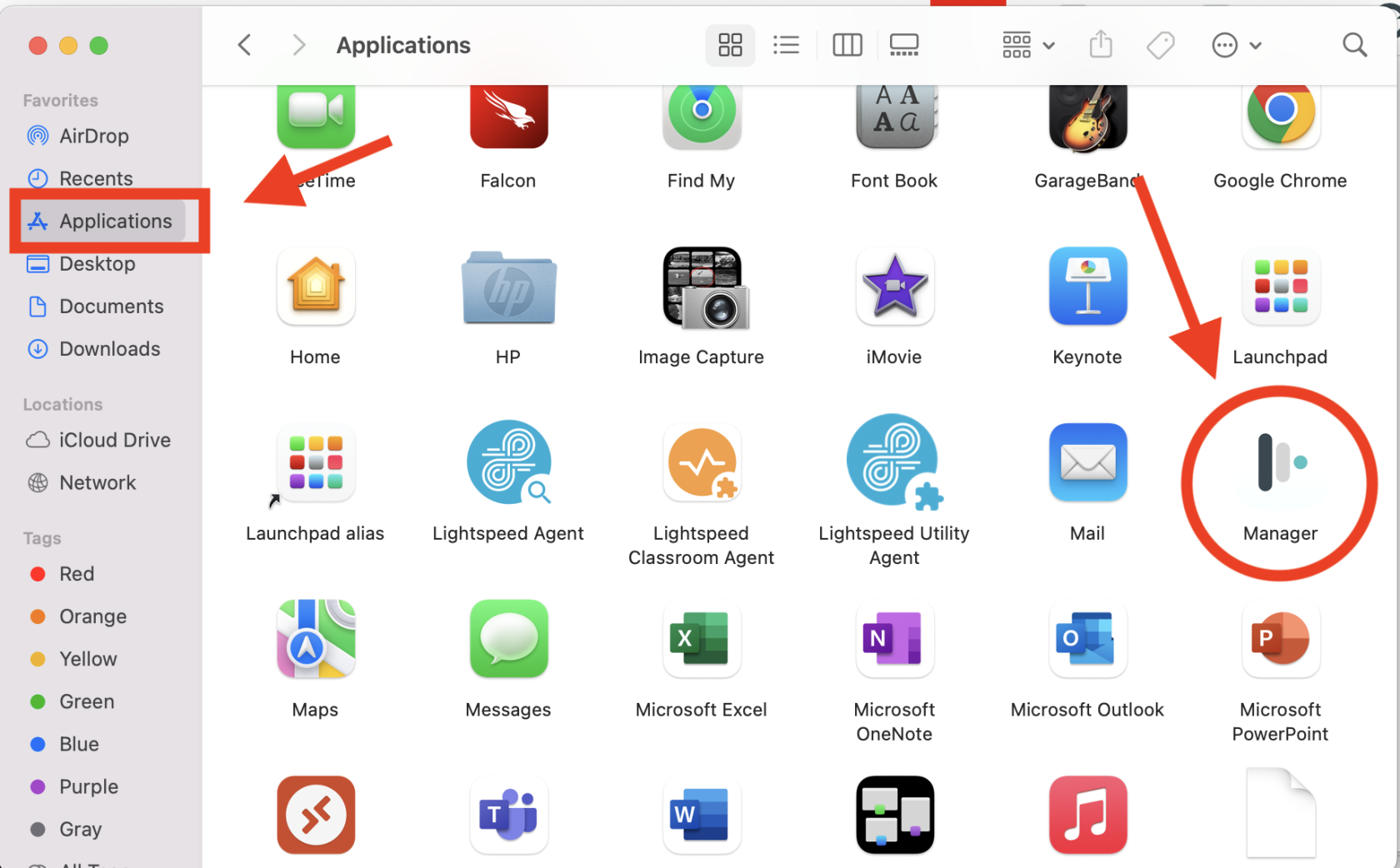](https://iss-kb.iss.k12.nc.us/uploads/images/gallery/2023-01/ySyimage.png)
2. Go to Self-Service, and then My Apps
[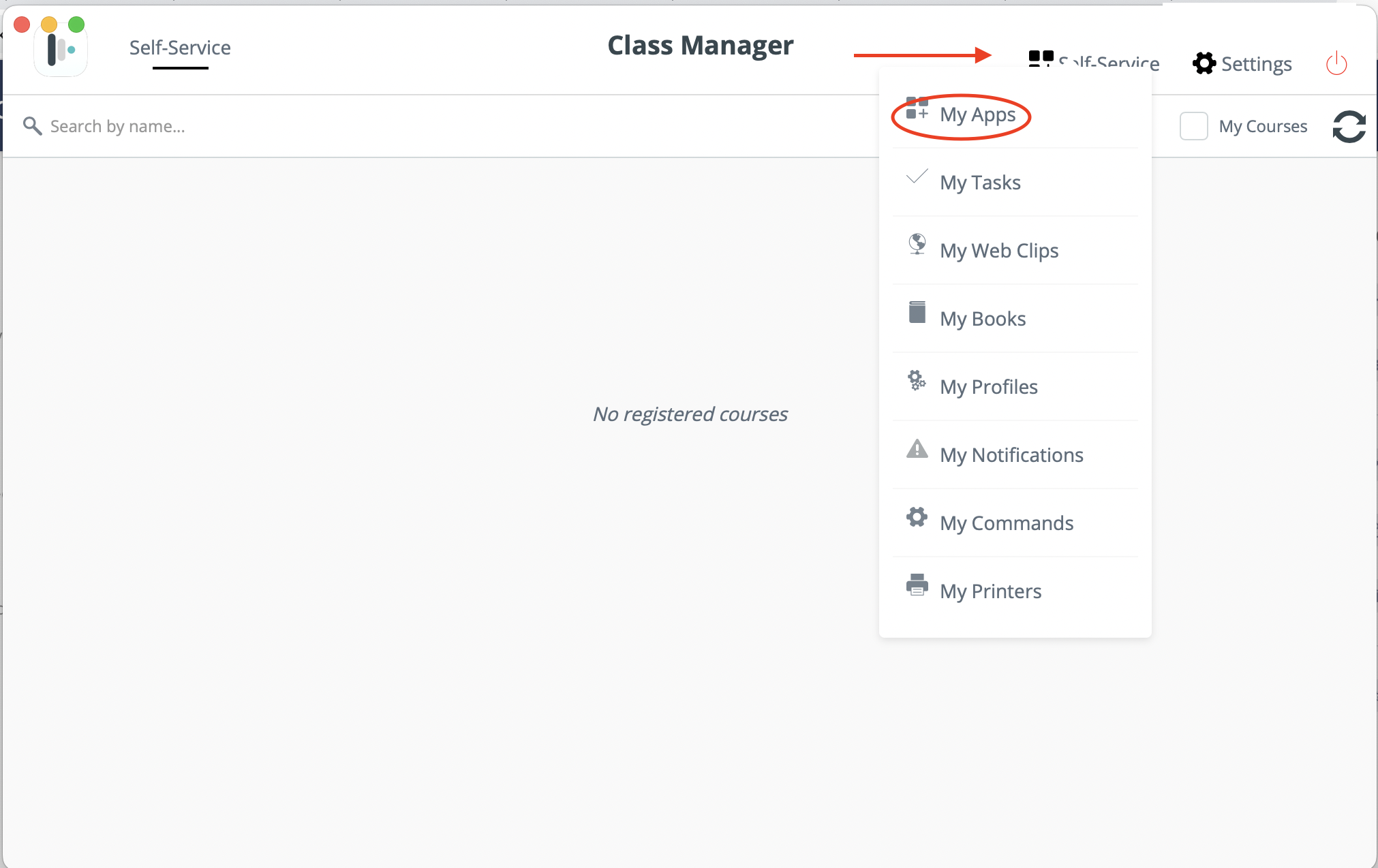](https://iss-kb.iss.k12.nc.us/uploads/images/gallery/2023-01/rvcimage.png)
3. Find the Application called **Avaya Cloud M1** and click **Install.** [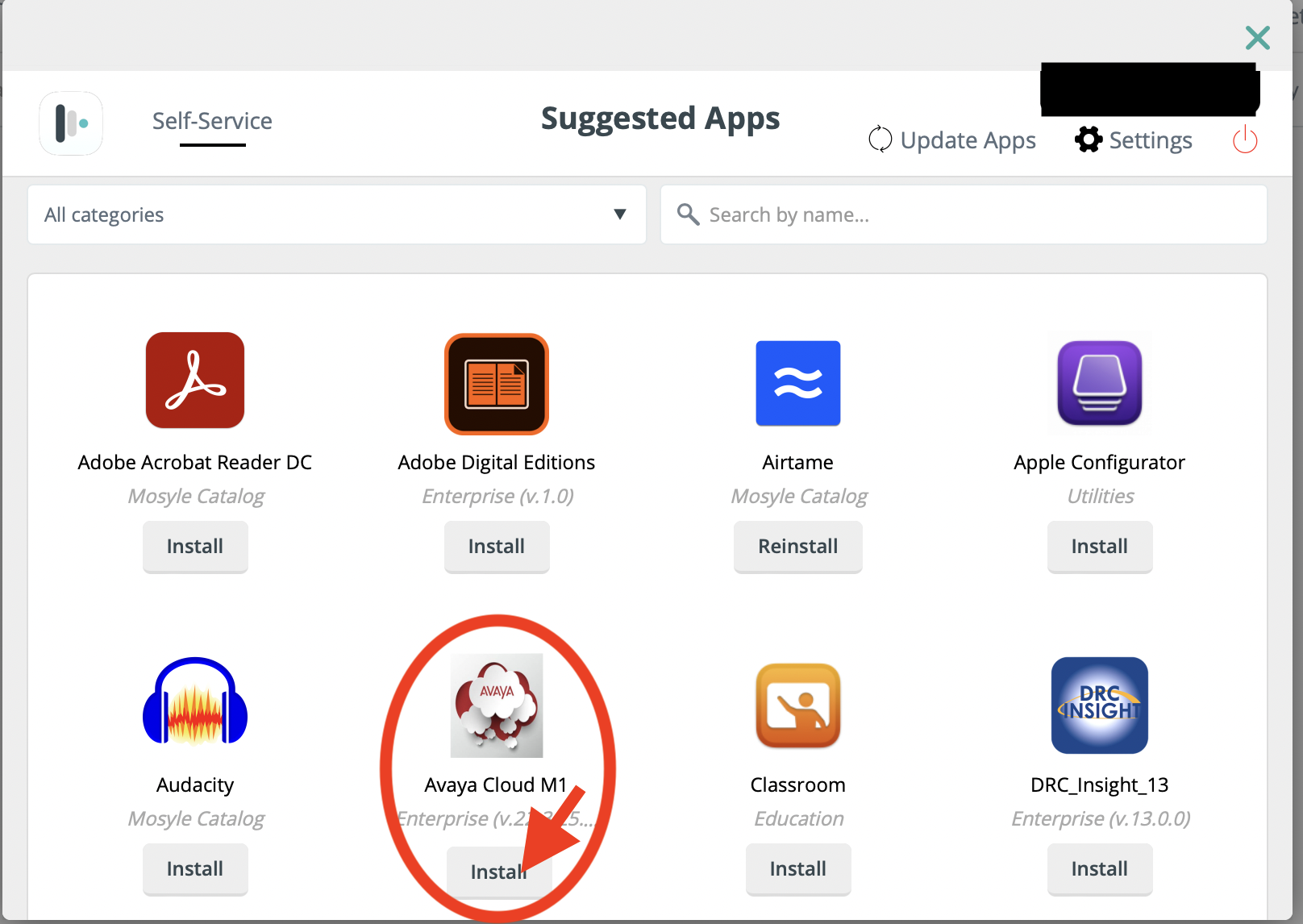](https://iss-kb.iss.k12.nc.us/uploads/images/gallery/2023-01/cSHimage.png)
4. Now you should be able to go back into Finder, and go to Applications, and Launch Avaya Cloud
[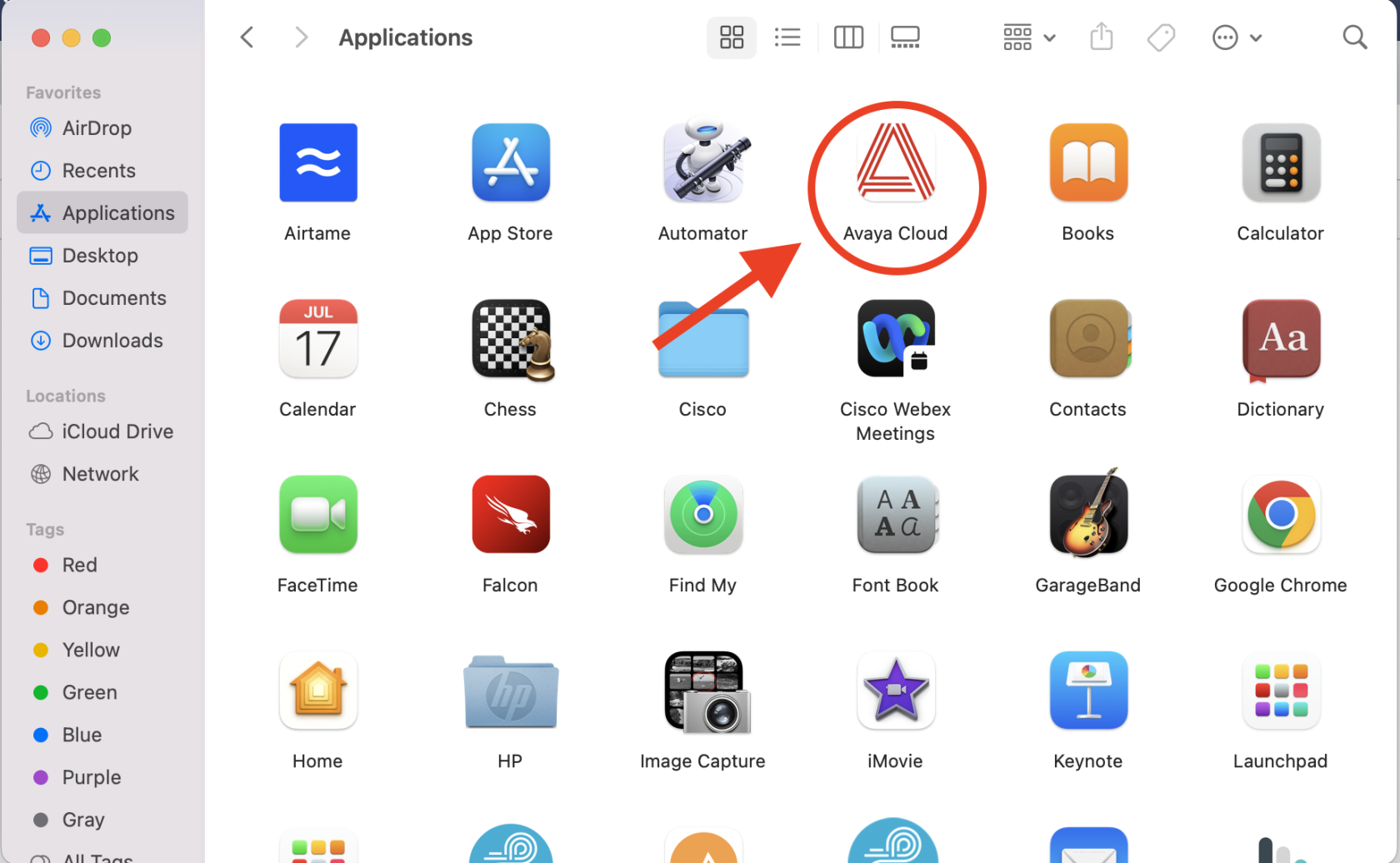](https://iss-kb.iss.k12.nc.us/uploads/images/gallery/2023-01/BWBimage.png)
# How to Call from Avaya Cloud Office
1. First, sign in to the Avaya Cloud Office - If you need assistance doing this, please follow [these instructions.](https://iss-kb.iss.k12.nc.us/books/avaya-user/page/how-to-sign-into-avaya-cloud-office)
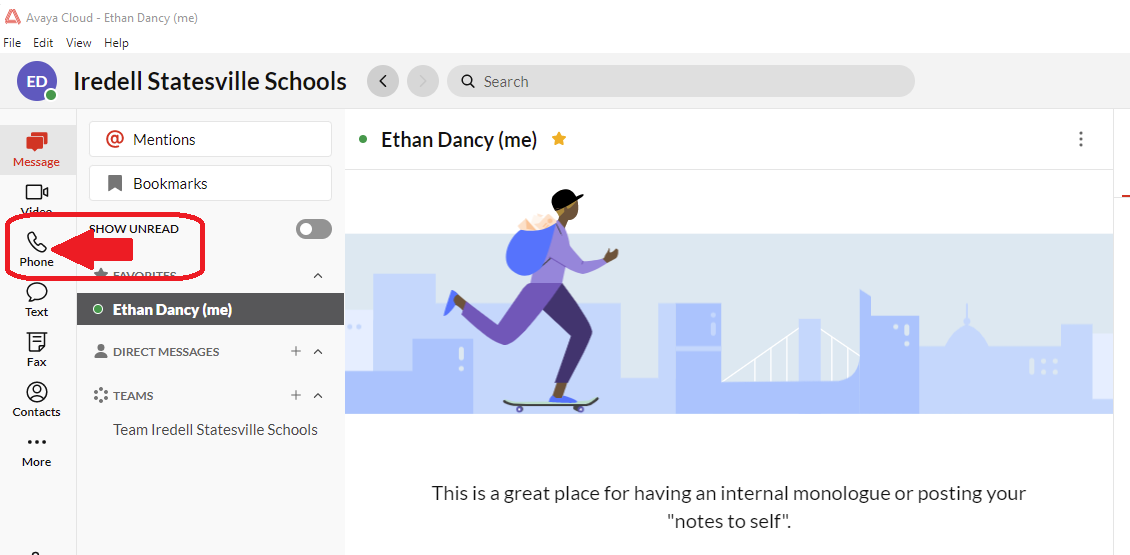
2. Click Phone on the left hand side of the Application
[](https://iss-kb.iss.k12.nc.us/uploads/images/gallery/2023-01/pkZimage.png)
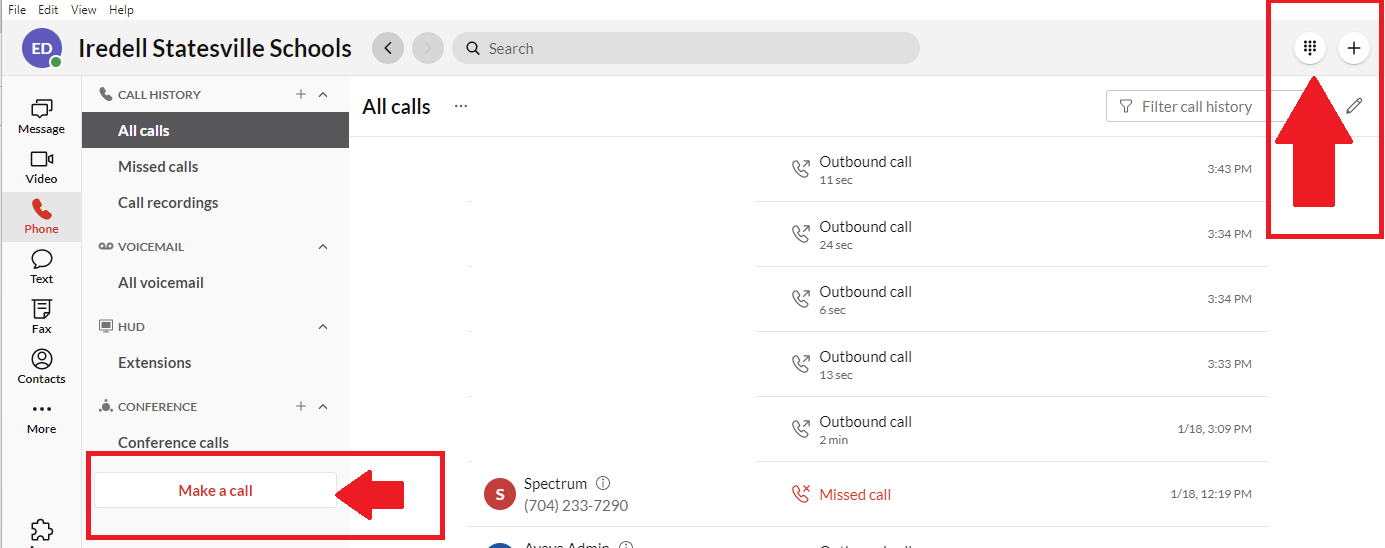
3. You can then either click **Make A Call** or you can click the dial pad in the top right.
[](https://iss-kb.iss.k12.nc.us/uploads/images/gallery/2023-01/K60image.png)
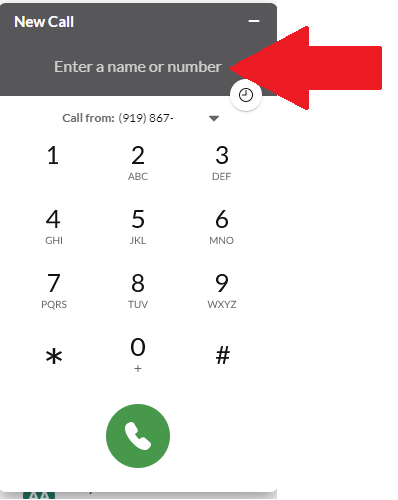
4. You can then dial the Phone Number you are trying to contact, or if it is an Internal Contact within Iredell-Statesville Schools you can dial their extension or you can search for the user by name, and then click the green call button.
[](https://iss-kb.iss.k12.nc.us/uploads/images/gallery/2023-01/rAuimage.png)
# How to Use Voicemail with Avaya
**Setting up your Voicemail**
1. Press the Voicemail key and enter the initial PIN number of 100322 #
2. Follow the prompt to Press 2 for Account Administration
3. Then follow the prompts to record your message and to change your PIN
**Access your Voicemail messages**
\- If you have a new voicemail message the Red Beacon light will be lit up at the top of your phone
\- To retrieve the message, press the voicemail button and enter the PIN you previously set up
\- The display will give you options to LISTEN to new, old or saved messages.
\- Press the SELECT softkey when the message you want to hear is highlighted.
\- Follow the prompts to then Save, Delete or Copy the message
# Set Office Hours on Avaya Cloud Office
1. Sign in to Avaya Cloud Office - [service.cloudoffice.avaya.com](https://service.cloudoffice.avaya.com/)
2. Click Sign in with Google [](https://iss-kb.iss.k12.nc.us/uploads/images/gallery/2023-01/tgdimage.png)
3. Choose your ISS Email Address
[](https://iss-kb.iss.k12.nc.us/uploads/images/gallery/2023-01/XVCimage.png)
4. The first time you sign in, it may ask you for permissions to use your Google Account. Click **Allow** on these options.
5. Click **Settings** at the top. [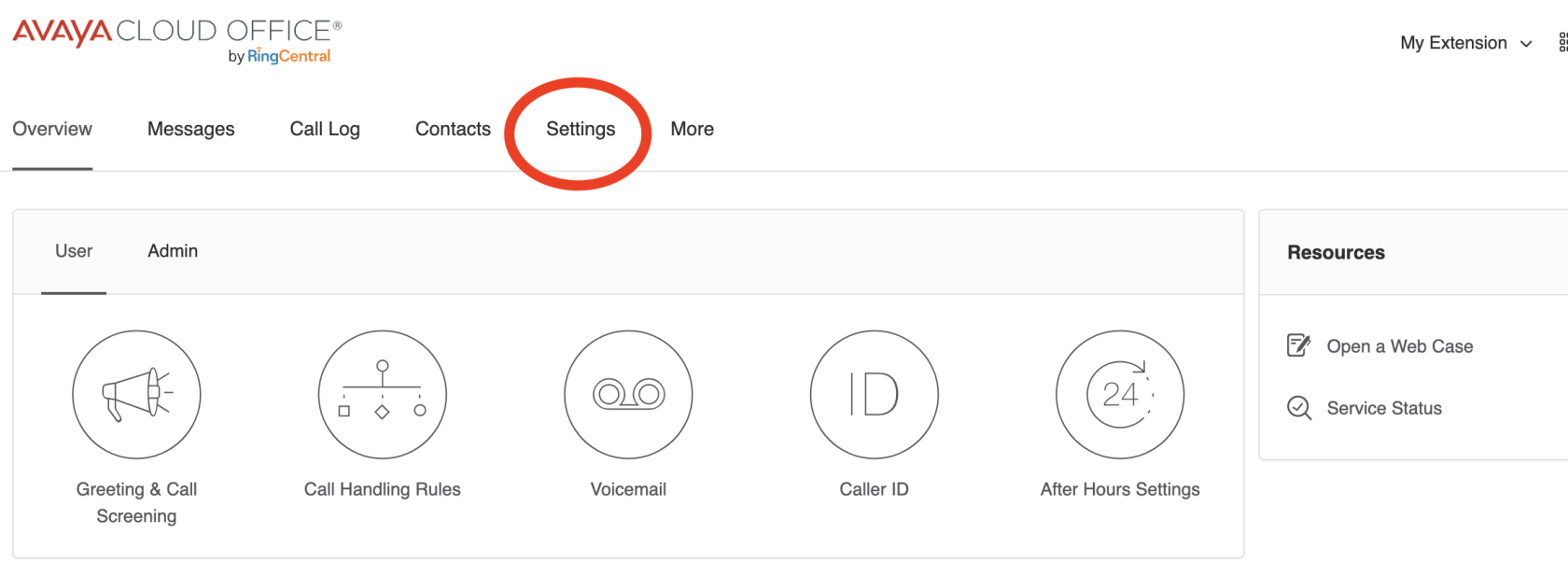](https://iss-kb.iss.k12.nc.us/uploads/images/gallery/2023-02/image.png)
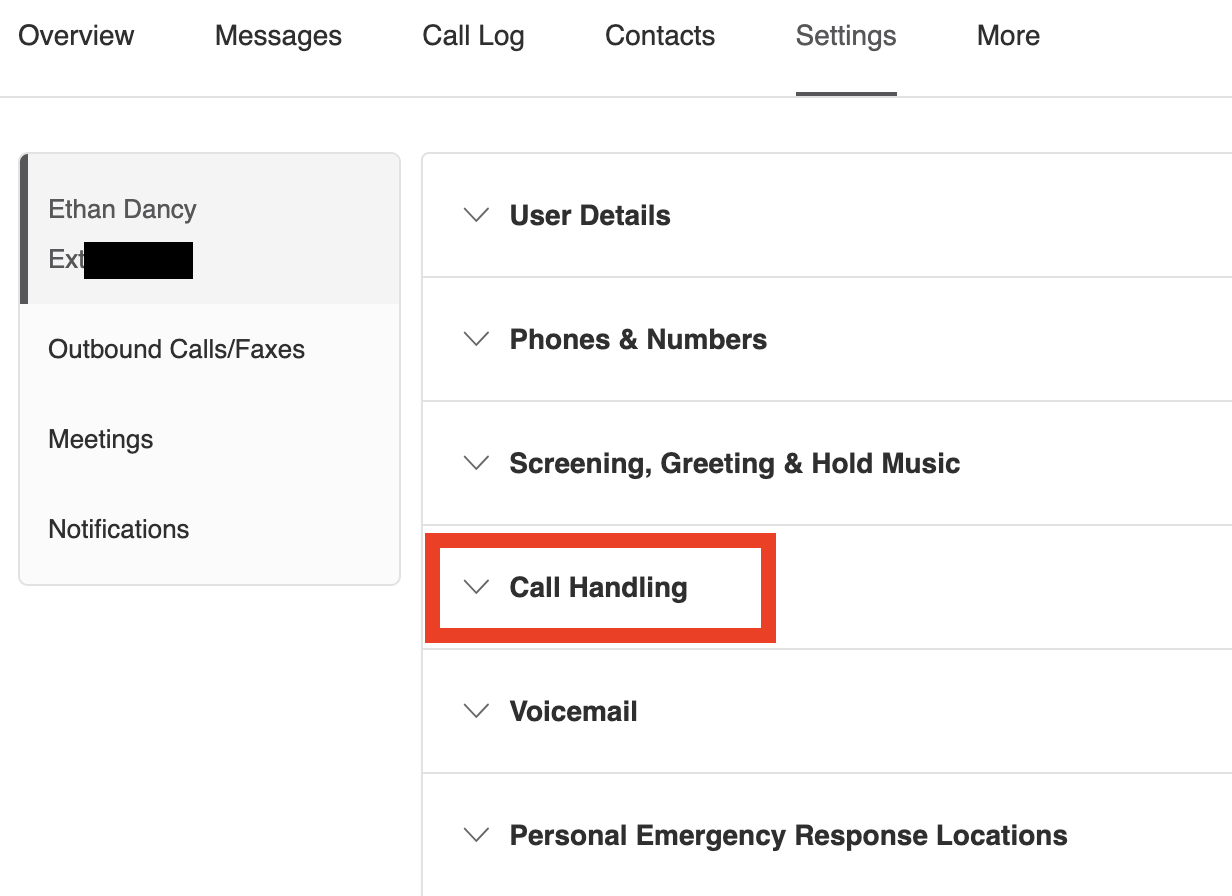
6. Click Call Handling
[](https://iss-kb.iss.k12.nc.us/uploads/images/gallery/2023-02/jsnimage.png)
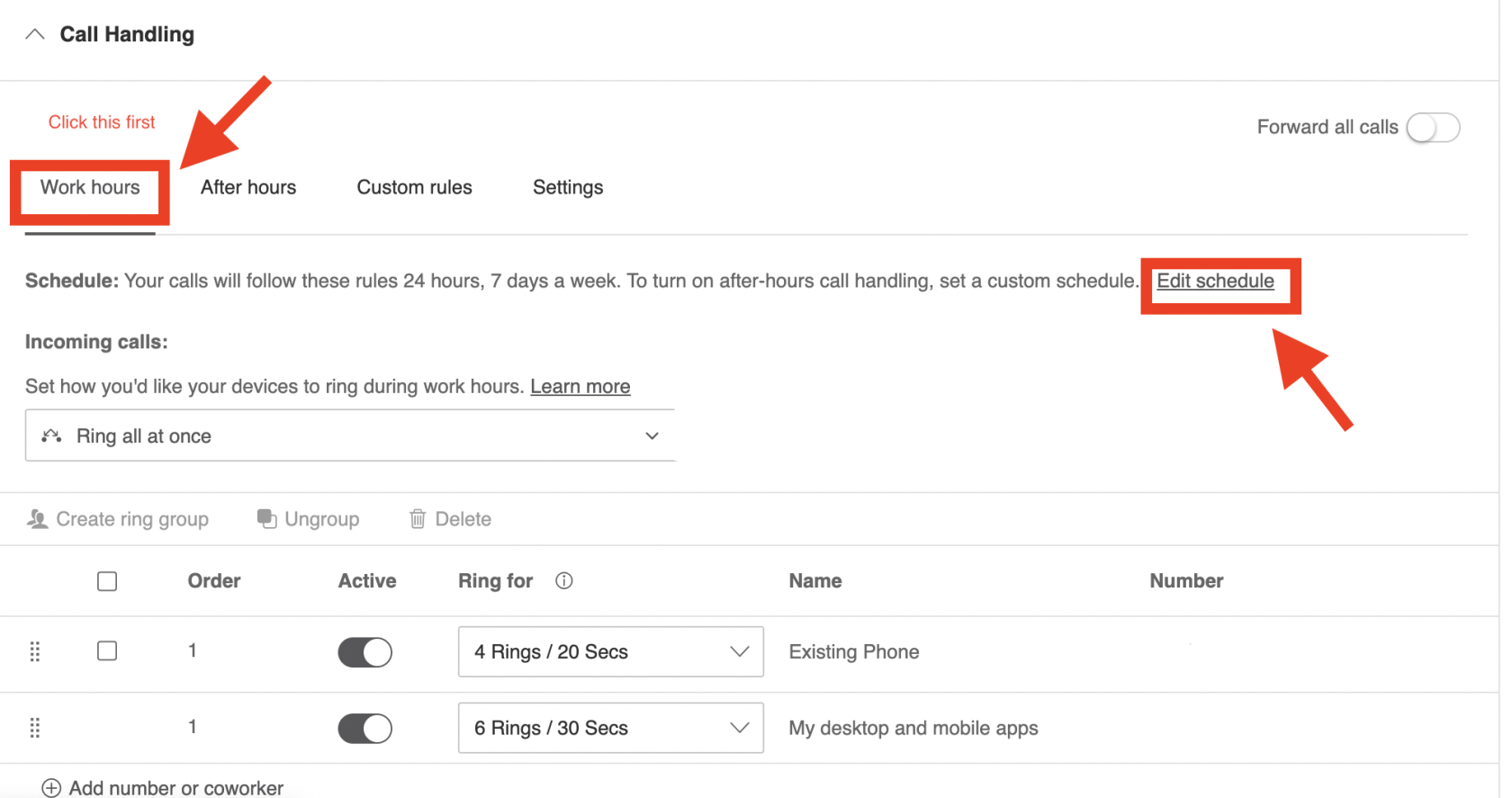
7. Click **Work hours**, and then click **Edit Schedule**
[](https://iss-kb.iss.k12.nc.us/uploads/images/gallery/2023-02/mn3image.png)
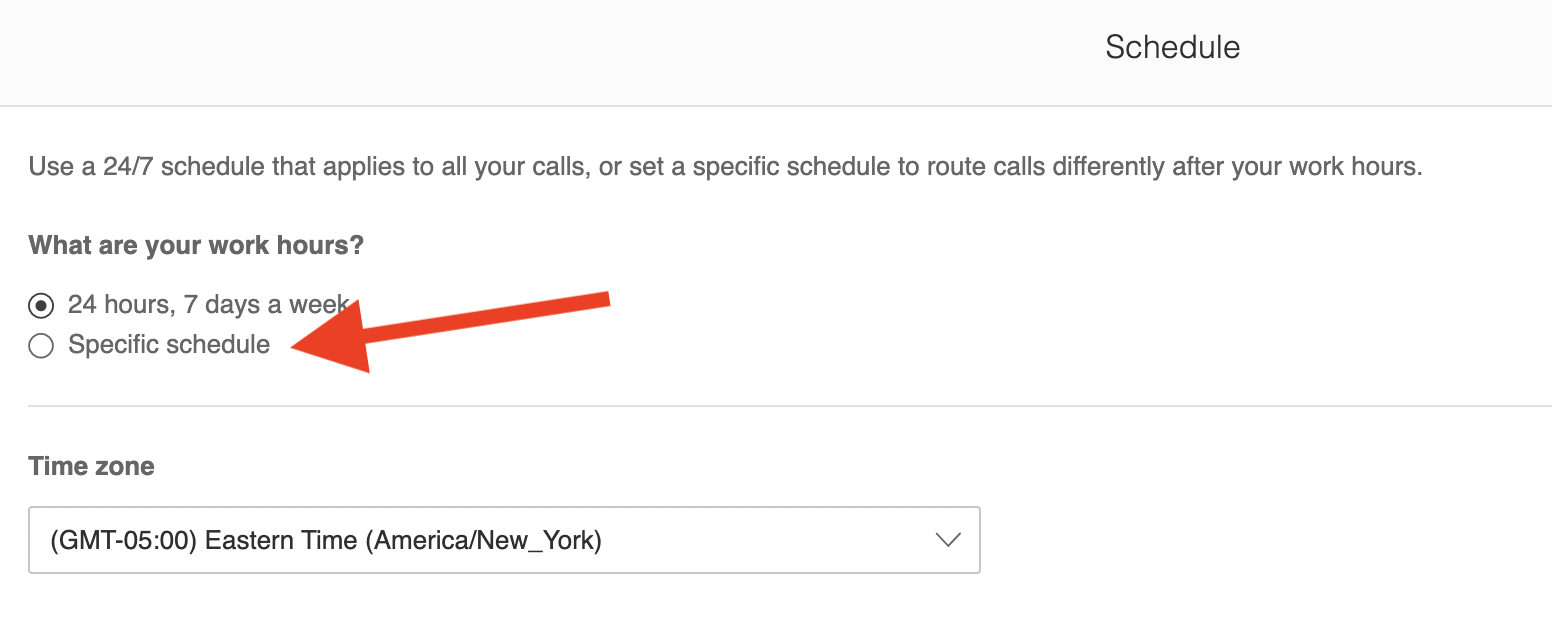
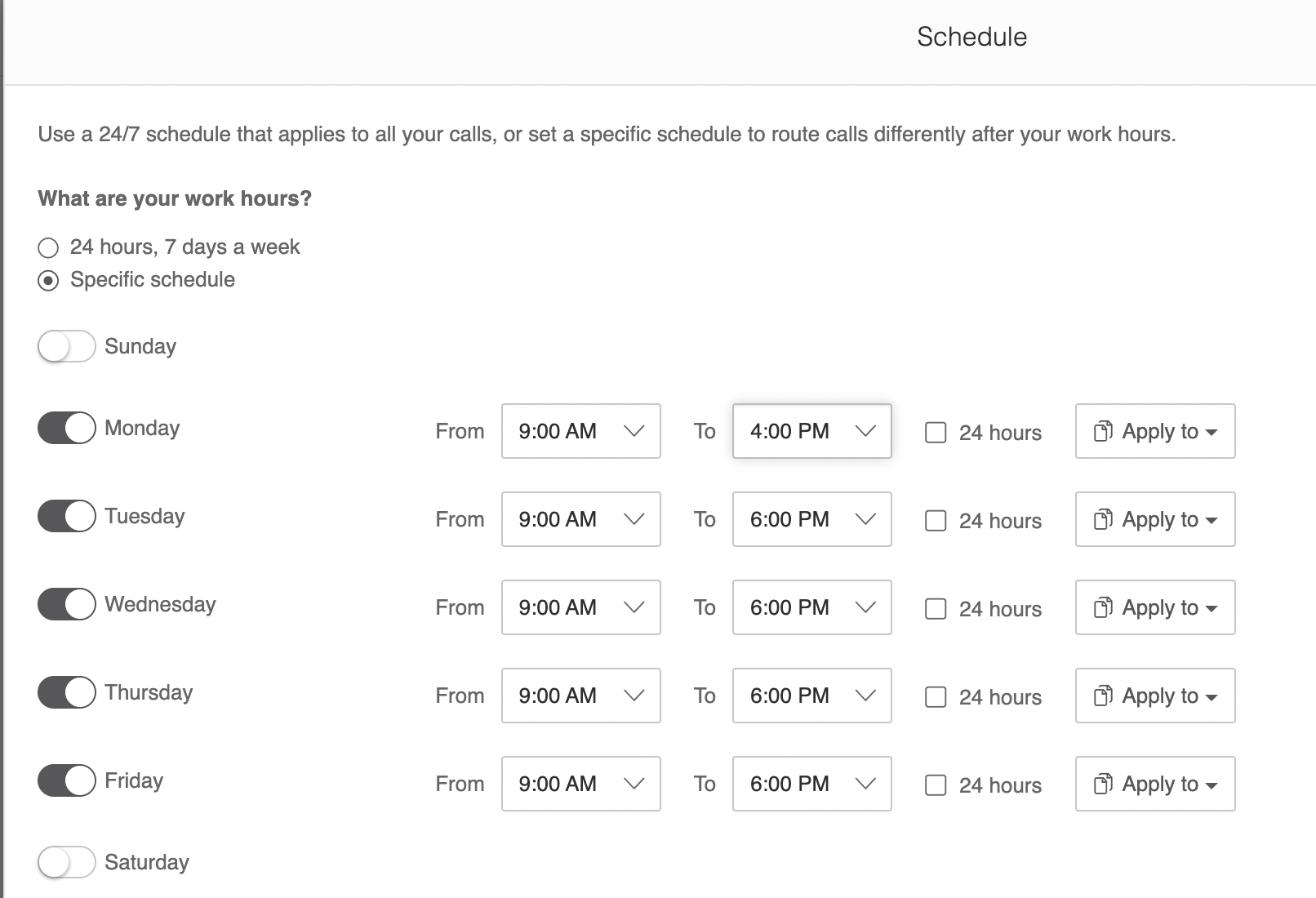
8. Here you can specify a specific work hours schedule.
[](https://iss-kb.iss.k12.nc.us/uploads/images/gallery/2023-02/plJimage.png)
[](https://iss-kb.iss.k12.nc.us/uploads/images/gallery/2023-02/6xTimage.png)
9. Once you are finished setting your schedule, then click Save.
# Avaya Call Handling
1. Sign in to Avaya Cloud Office - [service.cloudoffice.avaya.com](https://service.cloudoffice.avaya.com/)
2. Click Sign in with Google [](https://iss-kb.iss.k12.nc.us/uploads/images/gallery/2023-01/tgdimage.png)
3. Choose your ISS Email Address
[](https://iss-kb.iss.k12.nc.us/uploads/images/gallery/2023-01/XVCimage.png)
4. The first time you sign in, it may ask you for permissions to use your Google Account. Click **Allow** on these options.
5. Click **Settings** at the top. [](https://iss-kb.iss.k12.nc.us/uploads/images/gallery/2023-02/image.png)
6. Click Call Handling
[](https://iss-kb.iss.k12.nc.us/uploads/images/gallery/2023-02/jsnimage.png)
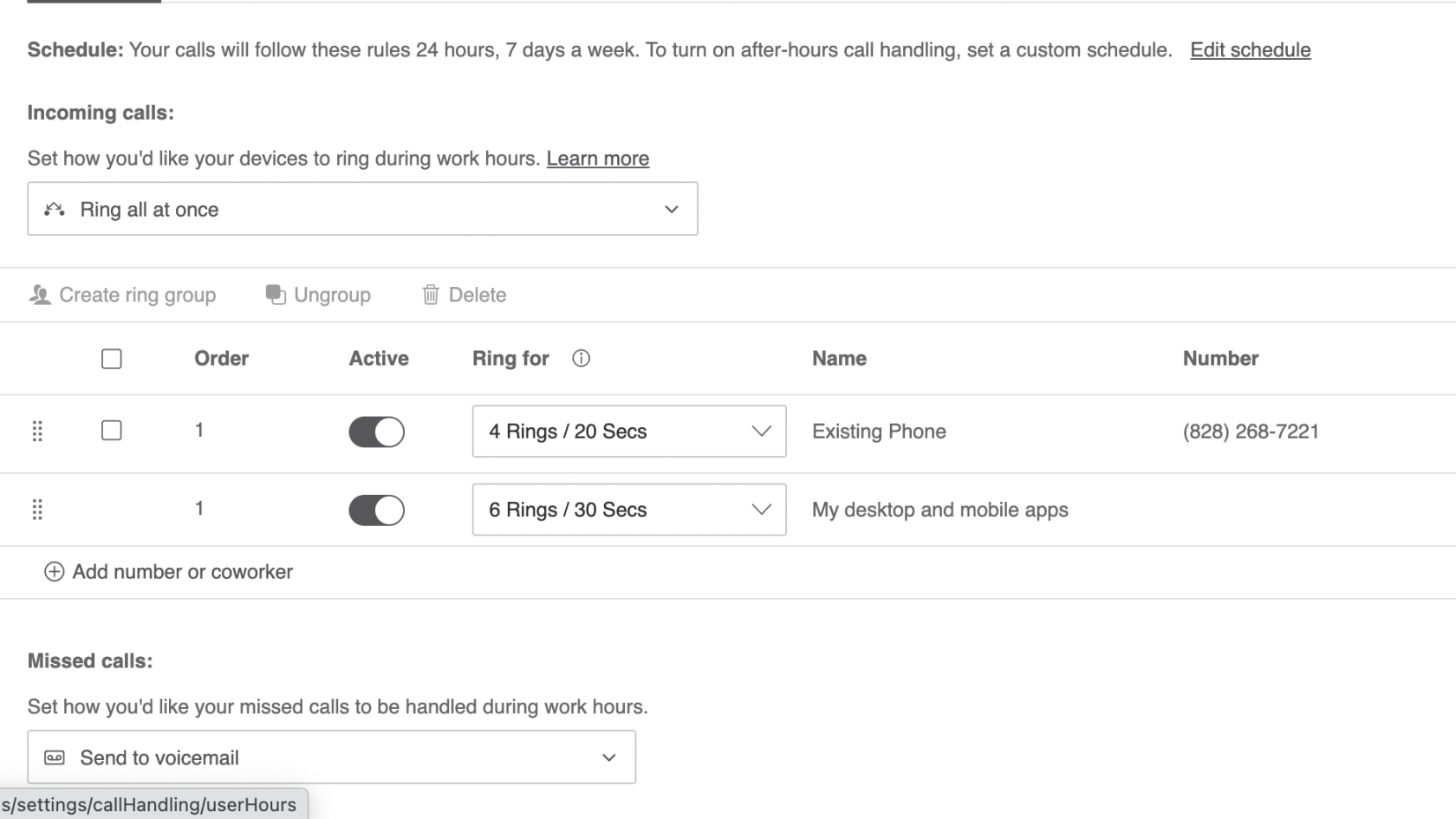
7. Here you can setup how many rings you want your phone to do before it goes to voicemail.
[](https://iss-kb.iss.k12.nc.us/uploads/images/gallery/2023-02/QSbimage.png)
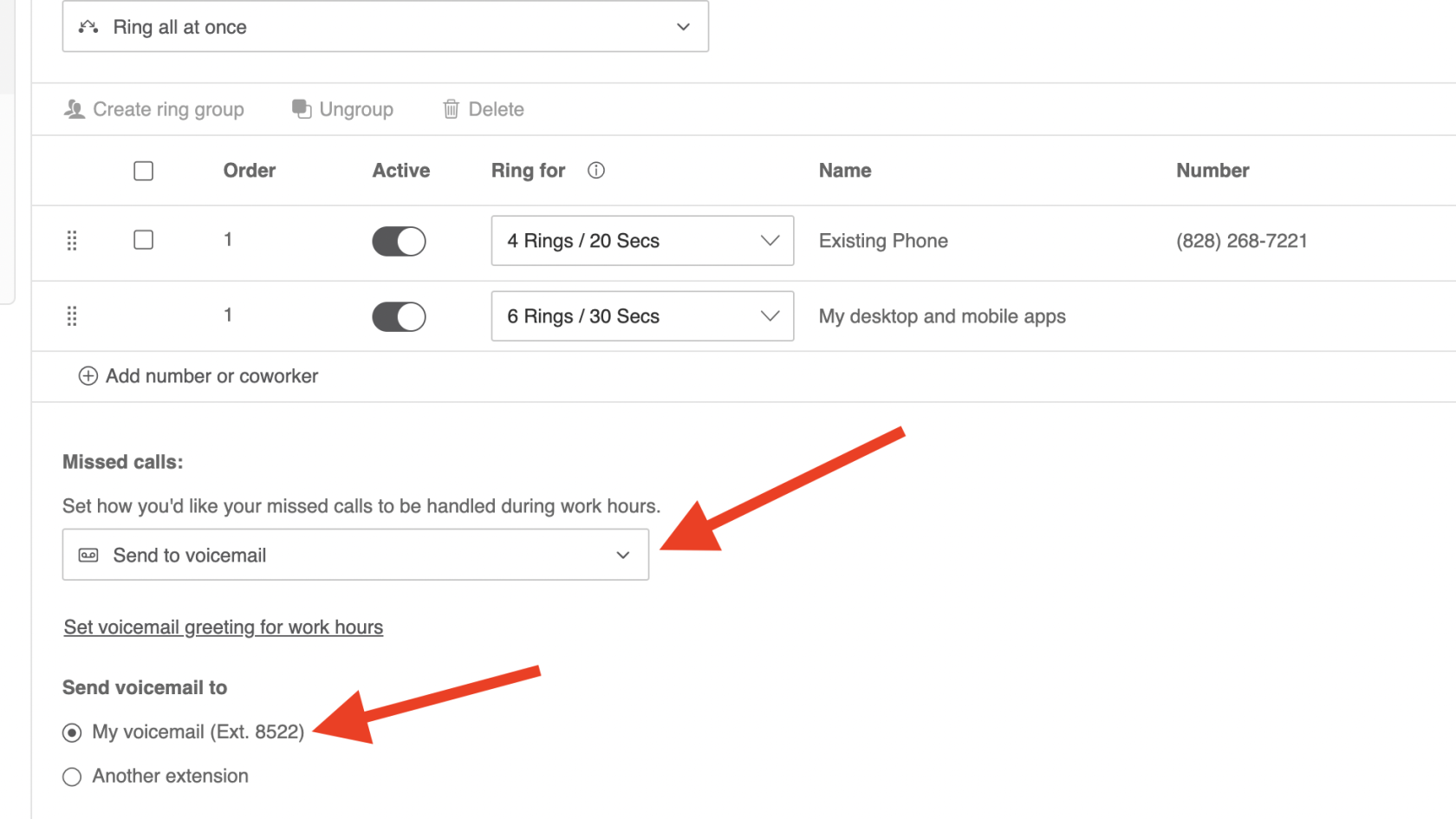
8. Make sure you have your calls set to go to voicemail during work hours unless you want to forward your calls to someone else.
[](https://iss-kb.iss.k12.nc.us/uploads/images/gallery/2023-02/f3Nimage.png)